 |
Review: Plextor PlexTools Version: v1.15a Reviewer: G@M3FR3@K Provided by: Plextor Europe |
This time we're not going to do
another review but we're going to take a look at a software package called
PlexTools. This software is
delivered with the European Plextor drives and was specially designed to get the
maximum performance out of your Plextor drive. You can use PlexTools for
instance to get more information on your drive, tweak its settings and besides
that you can use it to play audio discs (with support for CD-Text) and of course
you can use PlexTools to copy CD's or to make your own audio compilations
with.
In this small review we're
going to take a look at the latest PlexTools version that is scheduled to be
shipped with Plextor's latest recorders, the PX-W4824A and PX-W4824TU (USB 2.0 drive will be shipped with PlexTools v1.16)
drives. PlexTools v1.15a, just like the drives itself, are not available yet but
Plextor Europe was kind enough to already send us this new PlexTools version and allow us to test its new features and especially its new DAE Error Recovery feature.
Introduction:
In the early Plextor days when
you bought a Plextor drive you would get the Plextor Manager software with your drive. It didn't matter if you bought
your drive in Europe, America or where ever since all drives were shipped with
the same software. Plextor Europe also delivered the Plextor Manager software
with their drives. Perhaps it was time to start making their own software and
that's exactly what Plextor Europe did. PlexTools was born!
Test Machine:
For the tests we'll be using
the following configuration:
Hardware:
- Motherboard: ASUS K7V
- Processor: AMD Athlon 700Mhz
- RAM: 256MB (PC133)
- GFX: ASUS V8200 (GeForce 3 Ti200)
- Hard Disk: Maxtor 30GB 7200rpm (UDMA66)
- IDE Controller: PCI UDMA100 Controller
- USB Controller: NEC USB 2.0 Controller
System set-up:
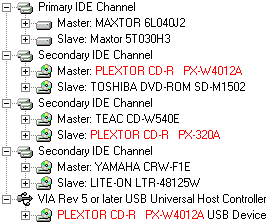
As you can see we have three
Plextor drives hooked up to our computer: the Plextor PX-W4012A, the PX-W4012TU and the PleXCombo PX-320A. For the PlexTools review we'll be using all three drives.
The Windows XP Professional operating system is installed on our test
machine.
On the
next page we'll take a look at "look & feel" of the PlexTools
software...
Before we're going to test the
new features found in this latest PlexTools version let's start with an overview
of the program and show you how it works and how it looks.

PlexTools Overview:
When you start PlexTools you
will get the following screen. The program is divided into three smaller windows
as you can see from the screenshot below:

As you can see from the
screenshot you can choose a device in the top left window of the program. Some
of the PlexTools options will only work with Plextor drives and in the
screenshot above we've selected the PleXCombo PX-320A drive. Below the window
where you can select your drive you can see another window where can select the
program features. Here you can find the following options:
- General Information:
More information on the selected drive like type, firmware version, jumper settings, IDE set-up, buffer size, etc. Via the PlexTools software you can check for a newer firmware version for your drive. - Drive Settings:
You can set the advanced options of your drive here like the read speeds and spindown time but you can also enable/disable settings like DMA, BURN-Proof, Hide CD-R Media, VariRec and SpeedRead. We'll get back to this later. - Drive Information:
More information on what kind of media your Plextor drive can read and at which speeds. On this page you can also check if your Plextor drive can read CD-Text, can report C2 error information, its access time and its firmware version and the latest version that is available (upon the release of the PlexTools version you're currently using). Besides that you can also check the drive's audio read and write offset settings. - CD/DVD Info:
More information on the inserted CD of DVD disc like size, number of tracks, sessions, disc title and disc manufacturer. - Multimedia Player:
Player with which you can play all kinds of media such as video's and audio. Support for a playlist (.M3U, .PLS) is also supported. - Audio CD Player:
An audio CD player with support
for CD-Text which can be read from the disc itself or via freedb. - Digital Audio Extraction:
A digital audio
extractor with an option to add CD-Text via freedb and advanced 'DAE Error Recovery' options which we'll test later on in this PlexTools review. - AudioCD Maker:
With this feature you can create your own audio compilations. The AudioCD Maker option also support 'dragging&dropping' of audio files (.WAV or .MP3). - CD Copy:
Directly copy a CD from source to destination drive (on-the-fly). You can of course also use a non Plextor drive for reading and/or recording. - CD-RW Functions:
Options to do a quick or full erase of a CD-ReWriteable disc. - CD Test:
An option to test your (created)
discs for possible C2 errors.
In this small PlexTools review
we're not going to test all the features since most features are self-explaining
and as we've experienced during our reviews of Plextor drives, the program works
very well. What we are going to test is some of the new features found in this
PlexTools version compared to the older versions. Some new settings have been
implemented for the latest Plextor drives (the PX-W4824A and PX-W4824TU) and
besides that we can now also find some interesting new features in this new
PlexTools version. On the next page we're going to explain these new setting and
features.
On the previous page we already
saw that the PlexTools version can give you a lot of information on your Plextor
drive and besides that we already briefly mentioned some of the advanced
settings you can enable or disable in the 'Drive Settings' screen:

The 'Disc Velocity' options
aren't that interesting since these settings were already present in the
previous PlexTools versions. Below that we can see some more interesting
settings in the 'Advanced Settings' screen. Most options are pretty
self-explaining but some options are new. Please note that some options are
greyed out in the screenshot above since these options are intended for the new
Plextor PX-W4824A and PX-W4824TU drives which we currently do not have
yet.
- Disable PoweRec:
When you disable PoweRec the
48X Plextor drive will not optimise the burn speed for the used media and will
burn all discs at the maximum speed of 48X. Of course, when your media cannot
handle these speeds, write errors can occur so it's not recommended to use
this option unless you're sure your media can handle
48X.

The 'Enable DMA', 'Enable
Single Session' and 'Hide CD-R Media' options could already be found in previous
PlexTools versions but the 'SpeedRead' option is new:
- Enable SpeedRead:
If you've read our
announcement on the upcoming
Plextor drive you will have noticed that it, by default, will be set to 40X
reading and not to its maximum read speed of 48X. With this 'Enabled
SpeedRead' option you can set the Plextor 48X drive to its maximum read
speed:

Some people have already asked
the question why Plextor did this. They're asking why the drive is not limited
when it comes to writing at 48X. Well this is because reading at 48X is not the
same as 48X:
"...Even
though it would seem logical to expect the same maximum speed for reading and
writing, and if not equal to expect a higher read speed, this is not always the
case for Plextor recorders. The reason for this comes from the different
characteristics of the media that is typically used in both cases.
Writing is usually performed on
brand-new, blank media, with virtually no surface print or labels attached,
still free from scratches, probably inserted in a CD drive for the very first
time and mastered with very high precision.
In the case of reading, the
inserted disc is often a completely different type: there is a good chance that
it is a stamped disc, maybe mastered with lower quality, less precision, poorer
tolerances and greater eccentricity. It may have heavy or unequal surface
printing or attached labels. Maybe it has been used in many drives before what
may have introduced fingerprints, scratches or small damage to the inner
hub.
Spinning such discs at high speed may introduce vibration, irritating noise, or even read errors that will cause the drive to spin down. Even worse, the micro-cracks caused by certain drives' clamping mechanisms could grow in an avalanche-like way under influence of temperature, pressure and high rotation speed, causing the disc to scatter or "explode" in many pieces. Additionally, thorough
tests have shown that a large increase of rotational speed will reduce the
lifetime of the spindle motor by 25% while at the same time the internal drive
temperature will rise, which will affect the stable operation of all components.
The effects of a continuous spin at high speed for reading are much worse than
the limited time (<3 minutes) it takes to write a disc at this
speed..."
So there you have it: the
reason why Plextor has limited the read speed of their new recorder by default.
When you enable the SpeedRead option the drive will be able to reach 48X with
stamped and recorded CD's only. When reading audio discs the speed will still be
limited to 40X reading because audio discs have poorer error correction and will
suffer too many read errors. This applies to CD-RW media as well because of the
different characteristics, like lower reflectivity.
As a final precaution, the
tray- and drive bezel of the Plextor PX-W4824A have been partially redesigned
and reinforced to prevent any particles of an exploding disc escaping from the
drive.
More New Features:
So far some of the 'smaller'
new features found in this new PlexTools version. As you will have understand
the new features mentioned above were intended for the latest Plextor PX-W4824A
and PX-W4824TU drives but now for some new features you can use with every
Plextor drive. In short the biggest changes in this new PlexTools version are
support for freedb and a special 'DAE Error Recovery' system.
freedb is a database to look up CD information using the internet.
This is done by a client (a freedb aware application) which calculates a
(nearly) unique disc ID for a CD in your CD-ROM and then queries the database.
As a result, the client displays the artist, CD-title, tracklist and some
additional information. The information can then be displayed in the PlexTools
Audio CD Player or, more interesting, the text can be burned as CD-Text when you
burn an audio CD using the PlexTools software.
And besides freedb support the
PlexTools software now offers some advanced options to correct errors occurring
during the extraction of scratched or dirty audio discs. When extracting the
audio data it will be corrected for possible errors ensuring that the extracted
audio is of perfect quality. On the next page we've done some tests with this
new feature to see if the PlexTools software can indeed extract a scratched
audio disc.
One of the most important new
features found in the new PlexTools version is the 'DAE Error Recovery' which
can detect uncorrectable read errors on your audio disc. Since the errors are
uncorrectable it would be impossible to correct them but Plextor has introduced
some smart features in PlexTools to attempt to recover the uncorrectable data.
The following options can be found in the PlexTools software:
- Report errors only:
This strategy can be used when the source disc is error-free or when error correction is not necessary. - Reduce the speed upon error:
When uncorrectable errors are found, the damaged area will be read at a lower speed in order to find an error-fee reading. - Read again upon error:
When uncorrectable errors are found, the damaged area will be read again for a number of times (retries) at the selected speed in order to find an error free reading. The optional setting 'Allow Speed Down' can be used to achieve better results at a lower speed. - Recover the best sector (least errors):
When uncorrectable errors are found, the damaged area will be read again for a number of times (retries) at the selected speed. When the errors stay, the sectors with the least amount of errors will be used to re-assemble the original data. The optional setting 'Allow Speed Down' can be used to achieve better results at a lower speed. - Recover the best bytes (least errors) per sector:
When uncorrectable errors are found, the damaged area will be read again for a number of times (retries) at the selected speed. When the errors stay, the bytes with the least amount of
errors will be used to re-assemble the original data. The optional setting
'Allow Speed Down' can be used to achieve better results at a lower
speed.


The Tests:
As you can see the setting goes
from no error-correction to error-correction on bytes level. A unique option
when it comes to handling audio errors. We of course tested the PlexTools DAE
error correction option by simply extracting an audio disc with a lot of
scratches and finger prints. We then extracted the audio disc, which had three
tracks and a playtime of about nine minutes, with the PlexTools
software.
As a comparison we used
Exact Audio Copy using its Secure Mode. For the extraction process we used a
Plextor PX-W4012A drive. In the table below you can see an overview of the
achieved results. Please note that you can check out the created LOG-files for
each extraction by clicking on the links:
| DAE Error Recovery |
Mode | Extraction Time |
Errors / Track Quality |
Log |
| PlexTools | ||||
| Plextor PX-W4012A |
Mode 1: Report errors only |
00m:34s | Track 1: 67.646 Track 2: 500.613 Track 3: 32.702 |
click here |
| Plextor PX-W4012A |
Mode 2: Reduce the speed upon error |
02m:22s | Track 1: 12.359 Track 2: 440.795 Track 3: 31.328 |
click here |
| Plextor PX-W4012A |
Mode 3: Read again upon error |
2h:19m:00s | Track 1: 0 Track 2: 401.083 Track 3: 25.825 |
click here |
| Plextor PX-W4012A |
Mode 4: Recover the best sector (least errors) |
2h:01m:32s | Track 1: 0 Track 2: 261.359 Track 3: 11.752 |
click here |
| Plextor PX-W4012A |
Mode 5: Recover the best bytes (least errors) per sector |
8h:21m:56s | Track 1: 0 Track 2: 162.028 Track 3: 4.449 |
click here |
| Exact Audio Copy | ||||
| Plextor PX-W4012A |
Low | 3h:54m:00s | Track 1: 98.7% Track 2: 95.3% Track 3: 96.8% |
click here |
| Plextor PX-W4012A |
Medium | 7h;45m:57s | Track 1: 96.4% Track 2: 92.8% Track 3: 96.7% |
click here |
| DAE Error Recovery - PlexTools vs. EAC | ||||
As you can see from the table the PlexTools software showed some excellent results and the program could decrease the amount of errors in track two with 67%!
To keep the read times low we set the read-retries to 10 instead of 99. In
theory a higher amount of read retries will reduce the amount of read errors so
it should be possible to lower the amount of read errors even
further.
During the read process a
detailed LOG-file will be created where you can view the created errors and
their position. PlexTools will make a detailed LOG-file of many other operations
you can do with the program such as with the 'Audio CD Maker' and the 'CD Copy'
function but its DAE LOG is very detailed. Here's part of the created
LOG-file for track 1 using Mode 5 in which
you can see when and where the errors were and when they were
repaired.
For our tests we used a very
heavily scratched disc which we would normally wouldn't even try to read. When
you're using a normal audio disc with a few minor scratches and finger prints
'Mode 3: Read again upon error' should be sufficient. When you're using an audio
disc with thick scratches you can use Mode 4 and 5 but keep in mind that the
extraction process can take a long time. We needed well over eight hours to read
three tracks in Mode 5 but, as you can see from the table, the decrease in
errors was dramatic...
Comparing:
Of course we also did some
comparing on a binary level to see which program, PlexTools or Exact Audio Copy,
could extract a damaged audio track which would match the original file at best.
For this we first extracted an audio track from an undamaged audio disc using
both PlexTools and Exact Audio Copy. As a result we of course got two undamaged
audio files. Next we scratched the audio disc and then did another extraction
using both programs again. PlexTools was set-up using Mode 5 and Exact Audio
Copy was set-up with 'Error recovery quality: High' and with the recommended
settings as found on The Coaster
Factory . So both programs are using their
best DAE error recovery method.
We then waited until the
damaged audio track was extracted and simply compared the extracted track to the
original track on a binary level. When the audio track has been properly
extracted, both files should match perfectly. You can see the results in the
screenshots below. Please note that was compared both EAC files to each other
and both PlexTools files to each other. This was done because both programs use
a different extraction method:

Exact Audio Copy tracks compared

PlexTools tracks compared
As you can see from the screenshots the extracted audio track using Exact Audio Copy were different than the original track while the PlexTools track was identical! Please also note that Exact Audio Copy needed well over 8 minutes to extract the damaged audio track while PlexTools needed 43 seconds!
Conclusion:
Plextor Europe has certainly
put some work into this new PlexTools release and it's really a must have for
people owning a Plextor drive. Its new method for handling DAE is simply unique
and so far the results we got were quite impressive. PlexTools was able to
perfectly extract damaged audio tracks while the extracted tracks using Exact
Audio Copy were different from the original. And besides that the PlexTools
software was also faster and it offers a very detailed LOG-file which will
certainly come in handy for many people.
Exact Audio Copy has certainly
found a new competitor in PlexTools. The only problem with the PlexTools
software is that you need to have a Plextor drive and you can't just download
the full PlexTools version from the internet. Plextor Europe only
offers the update version for PlexTools... But if you have a Plextor drive and a
full version of PlexTools and you're also into extracting audio then PlexTools
is definitely for you.