 | Review: B's Recorder GOLD8 BASIC Version: 8.04 Provided By: B.H.A. - Japan Review Date: February 2005 |
Introduction:
Recorder GOLD8 is the latest version from BHA burning range. It has a number of new features over the older GOLD7 burning software that include,
The internal engine was fine
tuned realizing quicker launching and an improvement in the processing speed
of the various functions.
The new TaskGate module
contains 2 stages to help users choose the B's Recorder GOLD8 function that
would best suit their needs. The Function Stage divides the tasks into 6
functions: Create, Collect, Edit, Backup, Play and Extension. The Contents
Stage divides the tasks by content, such as Data, Audio and Video.
The File Backup function has
now become a basic function in B's Recorder GOLD8 BASIC. Back up files easily
using the present backup settings for the Internet Explorer favourites or the
Outlook Express address book, create your own preset backup settings, or back
up any files you want anytime.
The Automatic Shutdown
function allows you to set your computer to automatically switch off after
burning is completed.
Copies double layer DVD+R
discs.
Company Information:
BHA Corporation was established on the 17th May 1991. BHA develops and publishes high-quality, cross-platform software for computerized electronic equipment. The products include formatting, CD/DVD recording, and image/sound manipulation utilities. Future products from BHA will include cutting-edge technology for XVD, DVD, audio and image manipulation.
Program Features:
A run down of the features of this burning application makes for some impressive reading. This piece of software has more features than you can shake a stick at. They include,
Data CD/DVD
Creation
Audio CD
Video CD
Copying
Ripping
Best CD
Hard Drive Backup
File Backup
Direct Cut
MPEG Conversion
HighMAT
PC Info
In BHA's Own Words:
B's Recorder GOLD8 BASIC contains the basic functions users require to create or copy CDs and DVDs, such as audio CDs or data discs, in one package. In addition to the basic features found in the previous version, B's Recorder GOLD8 BASIC now includes "TaskGate" and "rimFOLIO" stand-alone applications.
TaskGate makes it easier for users to decide which function suits their needs before launching B's Recorder GOLD8 BASIC.
rimFOLIO is the all-in-one audio solution that allows users to play and organize music files, rip and convert audio files, and burn audio CDs.
The writing engine has been tuned to enable faster performance and realize more stable processing overall. The user interface had a total makeover making it easier for users to navigate the software intuitively. The Wizard makeover now allows users to view the basic B's Recorder GOLD8 functions at a glance.
Now lets take alook at the installation and an overview of GOLD8 Recorder.
Test Machines:
This product was tested on two different machines.
Dee-27's Test Machine
Processor '“ Athlon XP 2.8Ghz (Barton)
Ram
'“ 1Gb DDR
Graphics Card '“ ATi Radeon 8500DV
Sound '“ SoundBlaster Audigy 2
Hard
Disk '“ 2X Maxtor 120Gb SATA in RAID 0
Womble's Test Machine
Processor '“ Pentium 4
2.53Ghz
Ram '“ 512Mb DDR
Graphics Card '“ ATi Radeon
9600
Sound '“ SoundMAX Integrated
Digital Audio
Hard Disk '“ Western Digital
20Gb
Software Requirements:
The software requirements for the program are as follows,
Operating System '“ 98SE/ ME/
2000 Pro/ XP (Excluding Servers)
CPU '“ Pentium 3 or compatible
computer
Memory '“ 128Mb or
more
Display '“ 800*600 or higher
resolution. 24Bit colour
Sound Card '“ Windows
compatible sound card
Hard Drive '“ 145mb for
installation of software. 800mb for CD creation and 5Gb for DVD
creation
Other '“ DirectX 9 or
above
Software Installation:
The software weighs in at about 80mb in size which is a fairly large download compared to Nero which comes in at about 26mb. However with the amount of features it has you can see why it is a bit larger.
The installations itself is straight forward. You have to accept the License agreement and then enter your details including your serial number. After that the installation will start.
At the end of the installation it will ask if you want to register your software online with BHA.
Finally you will be asked to reset your computer.
This software will also ask you to install DirectX 9 onto your system if you don't already have it installed.
Program Run Through:
The first screen that you come to when you start up the program will be the wizard interface. This is a quick guided way of using the software.
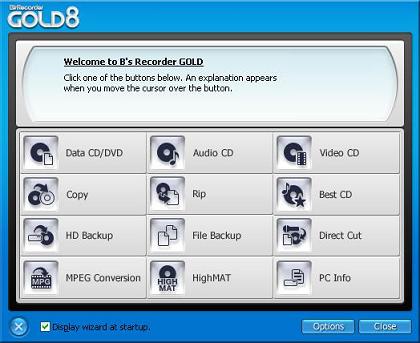
You can of course close this window down and use the software without the wizard interface. Before we go any further though, let's take a look at the options you can change with this software.

As you can see there are a number of options available to change and configure in this program. Most of the default settings should be sufficient for most people. There is even a helpful window telling you exactly what your drive can and can't do.
Most of the program wizards are fairly self-explanatory, simple to understand and use. We will however run through a few of them to see how they perform along with some of the newer and less well known ones.
Now lets take alook at the Data CD/DVD Creation wizard.
Data Creation:
Data creation is the first area we
will look at. This can be broken down into two sections, CD and DVD creation. We
will cover both in the tests.
CD
The first wizard we will go
through is the one for CD creation.

A compilation of data files
weighing in at 672MByte was chosen using the DATA CD creation wizard.
The recorder chosen was the NEC
ND-3520A and 48X burn speed was selected.
The media was a Verbatim
DataLifePlus 52X CDR.
After selecting BURN, the wizard
performed a final check on the compilation then the writing process began. In
total, the burning took 3 minutes 21 seconds to complete.
The burned CD was checked in
Windows Explorer, all folders could be opened and I was able to select all files
and run them.
DVD
Next, we will go through the same
test but for creating a DVD.

The DVD burning wizard is the same
as the CD burning one. Although the wizard makes the creation of a disc very
simple for the novice user, I found closing the wizard and using the main
program more versatile.
The data project was 3.14 gigabyte
in size and burned to the NEC ND-3500AG drive.
The burn took 5 minutes 26 seconds
to complete, again with excellent results.

Now lets take alook at
the Audio And Video Creation Wizard.
Audio And Video Creation:
The next tests we will perform are
on the Audio and Video elements of the program. The Audio test will be the
creation of a CD. The Video test will be the creation of both a Video CD and
DVD.
Audio
The next test we will go through
is the one for Audio creation.

A 78 minute 53 seconds compilation
was chosen for this test, which was put together from a number of different
songs.
Once the wizard is running, it's a
simple matter of dragging and dropping or selecting the music files required.
Once the files have been selected, they can be reordered in any way you
wish.
The recorder chosen was the NEC
ND-3500AG
Since this was an audio CD the
burn speed chosen was 16X.
The burn completed in 4 minutes 51
seconds.
The media was Verbatim 52X
DataLifePlus
After the burn completed, the disc
was played back using rimFOLIO, GOLDS playback software included in the package,
this was launched from TaskGate.
The disc played flawlessly from
start to finish. Below is a screenshot of the rimFOLIO application in use.

Video DVD
The next test we will go through
is the one for Video DVD creation.

I thought I would kill two birds
with one stone with this test. B's GOLD8 BASIC doesn't support the authoring or
creation of DVD Video discs, although this is available as an add-on pack.
On B's recorder, the wizard was
ignored and two folders were created called AUDIO_TS and VIDEO_TS in the
compilations route directory. These are the two basic folders needed to create a
DVD Video disc.
The pre-authored files were then
dragged into the appropriate VIDEO_TS folder and the project burned to the BenQ
drive.
A YUDENT0002 was selected as the
media, as this burns at 16X on this drive and the recording was started. 6
minutes 4 seconds later the project was completed with a DVD Video compliant
disc that played on the PC and my set top DVD player.

Although the BenQ drive is not
officially supported with this program, the drive had no problem burning and
completing the task.
Video CD
The next test we will go through
is the one for Video CD creation.

A 515 Megabyte MPG-1 video file
was chosen for this test.
The burn drive for this task was
once again the BenQ DW1620A. This drive is not officially supported in GOLD, so
the only burn speed available was maximum. This is one area with unsupported
drives that could cause a problem, as I wouldn't normally burn a VCD above
8X.
The burn completed in 2 minutes 33
seconds. The resulting disc played back in my PC using Windows Media Player 10
and my set top DVD player without problems.
Now lets take
alook at the "On-The-Fly" CD/ DVD Copying.
On The Fly Copying:
The next
test will be the copying of a disc 'On The Fly". Once again this will be for
both a CD and a DVD.
CD
The next
test we will go through is the one for CD Copying.

The CD
used for the CD data creation test was also used for this test. This disc
contained 672 Mbytes of data.
The read
drive was the NEC ND-3520A and the write drive was the NEC ND-3500AG. Both of
these drives are capable of reading and writing at 48X.
Maximum
speed was selected and 'Copy On The Fly" was used for the test.
The test
completed in 3 minutes 4 seconds. The resulting disc was tested for readability
with no problems encountered in any of my DVD RW drives.
DVD
The next
test we will go through is the one for DVD Copy.
The
media chosen for this test was Taiyo Yuden YUDEN000T02.
Read
drive was the NEC ND-3520A and the write drive was the NEC ND-3500AG.
Both
these drives are capable of reading a disc at 16X and both drives are capable of
burning this media at 16X.
A 4.2
gigabyte pressed DVD-VIDEO was chosen as the test media.

As you
can see, the disc was copy protected and refused to copy. However running AnyDVD
soon solved this problem and the copy was under way.

The test
completed in 6 minutes 8 seconds which is very commendable.
It was
also decided to test the burned disc for write quality using K-Probe. This was
done to see if 'Copy On The Fly" has any effect on burn quality. As you can see
there are no problems in burn quality.

Now lets take alook at CD/ DVD
Ripping.
Ripping:
In this test we will rip both a CD
and a DVD. The CD will be an audio CD and the DVD will be a movie.
CD
The next test we will go through
is the one for CD Ripping.

A CD audio disc was taken with 493
MEG of audio data (14 tracks). The ND-3500AG was used as the ripping drive.
The task completed in 2 minutes 16
Seconds and the default MP3 compression was used (320kbits per second).
After the ripping process was
completed, I listened to several of the tracks. The quality was excellent.
DVD
The next test we will go through
is the one for DVD Ripping.

A full data disc previously
created with NERO CD Speed was used for this test.

The reading drive chosen for this
test was the NEC ND-3500AG. This drive is capable of reading a DVD-ROM at
16X
An image file was created on the
hard drive in 5 minutes 3 seconds. The subsequent image was burned to a blank
DVD and tested for readability. It passed with flying colours.
Now lets take alook at
HighMAT CD reation.
HighMAT:
HighMAT (High-Performance Media
Access Technology) is a way of making a CD that can be played on computers and
consumer AV devices, such as DVD players. HighMAT is a new format, co-developed
and supported by Microsoft Corporation and Matsushita Electric Industrial Co.
Ltd.
HighMAT CD records compressed
audio files, video files and images onto a CD along with the file information
and playlists for use on supported electronic devices. For example, in the case
of audio files, the artist, song title, composer, genre and lyrics are also
recorded onto the CD. You can also create menus that contain playlists arranged
by categories such as artist or album that can be used on a player.
HighMAT CD Creation:
The HighMAT project wizard was
run. The first thing needed is to select either a new project or load and edit
an earlier compiled one.
New project was selected for this
test.

Now it was time to select the
language. English was selected for this test.

The next page is where you select
the different content for your disc. For this test two picture folders were
created, two audio folders created and a single video file were selected for the
project.

On this page you get a summary of
the project, including the actual project size and the estimated compiled size.
As we can see, the project will fit comfortably on a 90 minute CDR media.

The last screen shows us the task
completed successfully. After this the burned project was tested in Windows
Media Player 10 and it played flawlessly.

I personally like this feature;
it's nice to have the ability to have so much different content on a single
playable disc. The wizard makes creating a HighMAT compatible disc very easy
indeed.
The best results were on my set
top DVD player which showcased this new format at its best, with easy selectable
menu's and extremely good quality on all content.
Now lets take allok at
the Other Features avalible in GOLD8
Recorder.
Other Features:
Gold 8
Recorder also has a number of other programs available in its suite. Here we
will go through a few of them.
HD Backup
The
first screen on the HD Backup wizard shows you your current partition
information. You can switch this view to see your drives if you intend to backup
an entire drive instead. For the purposes of this test I will be backing up
partition D.

The next
screen allows you to set your options. Here, I have ticked the 'Exclude unused
hard disk Space" so that the overall image size will be reduced. I have also
ticked the compression box and moved the slider up to maximum compression. This
way I hope to get the smallest image possible to fit onto the least amount of
disks.

The next
screen allows you to change the recording speed, booting options and to enter a
password on the backup. After recording you can also verify the data you have
written by ticking the box.

The
final screen is just a summary of the options that you have chosen. To make the
backup, all you have to do is to hit the Finish button.

The
final message that will come up is to tell you how many disks you are going to
need to complete the backup.

Once you
have put a disk into the drive the backup will start. It will first collect the
data on the drive before writing it to disk.

File Backup
File
backup works in a similar way to HD Backup. However, instead of backing up the
entire drive, you can select which individual files or folders you want to put
to disk.
On the
first screen you can select what you want to backup. If you want to have
something backed up time and time again, then you can create a Preset Backup.
This way the next time you want the same files and folders backed up, all you
will have to do is to select the pre-made backup record.
To do
this you will need to click on the New button. If you just want to make a backup
of some random files then you can select the Custom Backup button at the
bottom.

This
next screen is where you create the Pre-made backup record. Here I have selected
to backup my old saved games folder. As you can see I have entered the location
and designated all of the files to be backed up. If you want to make backups in
the future as well, then you can also specify a date when this will be done.

Once you
have created your backup record you will be returned to the first screen. Once
you then select your newly made record you will be taken to the file selection
screen. Here you can deselect some of the files if you don't want all of them
backed up.

Once you
hit the Finish button you will be taken to the burning window. It will first go
through your files and compress them down so that they take up as least amount
of space as possible.

Once
they have been compressed down the burning will start.

When
done the following window will come up showing you what has taken placed. It
also gives you the option of saving the file list to a CSV file. Also as stated
in the window, the files will be automatically restored when the disk is
inserted into the drive.

Direct Cut
The
Direct Cut program is a way of recording analogue sound onto your computer or
disk from either a microphone or line in on your soundcard.
There
are two options available the first is to record the sound straight onto your
hard drive. By selecting this backup method you get a few more options regarding
compression, which includes MP3 and OGG format.

If you
choose to store it straight onto a CD then the compression options are
unavailable and it will be stored as wav format. Once you have put a disk into
the drive it will be checked and the amount of space will be shown.

Once you
start recording, the remaining time will decrease enabling you to see how much
more you can fit onto the CD.

Once you
have decided that you have put everything you want onto the CD you will be asked
if you want to close the CD. If you do this then no more can be written onto it
via this program, you would have to use another blank CD.

MPEG Conversion
The MPEG
Conversion program allows you to convert various video files to MPEG1 compatible
files so that you can create a VideoCD with them to play on your stand alone DVD
player.
Once you
open up the program you will need to select the video files that you want to
convert. As you can see below I have selected three files. One has a red circle
next to it showing that it will not be converted. This is because it was in DivX
format. The other two are standard MPG files.

Once you
have entered all of your files all you have to do is to hit the Convert button.
This will launch the program. Depending upon how large your files are this can
take some time.

Once
done the following window will come up telling you want was successful and what
wasn't.

Now lets move onto the Conclusions about GOLD8
Recorder.
Positives and Negatives:
While using this program a number of points both positive and negative came up. These are listed below for easy reference.
Positives:
- Clean and attractive user interface
- Very easy to use wizards
- Very stable
- Excellent burn engine
- 'Copy On The Fly" works extremely well
- Many useful burning related features
- Affordable price $ 24.99 / € 19.99
Negatives:
- No DVD Video creation wizard (Optional pack available)
- Some very popular DVD RW drives are not fully supported
- Data creation wizard is just a bit too basic for some tasks
- No label/CD cover editor
Conclusion:

Overall this is a very impressive program. It has many features that you don't normally find with a burning program.
As shown above it passed all of the tests with flying colours. It installed and worked the first time without needing to be updated or for any technical support to be called.
The one bad point that we did come across while doing the review was the lack of support of the BenQ drive. As this is a drive manufacturer that's growing in sales and respect for making quality drives, this is an oversight in our opinion.
In addition to the BenQ drive not being supported there are also a few other drives that do not yet appear on the supported drive list yet. Some of these are the latest Samsungs, LG and Plextor drives. These may or may not work correctly with the program at this time.
Looking back at the original statement by BHA,
The writing engine has been tuned to enable faster performance and realize more stable processing overall. The user interface had a total makeover making it easier for users to navigate the software intuitively. The Wizard makeover now allows users to view the basic B's Recorder GOLD8 functions at a glance.
We can certainly see that this has happened. The wizard interface is so easy to use that even a novice user will be able to create backups and burn files to a CD or DVD in minutes. The 'On The Fly" copying was done very quickly in under 7 minutes and with a high burn quality.
On top off all of this is the very low price of the software compared to others. In comparison it can be anywhere from 50% to 75% cheaper than its nearest rival.
To complete this review off, we submitted a few questions to the developers of the software. Below are the questions and their responses.
At present there is no support for some of the newer drives. Will this be addressed in forthcoming updates?
We are constantly including new drives in every update. We strive to include the latest drives in these updates, but at times we cannot keep up with the number of drives being released. By including the Drive Detection function in B's Recorder GOLD, users can use the software with some limitations until the drive is officially supported and they do not have to worry about the software not supporting their new burner.
Why did you decide to include features not normally found in burning software, such as MPEG Conversation and HD Backup?
MPEG Conversion
BHA has developed its own MPEG2 video encoder and XVD compression software. Users needs today do not stop at burning discs, but extend into the multimedia field, so we have incorporated these technologies into the B's Recorder GOLD suite. When burning discs, especially video discs, compatibility is important to users. With the variety of video formats available compatibility can be a problem. B's Recorder GOLD originally included an MPEG Check function, but what is the use of having an incompatible file if you cannot convert it to a compatible format. So we made the MPEG Conversion function as a standard function.
HD Backup
BHA has backup software available on the Japanese market, but not in other languages. Backing up data is now an important part of everyday computing life, so we now include the hard drive and file backup as standard functions in the B's Recorder GOLD suite.
Are there any more features that you are planning to introduce in forthcoming releases?
We are planning the release of the DVD version of B's Recorder GOLD8 in summer which will include DVD-Video, DVD-VR and DVD+VR functions, such as DVD-Video authoring, loading movies from a DV camera, a screen grab function, converting MPEG2 and XVD files, and joining movie files.
On the Data Creation wizard, there is no option to add individual files from a folder or remove unwanted files from a folder. Could this be added to the wizard to give the user more control?
We aim satisfy users needs in our upgrades, so we have put this on the list of suggestions for improving the software and will hopefully be included in the next major upgrade.
Final Word:
There are a lot of companies making CD burning software these days. Many of them include options to do some of the features that this software can do. However compared to this software they all fall short.
Overall we both rate this software very highly. As shown in the KProbe graphs, burn quality is very high and 'On The Fly" burning was extremely quick. Couple this with the ripping and Video Disc creation system and this is one software package that scores highly. What makes it stand out above many other programs though is the inclusion of the extras that are not found with other burning software suites. Here I am talking about the file backup, hard drive backup, audio backup, MPEG conversation and of course the HighMAT facility.
The only down side is the lack of support of some of the newer drives that are currently available. Although the drives will most likely work as intended until they are officially endorsed you can't be certain.
Therefore, we can give this software the Safe Buy award from CDFreaks.

Had there been support for the latest drives currently on the market this would most likely have been the Gold award.
The BHA homepage can be found here.
The GOLD8 BASIC homepage can be found here.
You can also discuss this software in this forum thread.