|
|
Finally the moment has come that a new child is born and not being a boy or a girl, but being both. That could have been the story but the story is a new player is born not being a DMA player or Blu-ray, but both. The Hybrid player has seen the light and we will check if it is worth that light or not. Strap on, as here comes the review you all have been longing for... the HDI'S DUNE BD Prime Blu-ray Media player.
 HDI’S DUNE awaits a difficult task as mainly MPC staff and I in particular are “against” the hype created by Blu-ray which is created by the fact PS3 consoles incorporate them. That’s however not the discussion we want to have today.
We dislike Blu-ray partially because of the cost, being too expensive and then there’s the movies being released weeks after the DVD version for which you pay more as well. Times will change though and that requires pioneers like HDI’S DUNE. We all like the networked media players and we are hopeful and excited to sit in front of the first player combining both, the HDI’S DUNE BD Prime.
The difficult task that lies at hand for HDI’S DUNE is to convince me that the Blu-ray addition to DMA player abilities is worth the extra cost over the alternative single DMA players. We will start finding out exactly that in just about as many pages we need to fill in this review to come to a conclusion.
The Package
We are not aware of what’s inside the package although expect to see the player, remote + batteries, a quick start / full manual and the standard AV cables. It is indicated there will be no cheap HDMI cable in the box but cables sold separately of good quality.
The BD Prime Hardware
The BD Prime has a size like the usual A/V components being 43cm width, about 5.5cm height and 28cm deep. The unit is looking great and is crafted well. The front is a plastic bevel where the Blu-ray drive sits in the middle, joined left by the display and at the right by some buttons to operate the unit (Play, Stop and Eject). A power button is available at the left.

While in front of the unit, the right side of the player has a USB2 host to connect USB HDD or sticks which is usually easier to access than the rear side of the unit.
Covering the rear end now we found it strange seeing 2 USB2 ports. Well, not seeing two USB2 hosts was strange but finding these separated from each other.
We start off with finding the Ethernet RJ-45 port, HDMI 1.3, 1 USB at the left top rear end, S- Video and Composite, Component, Coaxial audio output, Optical audio output, Stereo L/R, another USB 2 host and finally the 7.1 Analog RCA.


Further do we find a hole covered with a plate which purposes adding the modules that can be purchased separately including Wireless N, Dual SATA and a GBIT RJ-45 which should deliver better network performance (untested). Notice only one of these can be attached and not all 3.
Inside, the player is based upon the SMP8634 chip from Sigma, 384MB RAM memory, 64MB flash chip and a 1GB NAND Flash in order to support JAVA fast in Blu-ray profile 2.0.
The BD drive inside the BD Prime is unknown (unmarked). The chip is cooled with a small fan mounted on an aluminum cooling plate. This cooler is audible (not totally silent) as is the DVD drive, making a light humming noise as well.
Remote Control
 The remote control is the same as we seen before with the HD DUNE media player, albeit in a different color (black). The buttons and features are well arranged but as with most remotes, due to the functionality of the player exceeding the available buttons on the remote, several functions have been assigned to buttons that are not directly reflecting the commands.
We will discuss these options briefly during the media tests later on. Overall the response is good although we find the player reacts slowly every once in a while.
The first time we can test the remote is when we power on the player. A selection is offered to select a “safe video mode” which should lead to an image on your TV.

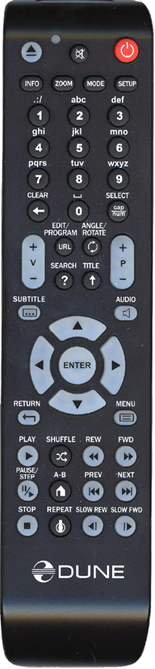 The remote holds a “mod” button which toggles between PAL – NTSC and HDMI output but we feel HDI’S DUNE made an error here as each cycle will hold the player hostage until the setting is applied. It would be better to offer faster selection to toggle between “all” output modes and when stopped, the current setting is applied. I think of people using Component for projector and HDMI for TV and such.
As stated, several options are located under “unlabeled” options. GoTo is available in two ways, pressing up and down will increase / decrease by 1 minute while pressing left and right will increase / decrease by 10 seconds; This in combination with numeric buttons (1 = 10%, 2 = 20% and so on) form the GoTo functions. A Time Search function is available too.
We handle all the options available during the media playback. As far as response is concerned, the unit reacts quite well on the remote, but occasionally we find slow response due to the system being busy with something else… like switching TV mode for instance.
Hardware Conclusion
Dreaming can do me no harm. I would have liked seeing the front right side incorporate some video input for connecting video cameras or even have the USB which is located on the right side incorporated behind a front door panel for easier access in case the BD Prime is placed inside a cabinet.
More I dislike the fact that placing the unit in standby leaves everything operational which if we combine that with the fact the fan keeps running, USB remains powered (fan is audible too from close by), we have a “green” problem. The cooler remains running because the player remains running as only video outputs are cut off while the rest remains operational. To be green, one has to use the power button and shut the player off.
We are positive on the hardware as we see a nice looking player with options and well built. The modules that can be integrated have only minimal space available inside (see pictures) where we assume it is merely in the form of a plate holding the connection with only one or few cables to be connected internally. The add-ons are not a “slot-in design”.
Since one of the modules is Wireless N allowing 3 antennas to be connected, the rear has been “predesigned” with the holes these fit in. These should be closed with a cap or something to promote airflow inside the unit even though the cooler is only a small one.
PS: HDI’S DUNE will have a second Hybrid player called the HD Center. This model will mainly differ from the BD Prime due to the use of higher quality housing and internal hard drive whereas the BD Prime can only be used with external attached storage. All the rest is alike between both models including add-ons and functionality. The HD Center has a more “high-- end” look and feel and is mainly based on the design of the earlier HD media player DuneHD.

The Interface and Setup
The interface of the HDI’S DUNE is multi-functional. We can have the menus presented in “icon mode” or “lists”, whichever is preferred and that’s a good start. Icon mode looks nice and sharp while list mode is the same kind of dull menus we are used to seeing on most players.
Icons can be applied to the main menu, folder view, setup screen and the “Dune HD movie service view” which is an integrated HD movie service from HDI’S DUNE. (Not functional at this time but demonstrated via content on a USB stick). This is how it would look selecting the list view or icon mode:


Setup Options
The setup of the HDI’S DUNE BD Center is arranged in 8 categories ranging from general settings to basic information. We run through the settings one by one to see how we can configure the player to the best of our convenience.
 General setup includes a selection of languages which at the time of review are limited to Russian and English. More languages are being prepared for the public release of the HDI’S DUNE BD Prime. The only other setting to find here is the screen saver time out starting by 10 seconds, 1 minute, 2, 3, 5, 10, 30 minutes and finally one hour. The screen saver can be disabled and consists of a Dune logo surfing the screen.

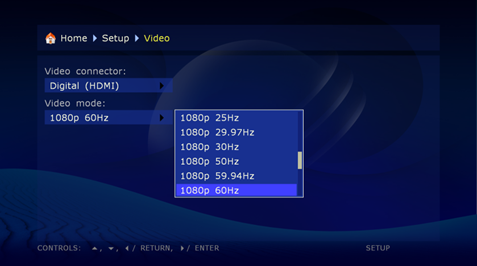
 Video settings allow us the selection for Digital and Analog outputs being HDMI for digital video output and Component, Composite and S-Video for analog video output. The output mode is selected here too ranging from 480i up to 1080p in different Hz and then there are the standard resolutions that can be selected as well ranging from 1024*768 up to 1920*1200 at 60Hz. Impressive list… Next item is the audio setup so let’s see what we have there…
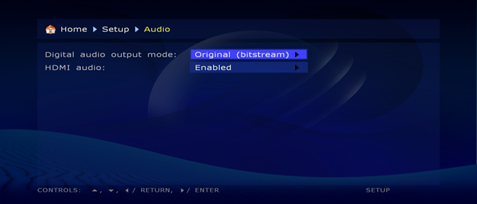
 In the audio setup we can select the analog or digital output (bitstream) and enable / disable HDMI audio. We would expect to see something extra here which benefits the overall consumer not to enter the setup all the time and switch audio modes based on what the receiver can handle or not.
Options to set analog and digital bitstream options for the most used codec’s in video files would be recommended from the setup pages being DTS, AC3, AAC and WMA Pro. This will enable the customer to set the decoding and down mix options based on their receivers abilities in decoding. While there is only 1 global setting, it will lead to customers entering setup often to change the digital and down mix to analog option.
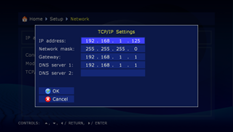
 Network configuration is as usual possible in both DHCP and manual mode. When using the optional Wireless N module, wireless configuration becomes activated as well. Unfortunately this module was not included on the review sample.

 A web browser is integrated to surf web sites and we can select the font size and overscan of the pages shown which is helpful while using certain higher resolutions. This is one of the options that can be enabled or disabled to show on the main menu.
 What I like about the BD Prime is that it integrates “signage” functionality. This allows you to prepare content that will play in a loop, display a logo on screen and have text scrolled on the TV while playing the content. This is marvelous and extra functionality that comes with the BD Prime.
The signage function can be set to “auto start” in the menu and as with the web browser, can be enabled or disabled to show from the main menu.

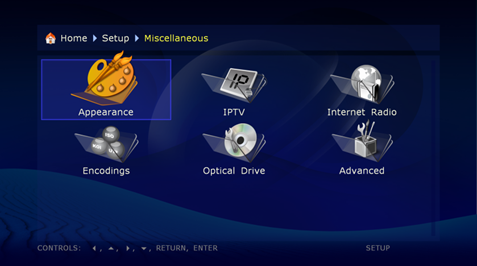
This menu option holds multiple options like changing appearance (the list of icon modes for example), IPTV, Internet  Radio, encoding options, optical drive and advanced options. We look at it right after this setup section separately.
 The last item in the setup menus is informational only. It shows the current firmware version, serial number of the device (nice to see it located here), the license type, MAC ADDRESS and current IP Address assigned to the player. A reference is available to see if the network is connected or not.

The Miscellaneous Options
 Under miscellaneous options we found few interesting settings starting with the appearance of the menus. Here we can select the icon or list mode but also activate or deactivate some browsing options like the “home” being displayed in the menus or the setup. Network folders can be assigned to show at the end of the list.


Next is IPTV settings, which are rather limited to “default” and “none”. These actually cause IPTV to be enabled and show on the main menu or not.

The same options are available for Internet Radio which can be set to “default” or “none”, again purposes activation and main menu availability.
The encoding options integrated contain both UTF-8 and CP1251 codebases. This enables users to choose support for their typical file names on the system and we assume more codebases will be added with the languages eventually.
 Optical Drive options include auto start when a disk is inserted, “Ask User” or disable the auto start. As the BD Prime supports both DVD and Blu-ray disks, the BD Prime has these options for both types of disks.

 Last option in this menu is the “Advanced” section where we can select to assign the screenshot function to the “Eject” key. When connecting a USB Stick or USB HDD drive, the screenshots are saved there. When no device is attached, the word “error” will display which is a little descriptive. I can imagine people activating this option who then want to eject the tray and see “error” on display. Not good. In fact… it happened to me and I’m not the dumbest guy… or am I? J
The screenshots currently only purpose the menus so no screenshots of movies are possible but are being worked on according to HDI’S DUNE. Screenshots can be saved in BMP or PNG format.
Other options we find here are Fast Disk Access, “Hide System Files” and again an option to enable or disable from showing on the main menu, “Dune HD Movies service”
The Dune HD Movies Service is a place where movies can be “rented” online. It looks amazing but is inactive at this time and we are unaware of the plans if this service should bring online rentals to Europe eventually.

Conclusion Setup
I have seen many good things and the interface is nice and easy to navigate but it can be arranged better as all the options that can be enabled or disabled are scattered all over the place. All these options with separate sections only to purpose enabling / disabling should be brought under 1 single category: Services! (Web browser, Signage, IPTV, Web Radio etc…)
The audio configuration lacks an important option to set analog or digital for the most used audio types ( DTS, AC3, AAC, WMA Pro) and we haven’t found the option to update the firmware anywhere… did we now? As usual we prefer the updates to be online and get a warning on the BD Prime when such update is available.
Languages need to be expanded and HDI’S DUNE should add more codebases for different countries. This is the first Blu-ray player combining DMA functionality “and” signage on top of that so the possible success rate is extremely high if done right!
We would have loved checking out the Wireless performance of the BD Prime but were unable to due to the missing add-on module for Wireless. We will eventually get one and make an update on how the performance turns out.
Finally, there’s nothing I saw that I found unattractive or classified as a problem except for 1 thing… Dismantle that screenshot function from the EJECT button as it is “looking for trouble” with users. That screenshot function and some other operations being assigned to “unmarked” buttons on the remote are items I would like to see addressed. All the rest is fine by me and I’m so uneasy to please… Marvelous job… and even better with a little further tuning. It disserves the little extra attention it needs to “finish”…
Blu-ray Playback and DVD / ISO / Video_TS
What is considered the main purpose to acquire the BD Prime is combining Blu-ray abilities with DMA abilities. This leads to the BD Prime having tricks up its sleeve no other Blu-ray players can do: Play backups from network sources, original Blu-ray disks and attached USB devices.
Disk Performance
Inserting a Blu-ray disk will take about 20 seconds before the player is ready to play the disk and prompts to start playback. This option can be changed to start playback immediately without prompting or disable auto start and question all together from the setup menus.
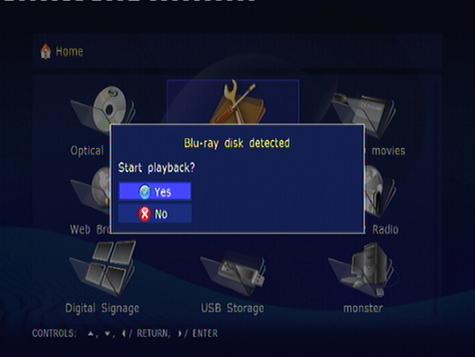
After that, we measured an average of 30 seconds to load the disk and start playing (average time based on 10 different BD titles). We now look at the options available during playback using the BD title James Bond – Casino Royal.
We found the GOTO functions are not active on Blu-ray disk playback. FF/RW is featured at 2X, 4X and 16X. A step in between 4 and 16 would be nice.


What I like is the fact features on Blu-ray playback are well done. We can pause and conduct a “step by step” to move ahead one step at a time, however the system seems to have issues locking during playback when too many options are used after each other.


Pausing the Blu-ray playback, then use Step by Step a few times and pressing rewind will lock the player. Pressing “play” to resume then comes up with a “cannot execute” error.

We keep trying pressing FF and then “play” again and the movie starts running. Somewhere we got stuck before but nothing too bad. I guess we should not do things like Pause, Step, RW, FF and Play in less than 30 seconds.

Functions as A-B do not function on Blu-ray disks. The ”repeat” button (dual function assigned to remote button Home) offers the ability to repeat Chapter, Title or repeat can be disabled.
Slow forward playback is featured in increments of ½, ¼ and 1/8 and while there is a slow “rewind” key, it only offers the same forward options instead of rewind at ½, ¼ and 1/8 increments.
During payback of Blu-ray disks you can call upon the Blu-ray menu options. This is functionality of Blu-ray to change audio settings and subtitles.

Audio and subtitle selections are possible with the remote, angles can be selected if featured on the Blu-ray disk, there is a Time Search function to jump back or ahead in the movie.
And then there was bookmark functions. There are none. Stopping playback will lead you to start from the beginning again which is a shame as bookmarks can be a powerful convenience feature if done properly allowing multiple bookmarks from multiple sources.
 Zoom options can be activated with increments of 2X, 4X and 8X and 16X and ZOOM OFF. I would have preferred progressive zoom in combination with ability to move the image up / down / left and right. It seems HDI’S DUNE has included this option in the “design” as I can see arrow buttons on the ZOOM window however; the player does not react to it during Blu-ray playback. We will check if it does on other formats.
PS: Images used are unclear due to HD content being played on Composite output for screenshot purpose. The quality of everything on a TV fit for the BD Prime is excellent! Unfortunately screenshots cannot be made with the player during playback mode.
DVD titles, then the actual disks: These are handled exactly the same as Blu-ray disks but load faster. Starting playback pops up at about 15 seconds. Playing DVD’s in digital formats like Video_TS or ISO from network need 20 – 30 seconds to start.
Options are not the same as with Blu-ray. The ZOOM options are different and given weird names, I would prefer having the regular Full Screen, Actual Size, Fit To Screen and so on. Instead HDI’S DUNE BD Prime offers a big description that confuses us…


Even Oprah does not know what these mean. This could be handled with better and more “generic” names. Further can we not find the ability to do Time Search on DVD titles like we can on Blu-ray. Pressing numeric buttons will jump to the “chapter” (press 2 for chapter 2 etc…) while GoTo function is available under the directional buttons. Up and down jump 1 minute back or ahead while left and right jump 10 seconds back or ahead.

Now things can become a little confusing. Audio sync is located under “shuffle”. Pressing left and right will increase or decrease audio with 0.05 or 0.06 increments. (0.05, 0.11, 0.16, 0.22 etc…)

Pressing A-B option which is combined with the “Home” button leads the DVD to start over again. Safe to assume, A-B is not implemented.
Step by Step functions well by using the pause button, but unlike with Blu-ray, the slow playback is not active. FF/RW range is 2X, 4X, 8X, 16X and 32X while rewinding starts at 1X. Audio and Subtitle selection is available from the remote while Angle again seems inactive.
You can press the Info button for information on time elapsed and total duration / bitrate of the video you are watching. This will also function when using Blu-ray disks.

Backups Supported?
Not yet! Both from network sources using SMB or NFS or from a USB attached device you will be able to play Blu-ray backups and DVD backups. For now only DVD is supported where both Video_TS and ISO can be used. Pressing enter will “enter” the folder structure while pressing play will start playback of the Video-TS content. Is it the same for Blu-ray titles once ready? We will know as soon as HDI’S DUNE BD Prime has launched the update supporting backups.
TO BE CONTINUED
Digital Playground
We have had a good run using all kinds of H.264 formats (MKV, m2ts…) and the usual suspects (DivX, Xvid…) and the player did everything very well. No doubt there will be issues and bugs stressing the player but overall the playback abilities of the BD Prime is equal to the competition be it several features that are not fine tuned.
We will not conduct every possible test but offer an overview of what we came across that should be improved. There’s just too many file types and special conditions at homes to do a central test outside the “basics” we expect a player to handle. All none basic stuff due to people not owning receivers capable of A and B and so on… will be covered by people adopting these players early. As with other brands, we work with them to cover as much possibilities as possible in the future.
We will also not go into detail of which formats are supported in combination with whatever audio codec’s and whatever muxing programs have been used. That’s impossible to do for a large crowd and hundreds of custom demands and we leave that up to the early adopters to discuss online. This review is supposed to be an introduction and reference to HDI’S DUNE on where to improve and tune, not a detailed technical pro user report from A to Z…
As for files supported, that’s what the specs are all about available here: http://www.HDI’S Dune.co.il/fullhd_players/72-dune-bd-prime.html. Now that has been said, let’s check the digital playground abilities of the HDI’S DUNE BD Prime…
Important for most and good to hear for Matroska users is that the HDI’S DUNE BD Prime performs very well on these files. Although subtitles are supported in both external SRT and embedded mode (can even switch between both all you like), the subtitle engine on the HD BD Prime is not convincing.
Subtitles have issues displaying correctly, use an ugly background shading instead of an outlined font and occasionally has issues with characters like “ë” for example which will leave the rest of the sentence out.
First we try the full alphabet from a-z whish is displayed right. You can see the blue shading background which is not so much of a burden in this case but if one line of text is longer than the other, see what happens in image 2…
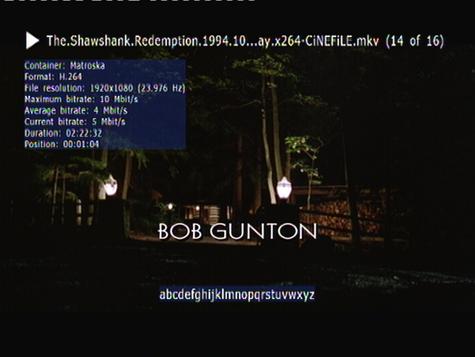

See how the subtitle background becomes a block shown on screen whereas using outlined subtitles would be clear on both light and dark movies without disrupting the image this way.
Now the next line is supposed to read as follows:
If characters are used with é or ë
the rest of the line does not show...
Notice how the é or ë is not being read and the rest of the subtitle is not shown…

HDI’S DUNE sure has some work to do on the subtitles as we consider this an important problem given that most Europeans need subtitle support.
Now trying with numbers and characters:
Abcdefghijklmnopqrstuvwxyz
%$-_°)0à9ç8!7è6§5 (4'3"2é1&

Oops… Definitely needs a better subtitle support to avoid lines breaking off and a system that can support the max possible number of characters using codepages for example.
As for other functions, Time Search is not available, seems only active for Blu-ray playback although the numeric buttons and directional keys are active for that purpose. Unlike with DVD, on digital files (tested with H.264 MKV) slow playback is active and step by step is possible.
FF/RW behaves erratic as switching to 8X forward and then pressing RW to decrease to 4X for instance is not possible. The player will instead go to 2X rewind. Forward is smooth up to 8X and then starts jumping ahead, while rewind starts jumping back already at 2X.
We found pressing forward to 8X, then press Rewind and then press forward again actually increases the steps of rewinding to 4X rewind, then 8X rewind instead of winding forward. This fits in what I have seen a few times already where pressing up actually goes down and pressing down sometimes goes up. It depends on how fast you press these keys. This “bug” can be reproduced every time.
Press forward up to 8 speed. Immediately press rewind to 2X and now press forward again. The BD Prime will increase the rewind speed. ZOOM functions and repeat options are all the same as with DVD playback for what the other options are concerned.
Conclusion Playback All Video Formats
I can’t say I’m completely satisfied but neither can I say I’m disappointed as I’m not. Most of the quirks and issues we found are due to operating the unit by remote where the player seems to struggle following commands that are pressed too fast after each other. This is in combination with the subtitle issues that cause inconvenience. Both unsupported characters and the background shading should be addressed ASAP. People will not go out and purchase a €400 high quality player or go blu to have their screen 15% covered by the subtitle background shading. That, we consider “too much” blue. It’s often in the details… and HDI’S DUNE should try delivering the least possible disruption using subtitles and tune the viewing experience.…
As for file playback and features. I do not quite understand why for Blu-ray several options work one way and for DVD or digital files they work in another way. This is confusing and should be further aligned so all options are available for all file types and then add bookmarks!
Support for file types is awesome as we expected. The real mass test will surely reveal quirks here and there so if HDI’S DUNE can concentrate on stabilizing and tuning the basics for a few weeks, it will be ready to answer on support for files that do not work as expected and tune further options that relate to technical shortcomings.
Music Briefly
Not too much comment. These players are not made for this but are able to display pictures and play music. We are not going into that too deep here. Main purpose is Blu-ray and DVD along with Video in H.264 format and the usual… with additional “light” support of images and music files.
I must say however, the music section is somewhat special. From the directory of music files you press play and the HDI’S DUNE BD Prime will create a virtual play list and start playing from there. Unfortunately, it seems it will show occasional errors on files it has trouble to read due to the filenames…

Other limitations are that neither repeat nor shuffle seems to be accepted while the player is in play mode. Only “info” is available. For repeat, you can press the “menu” to see the files currently in the play, change the repeat mode to on or off, but still no shuffle. You can browse the list and select another file to play.

You can FF/RW in songs playing using the directional keys in the same way as we do during movies. The “menu” by the way also functions during video playback. While the movie is playing, you can call up the list of the current directory and select other files to start playing. I think we forgot to mention that before.
The image below shows the default play mode window having the song title as screen saver. We use the directional keys to FF/RW inside the song.

What might not be good about this system is that both PLAY and ENTER start the same play list mode playback. There seems no option to play a single file without the play list being generated. Consumers having multiple folders for albums might experience issues here as the play lists are not created recursively.
Pictures Briefly
Considering we did not find any settings for slideshow timeouts, the image section is expected to be small. Again both play and enter purpose playback of the whole directory. We left the unit alone for a couple minutes but found the BD Prime not to play the play list, but remains showing the same picture we started with.
Rotation is available but no ZOOM and as stated, no slideshow timeout (and as it seems, no slideshow at all is implemented yet).
Web Radio
By now all the “extra’s” we consider a media player should have become the biggest problem of the HDI’S DUNE BD Prime. It has so much integrated but hardly anything besides the core purpose of the unit is at a “finished” status. That includes web radio which only has few items available.
While it is nice to have web radio, I’d expect features like adding custom stations or at least a good part of stations available as there are thousands of good stations out there. Integrating with services like shout cast (even at a license cost) would be a great addition to this player for music freaks.
Displaying the current radio playing is done in the same way as the music playback section. Actually, you can even turn “repeat” on here although I doubt it will be useful. How do you repeat a “radio” broadcast without recording it? (details, details)


What's More?
There’s more to explore on the HDI’S DUNE BD Prime like the web browser functions and the Video On demand Store which is currently only available in demo mode. The Digital Signage functions are an extra as well (and fully working). IPTV is great but lists only a few channels of which none are working during our test.

SMB and FTP Server / Navigation
The HDI’S DUNE BD Prime integrates SMB and FTP server. As soon as a hard drive is attached it will be used as the target for both SMB and FTP. Notice that only the first attached device will be activated for this. You cannot use multiple HDD’s for these functions.
This is the reason why the fan keeps running and the system remains under power except for the Video DAC which is cut off in standby.
Problems I see with this setup is that NTFS is a “read Only” file system so the use of FAT32 and EXT2/Ext3 is necessary where FAT32 is simply no good considering the file size limitations. This is quite a burden as on the other hand ext2/ext3 makes the hard drives less accessible from PC, unless installing drivers that can read the format and that again makes it less portable to hop around with the disk.
 Both SMB and FTP server currently function under full or anonymous access. BY simply using the “run” command on the PC and the UNC path of the HDO BD Prime (192.168.1.125 or whatever IP Address is assigned to the unit) we can access the internal hard drive.
Problems detected are that if we connect disk A and the disconnect it and replace disk A, in Windows Vista opening the SMB share (internal_hard_disk) will still show the content of disk A and cause Windows Explorer to crash. Is there any local caching of the content done and not refreshed or is this an error of Windows Vista? I don’t know but we can find out issuing a reboot of the HDI’S DUNE BD Prime…

And now… the content is correct after the reboot indicating the BD Prime might have an issue here if switching hard drives. After a reboot the SMB to the USB stick connected runs fine and we have access to files and folders enabling us to test the performance of the network.
Network Performance
One can copy and play content at the same time but this is bound to cause issues with network performance of course given the limitations of the chip’s data abilities.
Copying a file of 526MB took 4 minutes and 3 seconds. Calculating this in performance leads to about 2.2MB/s. This is not the speed we consider convenient.
FTP performance is measured at about 4MB/s which is already close to the expected 5 – 6 the chip should be able to handle.


While the performance indicates 4MB throughput, the total time before the file is actually copied shows the average thoughput is only 2MB/s. Also with FTP in the end the player needed 4 minutes and more to copy a single 320MB file… (Using FlashFXP)

As for performance in playback from network sources, we haven’t found any file that is not able to be streamed including the famous bird scene in the BBC documentary Planet Earth. Safe margin with Sigma chips is 40Mbps bitrate and it handled files up to that limit and higher just fine. Notice this is not exact science as a lot depends on other factors as well…
Managing Files / Navigation
Managing files can be done using the “menu” button which offers a submenu with file operations. We can create folders, move files and some other actions upon folders on attached hard drives or network / PC. Notice, it is mandatory these drives are not “read only” either by not using NTFS or having proper security rights set.

Creating new folders is convenient using the numeric keys, similar to your mobile phone text messages. The online help is great as it shows which letter is selected or available when pressing the keys.


Moving files is easily done by selecting the file copy / cut, browse to the folder where to paste / copy the file to… It’s the usual options that are provided and is a nice to have. Design of it all is easy and straight forward. A benefit of the HDI’S DUNE BD Prime is the interface and easy access.
The same type of menu can be used for creating and managing network shares. Both NFS and SMB are supported. We are able to use user accounts which are extra safety measures instead of using GUEST and FULL ACCESS.

Selection of SMB and NFS is integrated. What we like most is the fact that we do not need to add certain masks to the shares like most players, for example NMT’s would require nfs://ipaddress:/share or nfs-tcp/… manually entered.
What is missing from HDI’S DUNE, which NMT does include, is discovery of shares available on the network. Maybe another tip to add, considering we like having multiple options in handling network folders.

Closing Statement
We went through some extra efforts bringing this review, not in the least investing in PC Blu- ray backup abilities once these features are added. The review has become quite extensive and we tried to pinpoint the good and evil about the HDI’S DUNE BD Prime as it is today.
We must consider that BD Prime did not have a year to mature and therefore is a work in progress, just like the NMT’s have been a year ago and many others still are. People expecting a stable and full functional player will become disappointed as in this state, the HDI’S DUNE BD Prime is mainly tailored for early adopters who can live with some limitations and quirks for a while until the firmware becomes mature.
We highlighted the importance of regular updates and tuning basic functionality including subtitles, trick operations, NTFS Read/Write support and several other basic things that increase the overall convenience and experience. We eagerly keep an eye out on HDI’S DUNE to see the Hybrid player, the first in the world, to become mature.
HDI’S DUNE has gone through many efforts being the first to deliver and with pioneering always comes a lot of attention and discussion. In the end, the price balance for HDI’S DUNE and its included BD abilities is good value for money. A lot of things can improve and will be improved according to HDI’S DUNE with priority.
With that, we are ready to write up our conclusion.
Addendum
Following is info delivered by HDI we found important enough to include. As a general recommendation we urge people to see the HDI Dune BD Prime and HD Center as a “general” player with a lot of abilities beyond Blu-ray, however at the cost that neither Blu-ray and DVD playback is as advanced as the stand alone players. This unit fits those seeking a single player for a lot of content and does not fit high-end users who want to reach the best possible quality.
IPTV and Webradio Configuration
It is not intended to be static/fixed (and actually it is not, even in the current firmware). The idea is that there is a set of available configurations (one configuration = list of stations). Available configurations are listed in Setup, and the user just chooses one of them. Different ways of providing configurations are possible/planned, e.g.:
- Special web server, from which the configurations are automatically fetched via Internet.
- Configurations stored in built-in flash memory, with a possibility for the user to update them somehow (separate feature).
- Configurations stored on an attached media (e.g. USB flash) and automatically detected/used by the player.
These possibilities are not yet used / implemented in the current fw, except the following one (which can be considered as a "proof of concept"):
You can put your own configuration onto a USB drive, attach the USB drive to the player, and the player will automatically recognize and use it. The USB flash disk you received with the BD Prime sample contains folders "IPTV_config" and "InetRadio_config", with one subfolder "Default" in each. You can modify the content of "Default" folder to alter the set of WebRadio stations and IPTV channels.
Advanced users may prepare such configurations on their own, and distribute them to non-advanced users. (At the moment, you can only edit the "Default" configuration in such a way, and can not introduce multiple configurations yet - this will be possible in future firmwares.)
Customizable Icon View
Download brief HowTo and AAI convertor here
There is Icon View customization mechanism, allowing users to implement features similar to IPTV/WebRadio channels browser, "Covert Art" browsing, and other nice features on their own. The idea is that you can put a special file named "dune_folder.txt" into a folder, and this influences the representation/behavior of this folder:
- You can assign a picture for the folder. This picture will be shown in the parent folder when "Icon View" mode is used.
- You can force "Icon View" for the folder content. I.e., when the user enters the folder, Icon View will be automatically used, even if List View is used by default for all other folders.
- You can turn the folder into so called "media folder". You do this by specifying a media URL, which can be either a local file path (e.g. some file located inside the folder), or IPTV URL (udp://@...), or HTTP URL. For media folders, there is a special behavior in the file browser: when the user presses ENTER or PLAYS on such a folder, the playback of the specified media URL starts automatically.
This mechanism is very flexible/powerful and allows one to implement different nice things. The top-level menu for IPTV and WebRadio internally uses exactly this mechanism; the configuration for IPTV / WebRadio is just a set of folders (one folder for each channel/station) with dune_folder.txt and logo inside. Users can prepare their own IPTV-like and WebRadio-like folders (stored on any connected media). Just navigate into IPTV_config/Default/folder on the mentioned above USB disk to see how it works.
Users can do similar things for other kinds of content, e.g. create a "My DVD collection" folder listing DVD disks with each disk represented as a DVD cover image (create one folder for each DVD disk, and put dune_folder.txt, disk-cover image and VIDEO_TS into it, and specify VIDEO_TS as media_url). Etc...A nice thing is that each channel/station is represented as a dedicated subfolder, and the name of the channel/station is represented as the caption of that subfolder, so all usual file management operations are easily applicable if needed:
- You can rename a channel by the usual "rename" function (rename the corresponding subfolder).
- You can delete/copy/move a channel or a set of channels (mark them with "SELECT" button or context menu) into another location by the usual delete/copy/move-folder functions.
Besides, "media folders" behave just like regular media files in a couple of other cases (e.g. during playlist generation and ENTER/PLAY handling). Of course, normal users will hardly want to prepare dune_folder.txt files by hand. Advanced users may implement tools for generation of all necessary metadata (dune_folder.txt and folder-image) from a media collection in an automatic way (e.g. fetch DVD cover-image from IMDB).
NOTE: Pictures are currently stored in a special internal format (".aai"), and a special tool is needed to convert standard picture formats (e.g. PNG) to this format; this special tool is available for the Windows platform (can be provided on demand, please let me know if you need it).
Support For Playlist Formats .M3U and .PLS
Metadata (captions of playlist items) are parsed and visualized in playlist browser during playback.
There are some advanced features:
- Playlists may contain IPTV links in VLC format (udp://@...).
- Playlists may contain HTTP links to media files and streaming media resources (including links to WebRadio stations) (http://…..)
- Playlists may contain links (including HTTP links) to other playlists. Referenced playlists are fetched recursively. This also allows to fetch the playlist from an external server (the playlist may e.g. contain links to a number of WebRadio stations).
- When PLAY is pressed on a folder with e.g. a collection of .mp3 files, and the folder also contains a playlist file, the playlist file is automatically detected and the mp3 files are played not in alphabetical order, but in order determined by the playlist file.
Recursive Scanning
There is a support for recursive scanning of folder content and generating a playlist from all media files contained in all subfolders of the folder. Just press PLAY on a folder (or a set of marked folders). During scanning, progress is indicated. If scanning takes a while, the user can stop it at any moment.
File Copy Functions
Built-in file copy function allows one to copy folders recursively. During copying, progress is indicated. If copying takes a while, the user can stop it at any moment.
Audio Limitations
There are some important limitations in the current fw for working with audio. These limitations are planned to be addressed in the nearest future (we are working on it), but nevertheless they take place at the moment. I think that potential customers for which these limitations are important should be aware of them, and maybe avoid buying the product until these issues are resolved.
HD Audio Info
HD Audio (DTS-HD, Dolby True HD) is currently supported only for Blu-ray-disk playback; it is not supported for file playback.
Bitstream
"Bitstream" audio setting is currently supported only for Blu-ray-disk playback; it is not supported for file playback and DVD-Video playback. For file and DVD-Video, audio decoding is always performed (this includes DTS decoding). This is not a problem when a HDMI or analog connection to a receiver is used, but this may be a problem when a S/PDIF connection (optical or coaxial audio output) to a receiver is used: S/PDIF does not allow pass-through of multichannel PCM and supports only stereo, so multichannel audio tracks (DD and DTS) will be sent via SPDIF as stereo PCM.
We understand the importance of these issues and plan to do everything possible to solve them ASAP.
FLAC and Audio CD Support
FLAC, Audio-CD are not currently supported. These features are planned, but are not yet implemented.
Torrent Downloads
The torrent client was not included into the fw of the shipped BD Prime sample, although this feature is declared for BD Prime. Its implementation is 99% ready and may be included into the next fw.
Web Browser
- Here is some important info on possibilities and limitations of the Web Browser from the document "dune_hd_mini_samples_info.doc" (I think DKV has sent it to you?); this info is applicable to BD Prime as well:
- You can browse Internet web sites directly on your TV using the built-in web browser.
- The web browser is not part of the main user interface of the player; it is a dedicated application that should be launched separately.
The web browser is based on the Mozilla web browser and provides a similar level of compatibility with web sites. It is quite a general purpose web browser, allowing to browse general Internet web sites (including web sites using rather advanced HTML and JavaScript features), rather than just specially developed simple web sites.
However, since the web browser is a very general and advanced software application, and the player hardware is rather limited, the performance of the web browser is rather limited too (both the performance of initial startup and the performance of loading and working with web pages). Besides, not all web sites are supported; in particular, complex web site may be unsupported due to memory limitations (web browser may even crash on an attempt to view such complex web sites). So, the web browser is only useful in specific scenarios, given that all of the following takes place: it is highly desired to work with a web site on a player-attached TV, the web site is well supported by the web browser, and the limited performance (slow response to user actions) is acceptable. It should be taken into account, that the web browser of Dune HD Mini is not a substitution/alternative to web browsers on personal computers, and its performance/limitations are rather different from those of web browsers on personal computers.
To launch the web browser, press "URL" button and type any web site URL you want (e.g. "http://google.com"). You can also keep the URL empty, then a predefined HTML page with some links will be used. After that, the web browser will be launched. Web browser startup may take up to 10-30 seconds.
To work with the web browser, the following input methods can be used:
- Remote control in the "keyboard" mode.
- Remote control in the "mouse" mode.
- USB mouse. NOTE: You should connect USB mouse to the player before launching the web browser.
- USB keyboard. NOTE: You should connect USB keyboard to the player before launching the web browser.
Navigation Tip
During file/DVD-Video playback, not only LEFT/RIGHT/UP/DOWN buttons are supported to adjust the current playback position (+/-10 sec, +/- 1 min), but also P+ (aka PageUp) and P- (aka PageDown) buttons (+/- 10 min).
Final Note From Reviewer
It is expected due to the use of the Sigma SMP8634 chip that the Blu-ray titles using BD-J will load slow unlike the latest gen Blu-ray players powered by Panasonic or Reon chip. This is mainly because the chip’s abilities of data processing are not that good. This might affect performance on BD+ online content as well.
Although the player is licensed, we are unaware if the Dune BD Prime will become a “certified” player.
Conclusion
Wow... how are we going to write up all the mixed feelings I have about the HDI’S DUNE BD Prime… Let’s start by saying it’s a bomb… combining both Blu-ray and DMA abilities is “new” and appealing on its own. While the HDI’S DUNE BD Prime does both quite well as far as playback is concerned, there are quite many little things underneath the basic functionality of the player to consider it “not ready” for normal users expecting a “finished” product.
Subtitles, trick handling, scattered menus, NTFS Read only and some others are amongst the most important to address soonest possible. We did see some good functions including these options like FTP/SMB server by attached storage but why no NTFS Read/Write? Subtitles can be switched between internal and external but why do several characters keep the lines from showing? Why is it not outlined subtitles? Why are the subtitles displayed almost in the middle of your screen? Do we need options to move up and down, sync subtitles, choose font size and so on…? Yes, we do!

Concerning playback, we seen the HDI’S DUNE BD Prime perform very well but could easily have tricked playback to lock up the player or react in the opposite direction than intended and found a list of things we would like to see rearranged or be a tiny bit different in favor of convenience, like switching TV Mode for example. Why is it every time we press the TV MODE button, it activates the next output. Just activate the one we eventually select and add all output resolutions to the list to toggle from.
While music is somewhat special on the HDI’S DUNE BD Prime, no shuffle abilities is a killer and no difference made between selecting a single file or play the whole directory is a problem too… Creating play lists should also be custom as how will people handle the play lists if all files are in subfolders by artist or album? Saving play lists would be a plus too…
Picture section, does not exist beyond the ability to rotate and press “next”. Blu-ray backups, not implemented yet. Does it sound as if the player is immature? Absolutely, as it is immature to be honest and frank about it and we have to be honest about being excited, happy and disappointed at the same time…
I would keep an eye out for HDI’S DUNE as the player still rocks with all these issues. The menus, options and abilities, combination of commercial DVD and Blu-ray in the future extended with backups for Blu-ray (DVD already available) and the overall interface are just brilliant to find in a single device.
I’m always expecting convenience and in the current state the HDI’S DUNE Prime is, will not suffice for me to use it daily but I still will do so as it can do all (or most of all) I currently do with multiple devices and I trust HDI’S DUNE to improve on the other stuff. I’m also interested to see where the HDI’S DUNE will lead to and try to catch more bugs they can fix.
Will the product become a success? Very likely it will become a success… Hard to say how well it will do but I’m behind it and that means something already (pushing HDI’S DUNE to move on). I know thousands are waiting for this and a lot of those will use this review to help make a decision to buy or not. We will not go to help you with that. The review pretty much states the condition of the HDI’S DUNE BD Prime and if you can live with the shortcomings, go out and buy one or three.
Fact is, we cannot foresee the future. If an NMT comes along tomorrow with Blu-ray, what will happen with HDI’S DUNE BD Prime as NMT firmware gets much more mature? Let me tell you though, if HDI’S DUNE BD Prime can achieve regular and decent updates addressing at least the high important stuff we found limiting our abilities and excitement during the review, it will be a tough competitor to beat even by NMT...
HDI’S DUNE has a few months to spare to achieve that mature status before others will come with a similar solution. By that time we will know if HDI’S DUNE will be able to compete with the competition or not. It all will depend on how quick progress is made and where the value of these updates will be… Will they have the same weight as we add to the issues? We don’t know… but will find out soon.
We recommend the HDI’S DUNE BD Prime as it is fun and we can use the “mass” to help HDI’S DUNE tune the most crucial parts of the unit but notice we only recommend it to people that like pioneering at this stage and are not quickly blown off their feet by few issues and findings along the way. Show them about what we care and guide them in the right direction can be an opportunity here and we either take it or leave it and in this case… I’m going to run with it...
HDI’S DUNE is aware the firmware status is immature and intentionally releases the player as “pioneer” device at the moment for people looking into combi Blu-ray and DMA. Now we need to go further and lift it up to a much more valuable status: Home Ready!
Great player… I look forward to some updates as if my expectations are remotely true for what comes; it’s going to be a bomb…! I never thought such good things could come from a country where someone named Lord_Kiron lives J
Back to work now HDI’S DUNE! Lead the way into our homes…
If we had a point system, we’d give it a 7.5 for features / balance because most stuff is there, just needs stabilizing and expanding what we can do with it…
Pros
- Pioneer: First Hybrid ever…
- Good design and components
- Blu-ray and DMA
- HD playback support
- Decent quality built unit
- Great interface and options
- File compatibility / handling
- Features Digital Signage
- FTP and SMB Server on external USB storage
- SMB and NFS support
- Video On Demand (planned, demo inside)
- Add-ons (Network, Wireless, SATA)
- Reasonably priced for pioneer device
Cons
-
Noise cooler / DVD drive occasionally
Based on sample unit using different drive. Retail units will have different drive!! - NTFS Read only
-
BD Backups not ready
-
Limited subtitle support / vision
-
Overall firmware immature
Device not ready for mass consumption or high-end users, never the less recommended as it earns the time to evolve like anyone else and does not do a bad job at all... Truly refreshing.
Some Undisguised / Left Out Details...
During MKV playback from a network source, using FF for too long will cause the player to lock up. During FF RW operations, sometimes pressing FF will increase RW operation. Unit is not always responsive. HDI’S DUNE BD Prime has a reasonable fast menu system but browsing lists is not always fast. Use channel UP / DOWN to jump pages can help. J There is a volume control on the player available. Out of the ten disks tried, 1 disk failed loading. We assumed due to a bad disk. It is to be expected not all disks play flawlessly, there are many flavors. Such titles need to be reported and is impossible to test in advance…
When using NAS servers that are configured with green functions (stand by after xx idle time), the HDI Dune BD Prime might fail to wake up the player unless accessing the network folder again.
HDI’S DUNE BD Prime will hit stores at €449 while each add-on will cost €49, a bargain considering it includes Blu-ray, but the status of the DMA side does not yet reflect good competition for NMT. Consider however, this player costs as much as a TViX without Blu-ray… That kind of put things in perspective huh? Notice pricing mentioned is based on current dollar exchange rate of 1.35 / EUR
No other Blu-ray entries are expected before Q1 2009 leaving an open window for HDI’S DUNE to mature and remain the only solution available for Hybrid. It is the leader because it is the only one… J
Buying overseas, notice the import tax can be quite a surprise with 14% media tax, 19 – 21% VAT and import tax / administration. The prices depicted are local retail prices. Do your homework to save some bucks and avoid surprises. The players will hit stores in December, just in time for the Christmas shopping list.
HDI is very interested in hearing what you would like to see next and you can decide what the most important features are on the players. HDI has created a voting list for this purpose so if you are interested in Hybrid players, you can make your vote count on what is more important to be added next…
http://www.hdi.co.il/features
Boy… this was fun!! No pun intended, but after so many NMT’s, it was time to see something fresh… and we did! Great job HDI… Keep going!
Enjoy
Hi-Jack
Author: Hi-Jack ( www.mpcclub.com )
Proof Read: Seán (Thank you)