 |
Preview: INOi Media HardDrive MH720 |
We at CDFreaks would like to present a review of the Media HardDrive from INOi, the MH720. The new MH720 not only stores data with its 3.5” SATA HDD but supports high definition video output (up-scaling to 720P) for better picture quality. The drive also supports digital sound quality. The drive will also support computer hot swap and high speed data transfer with its USB 2.0 interface.
Company Information:
Let us take a look at some of the company information found at the INOi (USA) Website:
INOi is a company dedicated to manufacturing and marketing the latest innovative products for the computer and consumer electronics channels. INOi’s mission is providing products that bridge the gap between computer and consumer and make their customers lives easier and more productive.
Some of our latest products consist of devices that allow you to watch downloaded movies from the internet conveniently in the comfort of your living room as well as external miniature hard drive products that allow you to store all of your precious digital photos and important files in a product that fits in the palm of your hand.
INOi’s products are available in the US and Canada though major retailers, on-line resellers and national computer and consumer distributors.
Headquartered in Southern California, INOi employs a full team of seasoned sales and marketing personnel as well as a fully trained and dedicated technical support staff that are available in the event customers need assistance with their products. INOi also has a fully staffed overseas Research and Development and manufacturing facilities in Taiwan.
For more information about INOi, please refer to the corporate website: http://www.inoi.com
Drive Specifications:
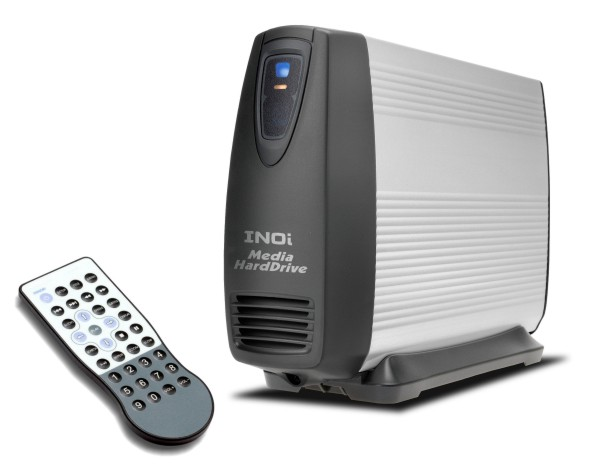
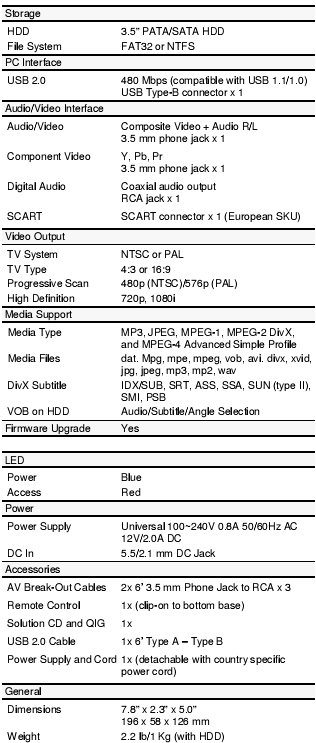
Let’s take a closer look at the drive features.
- Download video through PC and immediately playback on TV
- DivX subtitle: IDX/SUB, SRT, ASS, SSA, SUN (type II), SMI, PSB Audio/Subtitle/Angle Selection
- Operates as a Hi-speed USB 2.0 hard drive and supports both NTFS and FAT32 file systems
- Operates as a Hi-speed eSATA hard drive and supports both NTFS and FAT32 file systems (our review unit is only capable of USB)
- Supports both NTSC and PAL systems
- Incorporates video jacks (Y/Pb/Pr jacks) which provides higher picture quality
- Supports progressive scan output
- Provides a Coaxial jack to output Dolby Digital audio to a Dolby Digital receiver
- Full feature Remote Control that can also be stored on the bottom of the drive
- Sharing video, audio, and photos anywhere with family, friends, or when travelling
- Supports wide range of media files including dat, mpg, mpe, mpeg, vob, avi, divx, xvid, jpg, jpeg, mp3, m2p, wav
Let’s head to the next page where we will take a look at what’s inside the box.
Page 2 What’s inside the box?
What’s inside the box?
In this section we will take a look at what the drive came shipped with and take a look at the drive and its technology.

Front

Back

Left Side

Right side

Top

Bottom

Contents of the retail box
Included in the retail package:
- The INOi Media HardDrive itself (320GB 3.5” SATA HDD)
- Installation CD
- User Manual and Quick installation guide
- Remote control
- Power cable, USB2 cable, Composite and Component cables
Now it’s time to take a look at the drive itself:

Front and side

Back

Remote
Test machine:
For this review we will be using a computer with the following configuration:
Hardware:
- Motherboard: Asus P5K Deluxe
- Processor: Intel Core 2 Duo E6600 @ 3.7GHz
- RAM: 2x 1GB Patriot PC2-6400 DDR2
- Graphics Card: eVGA 7900GT 512 KO with Zalman vf900 @ 650/1600
- Sound: SoundMAX Digital HD Audio Onboard
- Hard disk: 2x 320GB – 1x 750GB SATA Seagate
- Operating System: Windows XP Professional with SP2
Television:
- Sanyo 30” SDTV Widescreen HT30547
- Magnavox 32” HDTV 32MF337B
Software:
- DivX Pro 6.5
- SimpleDivX 1.40.24
- TMPGEnc 4.0 Xpress
- SubCreator 1.2.0.117
- Exact Audio Copy v0.95 beta4
On the next page we will take a look at the software and drive installation…
Page 3 Software and drive installation
Software and drive installation:
According to the instruction manual we first need to insert the Utility CD and install the Utility software (for Windows98 SE you also need to install the USB driver), as you can see if you don’t already have a PDF format reader you can install Acrobat Reader to access the User manual and Quick User Guide located on the utility CD.

Installation

Private folder software location

Setup complete
The software installation is very straight forward and only takes a few seconds and it completed successfully.
Let us now look at how we will hook up the drive to our test system.

As you can see from our screen shot the drive hooks up simply as any other USB or eSATA device would including the power supply, our test unit only supports a USB connection
The INOi Media HardDrive was shipped formatted to FAT32, we are going to format the drive as NTFS but if you choose to leave the file system as FAT32 you are ready to start using the drive right away.


We can see from our screen shot in Device Manager that the drive is a Samsung Spinpoint T166 SATA.
Now we have our drive hooked up and turned on, we are ready to get started but first we will make a few folders on our INOi Media HardDrive to help us keep the media that we will copy better organized.

During installation with the Utility CD we have a program called “Private Folder Setup”, with this easy to use utility we can password protect up to 16 Private Folders by first clicking on the folder we want to protect then entering a 4 number numerical code and clicking on “Mark as Private”. To then access this folder we simple enter the code.

Once the files are copied we need to shutdown the INOi Media HardDrive but first we need to use the Safely Remove Hardware Icon, you will find this Icon in your system tray:


Simple select your drive and click “Stop”, this will make sure all files are written to your drive before removing the USB cable. Now we can power down the INOi Media HardDrive by pressing and holding the power button on the back of the unit until the drive shuts down. Now it is safe to unhook the drive.
Now we will take a look at the options we have when hooking up our unit to our AV equipment.

Here we see the available options we have for hooking up our drive to out television. For our testing we will be using the Composite Video Output
Now that we have the unit hooked to our television using the Composite Video Output and the power plugged in we can turn on the unit. We may want to change some device settings, so let’s take a look at navigating through the menus and see what options we have available.

We can see it’s easy to change the OSD and Audio

Now you will notice the other advanced audio settings

Here we have the advanced Video settings

Our final menu with screen saver, angle mark and closed caption options
On the next page we will take a look at copying and playing media files…
Page 4 Copying and playing media files
Copying and playing media files:
Before we start copying our media files to our drive and playing them, we will take a quick look at how we prepared some of the media file formats for use in this review.
First we started by ripping a portion of a DVD9 movie with DivX Pro 6.6.1 so we have a High Quality DivX video file for testing.

As you can see from our screen shots, the DivX has a high bitrate and resolution that will result in a high quality picture.
The INOi Media HardDrive allows the use of “subtitles” along with AVI files so let’s create our own set of subtitles and see how they work. We used SubCreator 1.2.0.117 to make a few short subtitles to add to our video file both in .SRT and .SSA formats.

We then named the subtitle files the same as our video file but with the appropriate file extension (i.e. test_subs.srt) and copied it to the same location as the video file test_subs.avi. We played the video file and the subtitles showed up perfectly in just the spots we had added them.
Below you can see how the subtitles show up on our Magnavox 32” HDTV using IDX/Sub files.

Now we will use TMPGEnc 4.0 Xpress along with our Test DivX file to make some of the other supported formats. The INOi Media HardDrive drive is capable of playing and see how they perform. We will make a DVD-Video standard compliant MPEG, MPEG-1 Video-CD (VCD) and a MPEG-2 Super Video-CD (SVCD). The baseline DivX file we are using is 4 minutes and 15 seconds long and takes up 45.9 MB of hard drive space.

Now that we have gone over what file types we have copied our test video files to our INOi Media HardDrive we are ready to play them, let’s see how it went.
After viewing all the test files for the full 4 minutes and 15 seconds each, we found they all played perfectly on our TV set. Both the audio and video played smooth with no skipping or stuttering. As expected the DVD-Video standard compliant MPEG gave us the best picture quality followed by the Mpeg-2 (SVCD) and then the Mpeg-1 (VCD). Though the Mpeg-1 (VCD) video file played very smoothly, it was a bit grainy but we should also consider the file size that we are working with. The DVD-Video standard compliant MPEG took up a 134 MB of hard drive space for a 4 minutes and 15 seconds clip while the Mpeg-2 (SVCD) took up 89 MB and the Mpeg-1 (VCD) used only 45 MB.
This is a shot of the Mpeg-1 (VCD) file playing on a 30” Sanyo Widescreen SD TV. Editors Note: The quality is MUCH better than is reflected in the photo below

The INOi Media HardDrive is also capable of playing audio files, we used Exact Audio Copy v0.95 beta4 to rip a few tracks from a Music CD in both .MP3 and .WAV format.

After creating both the sound files we again copied them to our INOi Media HardDrive and hooked it up to our Television, both the .WAV and .MP3 played flawlessly with zero sound issues and no skipping. With this being a hard drive based drive we were able to search through our sound files quickly and select the file we wanted to play and it loads immediately with zero lag time like you might see on a DVD player when playing a normal CD.
Below you will see the Screen display showing time and title of a chosen MP3 file while playing

Another very useful feature the INOi Media HardDrive has, is the ability to play Graphics files both in the .JPG and .JPEG format. I had just taken some photos and using windows camera wizard I copied some photos from my camera directly to the INOi Media HardDrive, this worked in the same way as would copying directly to my hard drive “very fast”.

After we copied our photos directly to the INOi Media HardDrive from our camera we plugged the drive into our Television once again we were able to quickly browse through our pictures. This experience was great compared to first having to burn our photos on a disc and waiting for each file to load, the INOi Media HardDrive makes browsing through photos fast and simple.
Here is an example of a photo viewed onscreen

Next you can read the conclusion from our tests…
Positive:
- Ease of use
- Installation for both TV and computer is plug and play
- Plays most popular audio, video and picture file formats
- On-screen display is easy to navigate
- Very quiet operation
- Runs cool
- Plays videos with no skipping or stuttering
- Wide range of subtitle support
- Ability to easily password protect folders
- Portable so you can use it on any TV at home or away
- Video, Audio and Photo quality are superb
- Supports both NTSC and PAL file formats
- Ability to use FAT32 or NTFS file system
Negative:
- Must use the remote to control the device
Conclusion:
 To sum it all up, this is what we would say: "The INOi Media HardDrive is a fantastic media storage device; it allows you to play most Video, Audio and Photo formats directly on your television. With it’s cool and quiet running 320GB hard drive this snappy little unit lets you not only store plenty of media but with it’s compact size it is small enough to take along wherever you travel”
The suggested retail price is US$169.99 (Oct 2007).
You may discuss/comment this article below or in this forum thread.
Thanks to:
|
|
INOi USA – For providing the drive used in this review. |