 |
Review: Primera Disc Publisher SE Blu |
More than one year after we had the pleasure to publish a review of the Primera Disc Publisher SE, Primera Europe asked us if we also would like to review their Primera Disc Publisher SE Blu, the Blu-ray supporting version of their Entry-Level Disc Publisher and Printer. Read here about our findings during the tests.
Company Information
Primera Technology – Leading Manufacturer of
CD/DVD/BD Duplication and Printing Systems
Primera Technology, Inc. is a leading manufacturer of specialty color printers. Primera® is headquartered in Plymouth, Minnesota, USA, and distributes its products in over 80 countries. Sales, service and technical support for European customers is enhanced by Primera Technology EUROPE, located just outside of Frankfurt, Germany. Primera's products are manufactured in Plymouth, MN, USA, and at an overseas facility in Montego Bay, Jamaica.
Primera was founded in September of 1998 on a tradition of innovation by the same management team that built FARGO Electronics, Incorporated into a respected, world-class printer manufacturer. Primera's mission is to produce technologically superior products that offer a high degree of customer satisfaction and value while conducting business affairs with unparalleled integrity, courtesy and professionalism.
Already since 2005, Primera is a member of the Blu-ray Disc Association (BDA) and is the world’s first manufacturer of CD/DVD production systems supporting the Blu-ray technology. Right now, the company offers the industry’s widest range of automated Blu-ray Disc Publishers with four professional Blu-ray duplicating and printing systems.
Besides the headquarter located in the US, Primera also owns an European office in Wiesbaden called Primera Technology Europe™ and one in Hongkong for the Asian-Pacific area called Primera Asia.
Customer’s satisfaction is one of Primera’s main priorities. That’s why unlike other manufacturers all software updates are free and can be downloaded from the company’s website (primera-europe.eu). Just recently, Primera added the PTRip Software to it. Additionally, Primera Europe’s offering to any Disc Publisher purchase a 24 months warranty after product registration. This offer also stands for customers purchasing a Disc Publisher unit before the beginning of the new warranty program. You can register your product at www.primerawarranty.com.
With its staff of talented marketing, sales, engineering and manufacturing professionals, Primera is focusing on:
• Making current product lines even more successful
• Exploring untapped new markets and breaking through with products that satisfy previously unmet needs.
Primera products are built either in Plymouth, MN, USA or in Jamaica (Montego Bay) and are distributed in more than 85 countries. Responsible for marketing, sales, logistic and service in Europe and Africa is Primera Technology Europe™ located in Wiesbaden, Germany. Primera Europe is working closely with distributors and resellers all over Europe to increase the publicity of all Primera products.
Product description and Specifications
Disc Publisher SE Blu is an "all-in-one" disc publishing system. It combines fast, automated robotic CD / BD / DVD duplication along with full-color, 4800 dpi direct-to-disc printing - all in one compact, desktop unit.
Disc Publisher SE Blu is ideal for producing either one at a time, unique discs or jobs of up to 20 discs at a time. Models include both Windows-based PC and Mac duplication software.
Hands-Free Production of CDs / DVDs / BDs
Have you ever had to burn discs one at a time and then manually print and apply sticky labels? If so, you know how much time and effort is involved. Even ordering discs from an outside vendor takes too much time and is too expensive. You’ve probably thought to yourself, “There has to be a better way!”
Now, there is. It’s the Disc Publisher SE-Blu SE-Blu Disc Publisher from Primera. Disc Publisher SE-Blu is a compact, all-in-one automated disc production factory that fits right on your desktop. It produces full-color, high-quality discs that make your business or organization look truly professional.
Advanced Robotics
Disc Publisher SE-Blu takes the complex task of burning and printing discs and makes it simple. It uses Primera’s sixth-generation robotics, ensuring reliable and efficient operation.
Here’s how the process works:
1. Disc Publisher SE-Blu’s robot arm picks a blank disc from the input bin.
2. The disc is placed into the integrated recorder.
3. The disc is burned.
4. The robot moves the disc to the built-in, 4800 dpi direct-to-disc inkjet color printer.
5. The disc is printed.
6. The robot picks the disc from the printer, places it into the output bin and starts over again.
Disc Publisher SE-Blu does all of the work for you – unattended and automatically. It saves you time and money on every disc you produce!
Many Applications
Disc Publisher SE-Blu is perfect for a wide variety of light- to medium-duty disc publishing jobs. You can burn and print individual discs with unique data or quantities of the same disc. Just a few of the most popular applications include video and music content, software, press kits, trade show handouts, instruction and training manuals, technical documentation, PowerPoint® presentations, catalogs – the possibilities are almost endless!
Simple Installation and Operation
Easy-to-use software is included for both Windows and Mac PCs. Installation is fast and easy, too. Just connect one cable, install one print cartridge and load one software program. You’ll be automatically burning and printing discs in minutes.
Robust, Water-Resistant Media
You can use virtually any printable-surface DVD±R or CD-R media. For ultimate performance, try Primera’s TuffCoat™ with AquaGuard™ surface (matte finish) or TuffCoat with WaterShield™ surface (glossy finish). Both are highly water-resistant and produce the most professional-looking discs you’ve ever seen!
Blu-ray Discs Supported
Primera offers professional-grade disc publishing systems for Blu-ray Disc Media with its Disc Publisher SE Blu Disc Publisher. Ideal for developers of PlayStation®3 game software as well as high-definition video production, the Disc Publisher SE Blu system works automatically and "hands-free."
Using precision computer-controlled robotics, discs are transported into the integrated Panasonic® CD-R, DVD±R, BD-R SL & DL recordable drive. Then, each disc is individually printed in brilliant, high-resolution color at up to 4800 dpi.
The Price/Performance Leader
Disc Publisher SE-Blu is the most affordable automated CD / BD / DVD disc publisher ever produced, providing you with highly professional results at a new, more affordable price. Primera distributes its products in more than 80 countries and manufactures more automated disc publishers than any other company in the world. You can be confident that you’re in good company when you buy Primera!
Disc Publisher SE-Blu Disc Publisher Specifications 
Model
Disc Publisher SE-Blu Disc Publisher (One latest Panasonic BD-R drive)
Disc Capacity
20 discs
Recordable Formats
CD: CD-R, CD-RW, CD-Audio (CD-DA), Video-CD, MP3 to CD-Audio, most other industry-standard CD formats
DVD: DVD±R, DVD±RW, DVD±DL
BD-R: BD-R, BD-R DL, BD-RE (rewritable), BD-RE DL (rewritable)
Recording Speeds
CD-R: 24x; DVD±R: 8x, DVD±DL: 4x; BD-R: 2x, BD-R DL: 2x, BD-RE 2x
Optical Drive
Panasonic PAN-SW-5582
Print Method
Inkjet
Print Resolution
Up to 4800 dpi
Maximum Print Width
4.724" (120mm)
Ink Cartridges
Cyan, Magenta, Yellow cartridge, Primera P/N 53332 or High-Yield Cyan Magenta, Yellow cartridge, Primera P/N 53335
Colors
16.7 million
Color Matching
Z-Color™ color profile included
Software
For the PC: PTPublisher™, SureThing™ CD Label Software Primera Edition
For the Mac: CharisMac Engineering's Discribe™, EPS design templates
Media Types
Printable-surface DVD±R, CD-R and BD-R; standard or water-resistant
Minimum System Requirements for PC
For PC: Pentium IV processor at 2GHz or higher, 512MB or more RAM, available USB 2.0 port, NTFS drive partition, 50 GB free hard drive space (for temporary BD-R images)
Minimum System Requirements for Mac
For Mac support only: 700MHz PowerPC G4 or higher or Intel Solo or Duo Core™ processor, 256 MB or more of RAM, available USB 2.0 port, NTFS drive partition, 50 GB free hard drive space (for temporary BD-R images)
Operating Systems
Windows XP/2000 and Vista® for PCs
OS X v10.4 or higher for Mac
Electrical Rating
12VDC, 5A
Safety
UL, UL-C, CE
Emissions
FCC Class A, CE
Power Requirements
100-240 VAC, 50/60Hz, 60 watts
Weight
11.5 lbs. (4.1 kg)
Dimensions
15”W x 14.75”H x 7”H
(381mmW x 375mmH x 178mmH)
Data Interface
USB 2.0
Options
CD-R/DVD±R Media:
• TuffCoat Plus (white, standard printable surface)
• TuffCoat with AquaGuard surface (matte, bright white surface, water-resistant)
• TuffCoat with WaterShield surface (glossy surface, water-resistant)
PTBurn Software Developer's Kit (SDK) for custom
configuration to 3rd party software applications
(available at no charge to qualified developers)
Warranty
One year parts and labor; optional
Extended warranties available
What’s inside the box
Let us first start by taking a look at the retail packaging as well as the accessories the Disc Publisher ships with.
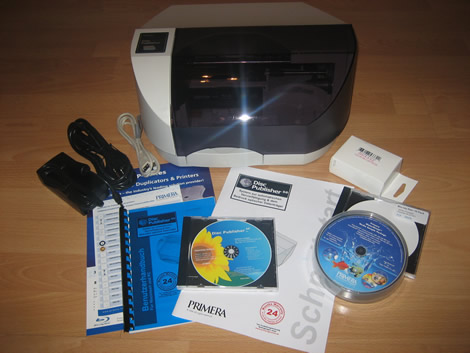
Besides the Disc Publisher unit itself, the package contains,
- Power cable
- User Manual and Quick Start Guide
- USB – cable
- Software CD
- One TuffCoat CD
- Two TuffCoat DVDs
- Ink for the Printer
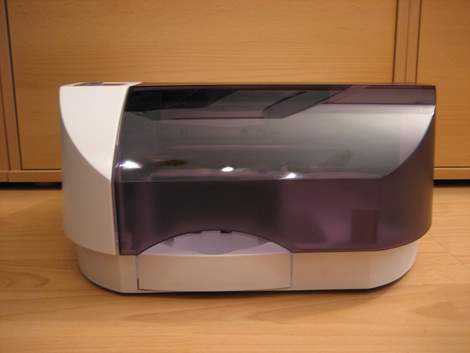
Disc Publisher Front
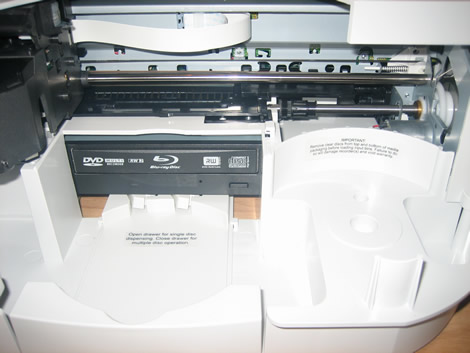
After opening the cover, we see the burner unit, the magazine for the blank discs and the mechanics for the printer unit.
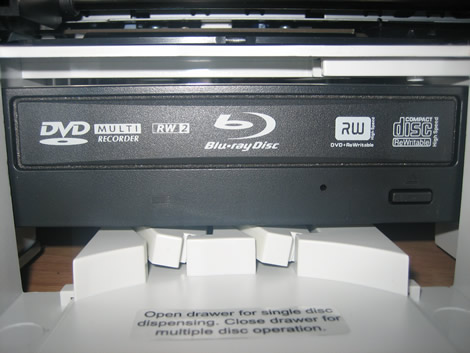
A closer look onto the burner.
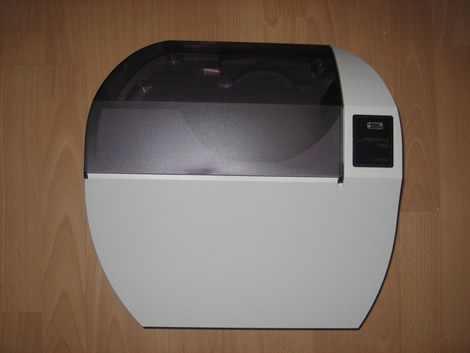
Top - view
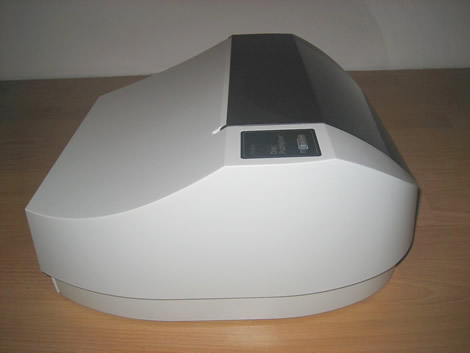
Left-side view
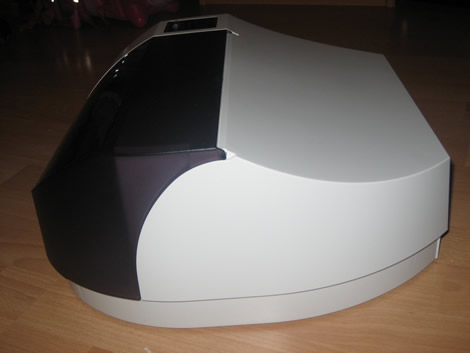
Right-side view
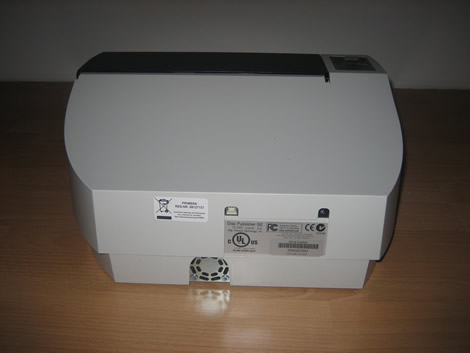
Above we see the back of the unit with USB connector, power connector and an identification plate.
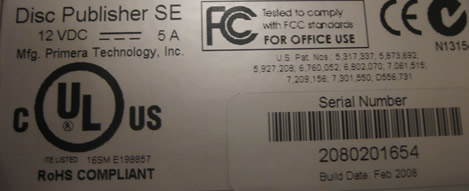
A larger image of the identification plate, we see the Serial number and that the unit has been produced in February 2008
Test machine
For this review we will use a computer with the following configuration.
Hardware:
· Motherboard: ASUSTeK P5K (Intel P35 chipset)
· Processor: Intel Core2 Quad Q6600 4x2.4GHz (G0 Stepping)
· RAM: 2048 MB DDR2 800 Corsair XMS2
· GFX: Leadtek GeForce 8500GT (512MB DDR2)
· Sound: Onboard Realtek ALC882 HD audio controller
· Hard disk: 1X 500GB Seagate ST3500630AS 500GB SATAII
· Case: Thermaltake Armor Big Tower Black
· PSU: BeQuiet Straight Power 600W
· Display: 20 inch Gericom LCD
· Operating System: Windows XP Professional SP3
System Set-up:

Once the unit is connected to the computer, the burner of the unit is detected as external USB device “Matshita BD-MLT SW-5582 USB device”.
Another screenshot from Nero Infotool:

From the Nero InfoTool screenshot above we can find some more details which we already know from our Matshita BD-MLT SW-5582 review here and since we have already a review of this drive posted we want to focus more on the usage of the Pimera Disc Publisher SE unit in this review.
Printer Features and Settings
After the installation procedure (which is described closer a bit later in this review) of the Disc Publisher unit, it is detected by the system in the same way like other, regular printing devices. We can find it in the “Printers” section in our operating system.

By right clicking and selecting properties, we can make some custom settings.

Here we can define,
- Paper size which is in our case the Disc diameter
- Orientation
- Non-printable outer margin
- Print Quality
- Disc Surface Quality
- Color Matching
- Inner Diameter
- Cartridge Alignment
- Center the Print Image
- Clean/Change Cartridge
- Enable Bi-di Printing
Used Software
The computer is running Windows XP Professional Service Pack 2 and for this review we will use the following software.
- PTPublisher
- SureThing CD Label Software Primera Edition
Printer Installation
Now let us have a look into the installation of the Printer itself. First it is said that this is a totally unspectacular procedure, when looking into the users manual or into the Quick Start guide we will find a very detailed and easy to understand description of the necessary tasks.

After inserting the Primera product CD, this is the first screen which appears. Here we can choose what we like to do. Besides Language selection we can choose if we like to proceed with a standard installation, contact Primera or if we prefer to perform a user defined installation. Since we are very new to this type of hardware, we select a standard installation in English.

The next window, basically tells us that this installer will guide us through the installation procedure.

Primera wants to make the installation of the unit as easy as possible. Step 1 of the installation procedure is shown in the picture above and by reading the descriptions for each step, we will find out that the installation of the unit is a very simple task, possible to do for everyone.

Step 2 tells us to load 20 blank discs into the disc holder of the unit.

Step 3 basically tells us how to connect the Primera Disc Publisher SE to our PC via the USB 2.0 cable. The installer also tells us that we will get a message that the software has not passed the Windows logo test and how we have to continue when this message appears. Once more a very good advice for every novice and low-level PC user.

Once the unit is detected from the system, the Windows “Add Hardware” dialog opens.

In the next window, we can choose how we want to install the unit. We select the automatic installation option.

The next window shows the, in step 3 mentioned message, that the software hasn’t passed the Windows Logo test. We select “continue installation”.


The Hardware installation is now finished and we continue with step 4 of the Disc Publisher SE installation.


Step 4 and Step 5 gives us detailed instructions on how to insert the ink cartridge into the printer unit.

Next, the installer will automatically align the cartridge. To perform this task, the Disc Publisher will automatically print and scan a pattern onto an empty disc.

The Disc Publisher SE installation process is now complete. If we like to change the settings for the printer we only need to browse Printers and Faxes in our Windows Control Panel and choose the printer device.
Let us now continue with the installation of the Software…
Installing the Software
The Primera Disc Publisher SE is shipped with the following software.
- PTPublisher
- SureThing CD Label Software Primera Edition
The installation of the software is as easy as the installation of the hardware.

In the PTPublisher installer window we only need to click onto install and all the required tasks are performed automatically.

First we notice that at least Microsoft .net Framework is required to continue the installation.

The same goes for the SureThing CD Label Software Primera Edition


All required software is now installed and we can start to burn and print our discs. But first let us have a closer look into the PTPublisher software.
Software Update
We also have checked the Primera Website for updates. PTPublisher Version 1.2.3 was available for download. We of coarse downloaded and installed it.

This time .net Framework 2 was required to continue the installation.

The Installer for PTPublisher with the usual Copyright warning

Asking for the installation directory

A confirm the installation question

Finally the installation is complete.
Program Run Through
The PTPublisher software is the main program which is required to burn and print our discs. The software is very well designed and we will see that it is very easy to use the program. It makes it very easy to create professional looking discs.

Once opened, we see a window which looks quite similar to the Windows XP Explorer window. On the right side we find all the possible tasks listed and on the left we find an option to open an already saved project, we can start a new project, we can view some details to our currently open project or we can view the status of the Disc Publisher SE.

Opening a Data Project gives us 2 more options and we can choose between Create Data DVD, Create Data CD and Create Data BD-R.

Create Audio Project offers us the most common ways to create an Audio CD. We can here choose between copying an audio CD, creating an audio CD and creating a MP3 CD.

Copy Project lets us copying the entire content of a DVD or CD.

Create DVD Project lets once more copying the entire content of a DVD. Here it is also possible to create a DVD video disc.

Under the menu point “Other Project”, we can print onto a disc without burning, we can burn a disc from a previously saved disc image or we can create a image from a disc. Burn from Disc Image and Create a Disc Image supports the following formats.
- .GI – Global Image; This is the format for with the PTPublisher software created disc images.
- .iso

Under Status (viewable via the “More Status” button on the left bottom) we can find some more information regarding burner, printer and current jobs.

In Drive Properties we can find more information for the installed DVD-RW drive and in case a disc has been inserted, then we can also see some details for the disc. Build a Global Image allows us to build a image from the inserted disc.

Under Printer Properties we can find information regarding the status of the cartridge and we can also clean or align the printer and change the cartridge.
Now let’s continue with creating a disc…..
Creating a Disc
With the use of the PTPublisher software, creating a disc is a three step procedure for each format, is it a data BD-R, video DVD or other. We just need to select files or folders, choose the picture for the disc label and hit the burn button.

To open the dialog to select the files we just need to click the “Get Files to Burn” button.


Once clicked, we find a window similar to the window we already know from our good old windows explorer. On the right bottom of the window we can see how many files have been selected and added to the project by clicking the “Add files to Project” button. We now close this dialog by clicking the “Done” button.

For this first test we have chosen 22.10 GB of Data files.

The next step requires that we select a label for our disc. If we already have a label created or saved on our hard disc, then we can simply add the label by clicking the “Select a Label” button. In case there is no label for our disc available we can open the SureThing CD Label software by clicking the “Create a Label” button. Besides selecting a label, we can also make some for the printing important settings regarding the used discs. Primera has already saved the settings for their suggested TuffCoat - Watershield CD/DVDs but if we like to use other types of printable discs, then we can simply enter the settings for the disc and save the settings if we like to use the settings later again.

Since we don’t have a label available we need to open the SureThing CD Label software. Before the program opens, the PTPublisher software reminds us that we have to save the label and to close the SureThing CD Label software before we can use the label.

The SureThing CD Label is also very easy to use, but we won’t look closer into it since it’s not necessarily required to use the Disc Publisher SE.

The PTPublisher software asks us if we like to use the image to be printed on our disc and automatically adds the created label if we agree. We can now directly jump to step 3 by clicking the next button.

Here we mainly see a summary of our project and we can also define how many copies we want.
If we click onto the “More options” button in step 3, then another very basic looking window opens. Here we can choose/define some more options for our current job. The most important for us is the recording speed. Compared to other burning applications, the software only allows 4 different speed settings (slow, normal, fast and fastest) and not the common 2x, 4x, 6x, … This is maybe a good solution to avoid the irritation from people who have no idea which speed to choose. However, once done we only need to start the duplication process by clicking the “Go” button.

Once clicked, another status window opens. Here we find what the unit is actually doing and information about the progress of the project.

Above we see another image of the status screen, showing us that the unit is currently burning disc 3 and printing disc 2.

When all discs are finished the software gives out a message telling us that the job has finished successfully.
Like already mentioned before, this procedure is almost the same for almost each task the software is able to perform. In case it is different, then you can be sure that it’s at least as simple as the task described here.
Now let’s have a look at the printing quality of the device…
Printing Quality
Now it’s time for us to have a look onto the printing quality of the Disc Publisher unit. Of course, the printer is not the only factor for a good printing result but a poor printer also gives bad results on high quality media. Anyway, the Primera Disc Publisher SE Blu with an resolution of up to 4800dpi and 16.7 million colours lets us expect anything else than bad results.
For these tests we have used the Primera Disc Disc Publisher SE unit in combination with the following Media.
· TDK BD-R Printable
· Tayio Yuden Tuffcoat Watershield CD and DVD media
· Verbatim 16x DVD+R Printable
· Verbatim Glossy 16x DVD+R

Onto our first discs (TuffCoat Watershield DVD) we have printed a not very colourful image which has been created with the included SureThing CD Label software. There are not that much colours used so it was not that difficult to print the image in a good quality. If we look a bit closer onto the image, then we’ll find some shadows. This is because we have used some lower resolution images which required some stretching before printing.

Another very good result for a picture, printed onto a TuffCoat Watershield DVD media. Here is nothing to complain about.

The same image as before but this time printed onto a Verbatim printable DVD+R media. The image looks a little bit brighter but it’s still ok and good quality.

Antoher excellent result when this image, which combines green and blue has been printed onto a Taiyo Yuden Watershield CD-R.

A yellow-orange-black combination printed onto a Verbatim Glossy printable DVD+R. It’s another nice looking result.

Above we now see a Label of a DVD Movie printed once more onto a Verbatim Glossy printable DVD+R media. The small text is good readable and the printing quality is again excellent.

Primera has provided us also a package with already printed sample media. One of these samples was the above shown Silver Surface TY CD-R media. Again we see an excellent looking result.
Overall we can say that the Primera Disc Publisher SE Blu performs excellent when it comes to printing quality.
CD-R Write Quality
We already have published an intensive review of the Panasonic SW-5582 Blu-ray Burner here but nevertheless we want to see how that drive performs in its “external enclosure” and so we have done some writing tests on various printable CD-R, DVD+/-R and DVD+/-R DL media. See here our results.
We will test CD-R discs from many different CD-R manufacturers. To really measure the write speed, we used the “create data CD” function in Nero CD-Speed. The discs were written at the maximum speed that the drive supports. Because our system didn’t support Nero CD-DVD Speed for the quality test, we used KProbe 2 and combined this with a Nero CD-DVD Speed Transfer Rate Test to test if the resulting disc was readable. Also note that different drives and different reading speeds may affect the results obtained when scanning the discs. We used a Lite-On SOHR-5238S drive with firmware 4S09 and scanned the discs at 48X speed.
There is more than one way to handle C1 and C2 error detection/correction, but a simple and common way is to detect and correct up to two errors per frame in each stage and detect three or more errors:
· E11: 1 error detected and corrected by C1 layer
· E21: 2 errors detected and corrected by C1 layer
· E31: 3 or more errors detected but not corrected by C1 layer
The sum of these (per second) is called the Block Error Rate: BLER=E11+E21+E31
· E32: 3 or more errors detected but not corrected by C2 layer
Any E31 is un-correctable by the C1 layer and will result in the bytes in that frame being redistributed into multiple frames which are passed to the C2 layer.
Any E32 is un-correctable by the C2 layer and will result in interpolation being used for Audio CDs or will result in third layer error correction being use for Data CDs.
Different drives have different ways of reporting these errors in a Disc Quality scan. Lite-On CD-RW drives will report C1 and C2 errors this way:
· C1=BLER=E11+E21+E31
· C2=E32
Here is an easier way to look at Disc Quality Scanning:
A written CD-R disc will always have some C1 errors; C1 errors are easily corrected by the drive’s error correction capabilities. The next level of errors is C2, while C2 errors could also be corrected by most drive’s error correction capabilities; they are not wanted on a good quality disc. A good disc should not contain any C2 errors, and preferably have an average C1 error amount of below 2.0 for the best discs, or at least below 10.0 averages for good quality discs. After C2 errors, there are only un-correctable errors that will make a disc unusable.
In short, our analysis will be based on this guideline to determine the quality of the burned disc:
CD-R/RW quality scans guideline

Below are the obtained results:


|
Brand: |
Verbatim Printable CD-R |
|
Manufacturer: |
Mitsubishi Chemicals Corporation |
|
Country Of Origin |
Japan |
|
Code: |
97m34s23f |
|
Disc Type: |
Printable CD-R |
|
Recording Layer: |
Dye Type 3: Long Strategy (Cyanine,Azo) |
|
Capacity: |
79:59.72 (703MB) |
|
Certified Speed: |
48x |
|
Write Speed: |
24x (Z-CLV 3 Zones) |
|
Write Time: |
4m:42s |
|
C1 Average/Sec: |
1.65 |
|
C2 Average/Sec: |
0.0 |
An excellent result for this media, highly recommended.


|
Brand: |
Taiyo Yuden Watershield CD-R (Thanks to Primera Technology Europe for providing us this media) |
|
Manufacturer: |
Taiyo Yuden Company Limited |
|
Country Of Origin |
Japan |
|
Code: |
97m24s01f |
|
Disc Type: |
Tuffcoat with Watershield CD-R |
|
Recording Layer: |
Dye Type 1: Long Strategy (Cyanine,Azo) |
|
Capacity: |
79:59.72 (703MB) |
|
Certified Speed: |
52x |
|
Write Speed: |
24x (Z-CLV 3 Zones) |
|
Write Time: |
4m:43s |
|
C1 Average/Sec: |
0.30 |
|
C2 Average/Sec: |
0.0 |
A Taiyo Yuden Watershield CD-R and no surprise that it comes out with excellent quality.
Summary:
The Primera Disc Publisher SE Blu wrote our tested printable CD-R media with excellent quality, here is nothing to worry about.
Now let’s head on to the next page where we will test DVD recordable performance….
DVD Recordable Write quality:
Disc Quality Scanning - PI/PO:
DVDs use an error detection and correction system (ECC) which is usually transparent to the end-user, but we can get an idea of the "quality" of a disc by performing Disc Quality Scanning, which shows how many errors the drive is detecting and correcting behind the scenes.
There are two layers or stages of error detection and correction on all DVD media; these are called Parity Inner (PI) and Parity Outer (PO). Data is arranged in ECC blocks containing rows and columns of user data with additional columns of PI error correction and rows of PO error correction.
An ECC block contains 32 KByte of user data with some added control data, scrambled and arranged in 192 rows and 172 columns with an additional 10 columns of PI error correction and 16 rows of PO error correction.
The Parity Inner stage is performed first, and up to 5 bytes in a row can be corrected. Any row with one or more errors is counted as a Parity Inner Error (PIE). Any row with more than 5 errors is considered un-correctable and is counted as a Parity Inner Failure (PIF).
The Parity Outer stage is performed next and will detect and attempt to correct any errors that are still left after the PI stage. Any column that has errors is counted as a Parity Outer Error (POE), and any column that has un-correctable errors is counted as a Parity Outer Failure (POF). If a POF occurs the drive can sometimes re-read the problematic spot and correct the problem; this happens only during normal reading and not during scanning, however.
Disc Quality scanning is influenced by the drive performing the test, and that's why different drives report different results and even the same drive will report (slightly) different results when scanning the same disc again. Please note that PI/PO and Jitter scans only test some aspects of disc quality and that other important aspects are not revealed.
But what is a good scan? That is a discussion that we don’t think will end soon, as different drives report different amount of errors, some players are more picky about media than others, and so on. But as a comparison we present you with scans from two pressed DVD discs:

The scan above shows the results from a pressed, Single Layer DVD-Video disc (Goldeneye).

The above scan shows the result from a pressed Double Layer DVD-Video disc (The Green Mile).
The Lite-On DVD burners used in this review report errors as follows:
· PIE per 8 ECC blocks (rows with 1 or more bytes in error)
· PIF per 1 ECC block (rows with 6 or more bytes in error)
We want to see as low error numbers as possible.
PIE per 8 ECC blocks should be no higher than 280.
PIF per 1 ECC block should be no higher than 4.
Both the pressed DVD-discs above are well within the standards if we ignore the single PIF spike in the DL scan.
If you want to look at the standards for yourself, download the ECMA 267 Standard for DVD-ROM, the ECMA 337 Standard for DVD+R/RW and the ECMA 338 Standard for DVD-R/RW at http://www.ecma-international.org.
Notice that there are other aspects such as disc reflectivity, tracking errors and so on that also will affect the readability of a DVD disc – but for this we do not have measuring equipment available.
Also, another note is that we have scanned the discs at 4X speed, by lowering the speed to 2X (DVD-R/RW)/2.4X (DVD+R/RW) or 1X the amount of reported errors may drop on some discs. We scanned at 4X CLV due to lower speeds taking too much time.
To see if there is a connection between the reported amount of errors and readability of the discs we also include the reading curve from a Optiarc AD-7203A DVD-Writer which by default is able to read DVD±R media at 16x speed. A small speed reduction near the end is still accepted on good discs, but serious reading problems or reading failures is a bad sign.
Jitter:
Jitter is a very complex subject and even more difficult to explain when we start to use optical drives designed for the home market to measure jitter values.
Let’s first look at the DVD specification for pressed DVD discs (in the bold part courtesy of Pioneer Electronics).
“The DVD design target is that when the worst-case disc allowed by the specification, considering the economics of production, is played using the worst-case pickup that can be produced in volume economically, the byte error rate after error correction will still be 1 x 10--20, which is good enough to be acceptable for computer applications.
Since the above target is for "after error correction," the error correction capability must be calculated. Considering the trade-off between error correction capability and the overhead of the added redundancy, the DVD format was set to one ECC block per 32 kB. This requires a byte error rate before correction of 1 x 10⁻².
In order to achieve good economy on both the part of the discs and the playback mechanisms. The current disc tilt specification was determined as a result of the efforts on both sides.
As will be explained hereafter, it is difficult to make the error rate a specification of the disc itself. Therefore, a jitter standard is set by the DVD specifications. A simple calculation based on a normal distribution requires that the jitter rate be under 15.4%, and experimental results indicate that jitter must be under 16%, to achieve the required error rate. Since the disc tilt varies within a revolution, it was decided to adopt the design concept that jitter must remain within 16% at the instantaneous peak value of tilt. Since it is actually very difficult to measure the peak value, the concept became to measure the average jitter at under 15%, and the byte error rate at under 5 x 10⁻³.”
What is Jitter?
In basic terms, we could say jitter is a product of “pit and land distortion” In other words, when the drive reading the disc has to compensate by means of a “tilt servo” which constantly tries to move and refocus the PUH lens for optimum tracking and tries to compensate for the imperfections of pits and lands on the pressed or recordable media. This is further compounded by the hardware used for recording and playback. Not only is the record and replay process limited by the resolution of the optical pickup, it is also horribly non-linear. In addition, the playback of the pits is subject to non-linear crosstalk from nearby pits in the same track, and also from pits in nearby tracks.
The things that causes jitter divide into three main types.
· Variation in pit length and width.
· Crosstalk from nearby pits in the same track.
· Crosstalk from pits in adjacent tracks.
Variation in pit length and width.
The recorded pits themselves are not perfectly accurate. Anything which causes variations in the sizes of the pits will produce jitter. A prime culprit of this is sudden variations in laser power (laser noise). If laser power varies, then the laser beam itself changes and will vary in intensity and possibly focus. This will cause the pit length and width to also vary and we now have jitter.
Crosstalk from nearby pits in the same track.
If the pits are not totally accurate, then the laser beam spot may overrun a pit and gather data from the adjacent pit in the same track, or if the “land” is to short, then the laser beam spot can be influenced by the adjacent pit and this is called inter-symbol interference. Inter-symbol interference is worse at low recording velocities, because the pits are shorter and closer together. And it is the cause of "deviation" of the pit lengths.
Crosstalk from pits in adjacent tracks.
Crosstalk between pits in adjacent tracks is caused by the laser beam spot being larger than the width of the track. It is a largely random contribution and is worse at lower recorded velocities, because the highest frequency components of the readout signal in the wanted track, with which the crosstalk is competing, are weaker.
Some other factors to consider
There are many aspects to consider when we add Recordable DVD media into the mix. We are now dealing with an organic dye, which is inherently unstable. We must also consider the equipment we are using to measure jitter is aimed at the home market. So we must also take into account variations between drives that we are unable to calibrate for such tests.
Now let’s look at some of the hardware limitations of the drives we are using to measure jitter.
If there is no tilt, then the jitter value includes components from light source noise, circuit noise, disc noise, standard interference between symbols (inter -symbol interference), and some small amount of crosstalk from the neighbouring tracks.
Next we consider manufacturing variation in the circuitry.
Variation due to the circuitry have noise-like characteristics, and increase the minimum jitter level, but are thought to have a very small effect on tilt margin. Factors such as offset in the servo circuit, however, both increase the jitter level and decrease tilt margin.
How we will measure jitter.
We will be using a Lite-On DVD writer to conduct these tests along with Nero CD-Speed. In the screen shot below we can see a PI/PIF scan including a jitter test (the purple graph in the lower window) we carried out on a single layer DVD+R media.

Now, let's find a reasonable average jitter level. Experimental results indicate that 8% average value or less is a desirable figure, based on the DVD specification. That does not mean that jitter average values above 8% are bad. In fact, many optical drives will quite happily read recordable DVD media with jitter values of more than 14% average without any problems. Other drives, including standalone DVD players may begin to struggle reading discs with average jitter values above 10%. So there is a fairly wide range of acceptable values. One must test our own playback devices to see what they can cope with.
However, for the purpose of having a basic guideline we can use in our reviews, we present a rating system for average jitter values.
· Less than 8% (average) = Very good
· 8% - 9% (average) = good
· 9% - 12% (average) = average
· Above 12% (average) = poor
Here is an easier explanation on how to read the test results
Maybe this got too technical, and you are wondering what to look for in your Nero DiscSpeed/CD-Speed Quality Scans?
Use this as a guideline for good discs:
· PI (Parity Inner): No larger areas on the disc should exceed 280 PI-8 errors, do not worry too much about high single spikes that exceed 280.
· PIF (Parity Inner Failures): No larger areas on the disc should exceed 4 PIF-1 errors, do not worry too much about high single spikes that exceed 4.
· Jitter: An average jitter value of 8% or less is considered very good. You should not worry too much if the average value is slightly above this figure.
And as always; lower is better 
DVD+R and DVD+R DL media compatibility and write quality:
In these tests we will be using a Lite-On LH-20A1P with firmware KL0N along with CD-Speed to measure the disc quality. We will also be using the same drive along with CD-Speed for our read-back tests.


|
Brand: |
Miflop Extreme – Thanks to Miflop |
|
Manufacturer: |
Taiyo Yuden Company Limited |
|
Code: |
YUDEN 000 T03 |
|
Disc Type: |
DVD+R |
|
Capacity: |
4483MB |
|
Certified Speed: |
16x |
|
Write Speed: |
8x (Z-CLV 2 Zones) |
|
Write Time: |
9m:09s |
|
PI-8 errors Average/Sec: |
17.51 |
|
PI-1 failures (PIF) Avg/Sec: |
0.00 |
|
Jitter average |
11.59% |
A good result for this media, although 11.59% Jitter is a bit high.


|
Brand: |
Verbatim – Thanks to Verbatim Germany for sending us this media. |
|
Manufacturer: |
Mitsubishi Chemicals Corporation |
|
Code: |
MCC 004 (made in India) |
|
Disc Type: |
DVD+R |
|
Capacity: |
4483MB |
|
Certified Speed: |
16x |
|
Write Speed: |
8x (Z-CLV 2 Zones) |
|
Write Time: |
8m:07s |
|
PI-8 errors Average/Sec: |
1.45 |
|
PI-1 failures (PIF) Avg/Sec: |
0.00 |
|
Jitter average |
8.64% |
PI errors are extremely low and the Jitter average is very good. Overall, this is very high quality result.


|
Brand: |
BenQ – Thanks to xmediatra.com for sending us this media |
|
Manufacturer: |
Daxon |
|
Code: |
DAXON AZ3 (made in Malaysia) |
|
Disc Type: |
DVD+R |
|
Capacity: |
4483MB |
|
Certified Speed: |
16x |
|
Write Speed: |
6x (CAV) |
|
Write Time: |
10m:10s |
|
PI-8 errors Average/Sec: |
2.88 |
|
PI-1 failures (PIF) Avg/Sec: |
0.05 |
|
Jitter average |
8.57% |
The result is good but there are slightly higher PIF values at the end.
DVD+R DL:
For these tests we wrote an image file of a DVD-Video compilation of as near full capacity as possible with CD-Speed. We then used the Lite-On along with CD-Speed to test the discs quality; we then finally ran a read-back test on the same drive using Nero CD-Speed.
Reviewers Note:
The Lite-On LH-A20A1P is not able to perform a jitter test on the second layer of a DL disc and so we provide only the Jitter values for Layer1.


|
Brand: |
Verbatim – Thanks to Verbatim Germany |
|
Manufacturer: |
Mitsubishi Kagaku Media |
|
Code: |
MKM 003 |
|
Disc Type: |
DVD+R DL |
|
Capacity: |
8103MB |
|
Certified Speed: |
8x |
|
Write Speed: |
2x (CLV) |
|
Write Time: |
44m:25s |
|
PI-8 errors Average/Sec: |
2.04 |
|
PI-1 failures (PIF) Avg/Sec: |
0.03 |
|
BookType |
DVD-ROM |
This is a good result for this media.
Summary:
The Primera Disc Publisher SE Blu performed very well with our tested DVD+R and DVD+DL media.
Now let’s look at DVD-R performance and quality on the next page…..
DVD-R media compatibility and write quality:
In In these tests we will be using a Lite-On LH-20A1P with firmware KL0N along with CD-Speed to measure the disc quality. We will also be using the same drive along with CD-Speed for our read-back tests.


|
Brand: |
Taiyo Yuden Tuffcoat with Watershield – Thanks to Primera Europe for sending us this media. |
|
Manufacturer: |
Taiyo Yuden |
|
Code: |
TYG03 |
|
Disc Type: |
DVD-R |
|
Capacity: |
4483MB |
|
Certified Speed: |
16x |
|
Write Speed: |
8x (Z-CLV 2 Zones) |
|
Write Time: |
13m:79s |
|
PI-8 errors Average/Sec: |
5.70 |
|
PI-1 failures (PIF) Avg/Sec: |
0.02 |
|
Jitter average |
11.43% |
In best case we can rate this result average. If we consider that the disc was only burned at 8x speed then we must say that the result is bad.


|
Brand: |
Verbatim Glossy Printable |
|
Manufacturer: |
Mitsubishi Chemical Corporation |
|
Code: |
MCC 03RG20 (made in Taiwan) |
|
Disc Type: |
DVD-R |
|
Capacity: |
4483MB |
|
Certified Speed: |
16x |
|
Write Speed: |
8x (CAV) |
|
Write Time: |
9m:09s |
|
PI-8 errors Average/Sec: |
1.88 |
|
PI-1 failures (PIF) Avg/Sec: |
0.00 |
|
Jitter average |
8.78% |
A very good result for a high quality media.


|
Brand: |
BenQ printable - Thanks to xmediatrade.com for sending us this media |
|
Manufacturer: |
Daxon |
|
Code: |
Daxon016S |
|
Disc Type: |
DVD-R |
|
Capacity: |
4483MB |
|
Certified Speed: |
16x |
|
Write Speed: |
8x (Z-CLV 2 Zones) |
|
Write Time: |
9m:09s |
|
PI-8 errors Average/Sec: |
1.80 |
|
PI-1 failures (PIF) Avg/Sec: |
0.01 |
|
Jitter average |
10.66% |
A good result but high jitter.
Summary:
The Primera Disc Publisher SE Blu writing quality with our tested DVD-R media was good.
Now let’s summarize our test results on the next page …
Summary and Conclusion
Like in every other review, some positive and negative points came up.
Positive:
- Easy installation and usage
- Good software bundle
- Good users manual
- Supports Blu-ray burning
- Burner can also be used with other software
- Very good printing quality
- Good support
- Good writing quality on DVD+/-R DL and CD-R media
- 24 month warranty (in Europe)
- Precise working robotics
- Very compact
Negative:
- Only one ink cartridge for all colours
Conclusion
The Disc Publisher SE is not a product for the average home user, rather is designed for companies who require such a unit to provide their customers with all kind of information in an  amount where it isn’t reliable to pay for producing pressed discs.
We have burned/printed more than 100 discs with the Disc Publisher SE Blu and overall we can say that we where impressed by the performance of the Device. A well guided and easy installation procedure combined with very easy to use software and a good CD/DVD/BD burner makes the Disc Publisher SE Blu to an interesting product and almost everybody with little computer knowledge should be able to create professional looking audio, video and data CDs, DVDs and Blu-ray discs.
The Robotics of the Disc Publisher SE is working very precise and the device doesn’t require much space in an office due its compact design.
Also the quality tests on our printable CD/DVD and Blu-ray media show that the used Panasonic SW - 5582 CD/DVD/Blu-ray burner was a good choice and that a consumer doesn’t have to worry about bad writing quality on his discs. One thing some one could complain about is that the burner doesn’t meet with the specs of nowadays standard anymore. But to all those we can say that Primera has already updated the burner to the more actual Panasonic SW - 5583 CD/DVD/BD burner.
Of course, we have also found some negative points regarding this unit and for us the most important is that a system at such a price level comes with a three colour (Cyan, Magenta, Yellow) ink cartridge. Of course, this unit isn’t a photo printer where five or six different colours are useful but even an additional black cartridge would help the user to save some money and we don’t think that it can be a big problem to add such a cartridge.
To sum it up, this is what we would say: "The Primera Disc Publisher SE Blu is a very easy to use and excellent performing device which combines high printing and burning quality. The Primera Disc Publisher SE Blu is recommended to everybody who has the need of such a device. "
We where so impressed by the performance of the Disc Publisher SE Blu that we decided to award the Primera Disc Publisher SE Blu with the CD Freaks “Editor’s Choice Award”

You may want to comment this review below or in this dedicated thread over in our forums.
 |
Verbatim - Germany for providing us some of the media used in this review. |
 |
xmediatrade.com – for providing us some of media used in this review. |
 |
Primera Europe for providing us some the media used in this review. |