 |
Review: Primera Disc Publisher SE |
Usually CD Freaks is only reviewing internal and external CD/DVD/BD burners and also CD/DVD burning software. But this time Primera Technology, Inc. was kind enough to provide us with a review sample of their CD/DVD disc duplicating System, the Primera Bravo SE Disc Publisher or Disc Publisher SE like it is called in Europe and so we are able to present you CD Freaks first review of a disc duplication and labelling system.
Company Information
About Primera Technology
Headquartered in Plymouth, Minnesota, Primera Technology, Inc. is the world's leading developer and manufacturer of CD/DVD/BD duplication and printing equipment.
Primera is known for its popular Composer line of CD/DVD duplicators, Signature line of CD/DVD printers and the world's best-selling Bravo SE, Bravo II, BravoPro and Bravo XR-Series Disc Publishers.
Primera distributes its products in more than 85 countries with support for European customers in Wiesbaden, Germany through Primera EUROPE.
Primera's mission is to produce technologically superior products that offer a high degree of customer satisfaction and value while conducting business affairs with unparalleled integrity, courtesy and professionalism.
Product description and Specifications
Bravo SE is Primera's newest "all-in-one" disc publishing system. It combines fast, automated robotic CD / BD / DVD duplication along with full-color, 4800 dpi direct-to-disc printing - all in one compact, desktop unit.
Bravo SE is ideal for producing either one at a time, unique discs or jobs of up to 20 discs at a time. Models include both Windows-based PC and Mac duplication software.
Hands-Free Production of CDs / DVDs
Have you ever had to burn discs one at a time and then manually print and apply sticky labels? If so, you know how much time and effort is involved. Even ordering discs from an outside vendor takes too much time and is too expensive. You’ve probably thought to yourself, “There has to be a better way!”
Now, there is. It’s the new Bravo™ SE Disc Publisher from Primera. Bravo SE is a compact, all-in-one automated disc production factory that fits right on your desktop. It produces full-color, high-quality discs that make your business or organization look truly professional.
Advanced Robotics
Bravo SE takes the complex task of burning and printing discs and makes it simple. It uses Primera’s sixth-generation robotics, ensuring reliable and efficient operation.
Here’s how the process works:
1. Bravo SE’s robotic arm picks a blank disc from the input bin.
2. The disc is placed into the integrated recorder.
3. The disc is burned.
4. The robot moves the disc to the built-in, 4800 dpi direct-to-disc inkjet color printer.
5. The disc is printed.
6. The robot picks the disc from the printer, places it into the output bin and starts over again.
Bravo SE burns and prints simultaneously when producing multiple discs. Bravo SE does all of the work for you – unattended and automatically. It saves you time and money on every disc you produce!
Many Applications
Bravo SE is perfect for a wide variety of light- to medium-duty disc publishing jobs. You can burn and print individual discs with unique data or quantities of the same disc. Just a few of the most popular applications include video and music content, software, press kits, trade show handouts, instruction and training manuals, technical documentation, PowerPoint® presentations, catalogues – the possibilities are almost endless!
Simple Installation and Operation
Easy-to-use software is included for both Windows and Mac PCs. Installation is fast and easy, too. Just connect one cable, install one print cartridge and load one software program. You’ll be automatically burning and printing discs in minutes.
Robust, Water-Resistant Media
You can use virtually any inkjet printable-surface DVD±R or CD-R media. For ultimate performance, try Primera’s new TuffCoat™ with AquaGuard™ surface (matte finish) or TuffCoat with WaterShield™ surface (glossy finish). Both are highly water-resistant and produce the most professional-looking discs you’ve ever seen!
AutoPrinter Model Also Available
If you only need to print, the Bravo SE AutoPrinter (AutoPrinter SE in Europe) produces gorgeous, full-color discs in jobs of up to 20 discs at a time. It’s the perfect, low-cost automated printing solution for the tower-style duplicator that you may already own.
Disc Publisher Specifications
Models
Bravo SE DVD/CD Publisher
Disc Capacity
20 discs
Number of Drives
One Pioneer DVR-111
Print Method
Inkjet
Print Resolution
Up to 4800 dpi
Maximum Print Width
4.724" (120mm)
Ink Cartridges
Primera P/N 53332
Colors
16.7 million
Color Matching
Z-Color™ color profile included
Software
For the PC: PTPublisher™ SureThing™ CD Label Software Primera Edition
For the Mac: CharisMac Engineering’s Discribe™
Media Types
Printable-surface DVD R and CD-R; standard or water-resistant
Minimum System Requirements for PC
For PC: Pentium III processor at 700MHz or higher, 500MB or more RAM, available USB 2.0 port, NTFS drive partition
Minimum System Requirements for Mac Computers
For Mac: 700MHz PowerPC G4 or higher or Intel Solo or Duo Core™ processor, 256 MB or more of RAM, available USB 2.0 port
Operating Systems
Windows XP/2000 for PCs
OS X v10.2 or higher for Mac
Electrical Rating
12VDC, 5A
Safety
UL, UL-C, CE
Emissions
FCC Class B, CE
Power Requirements
100-240 VAC, 50/60Hz, 60 watts
Weight
11.5 lbs. (4.1 kg)
Dimensions
15”W x 14.75”H x 7”H
(381mmW x 375mmH x 178mmH)
Data Interfaces
USB 2.0
Options
CD-R/DVD±R Media:
• TuffCoat Plus (white, standard printable surface)
• TuffCoat with AquaGuard surface (matte, bright white surface, water-resistant)
• TuffCoat with WaterShield surface (glossy surface, water-resistant)
Warranty
One year parts and labor; optional
Extended warranties available
What’s inside the box
Let us first start by taking a look at the retail packaging as well as the accessories the Disc Publisher ships with.
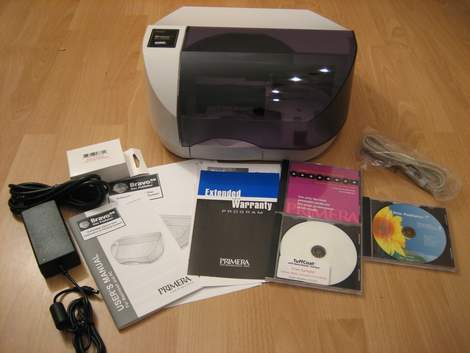
Besides the Disc Publisher unit itself, the package contains,
- Power cable
- User Manual and Quick Start Guide
- USB – cable
- Software CD
- One TuffCoat CD
- Two TuffCoat DVDs
- Ink for the Printer
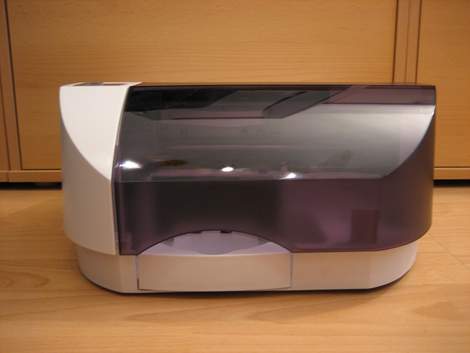
Disc Publisher Front
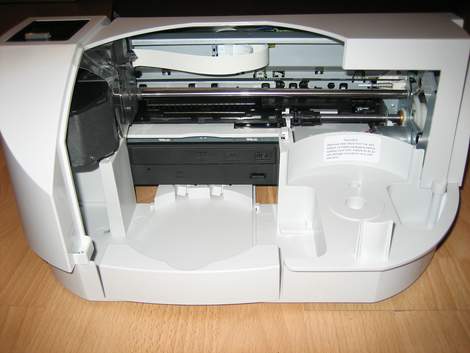
After opening the cover, we see the burner unit, the magazine for the blank discs and the mechanics for the printer unit.
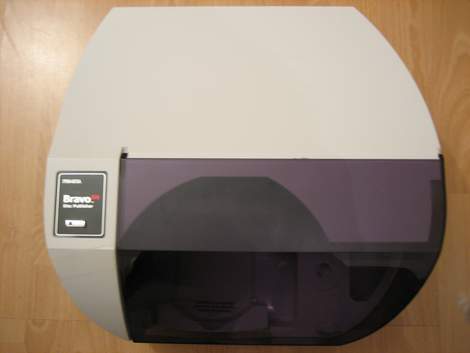
Top - view
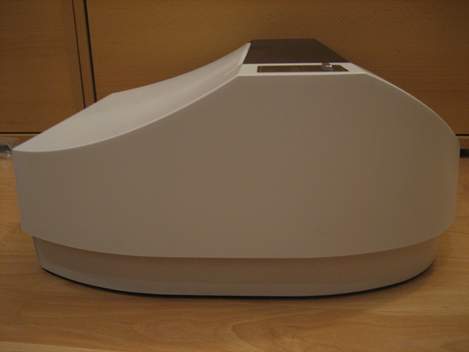
Left-side view
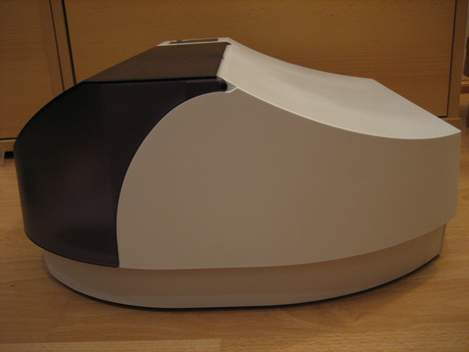
Right-side view
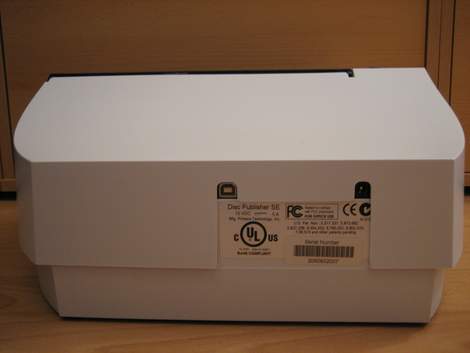
Above we see the back of the unit with USB connector, power connector and an identification plate.

A larger image of the identification plate.
Test machine
For this review we will use a computer with the following configuration.
Hardware:
Motherboard: ASRock K7S8X
Processor: AMD Athlon XP 2200+
Memory: 512 MB DDR 400; Infineon
Video: Gainward GeForce 440MX; 128mb RAM
Sound: RealTek AC97 Integrated Digital Audio
Hard disks: Samsung SV0802N 80GB; Western Digital WD 30 00JB 300GB and 30GB Western Digital ST 330621A (USB 2.0)
Optical Drives: Lite-On SHM-165P6S; NEC 3540A; BTC 1108 IM
System Set-up:

Once the unit is connected to the computer, the burner of the unit is detected as external USB device “Pioneer DVD-RW 111D USB device”.
Another screenshot from Nero Infotool:

From the Nero InfoTool screenshot above we can find some more details which we already know from our Pioneer DVR-111D review here and since we have already a review of this drive posted we want to focus more on the usage of the Pimera Disc Publisher SE unit in this review.
Printer Features and Settings
After the installation procedure (which is described closer a bit later in this review) of the Disc Publisher unit, it is detected by the system in the same way like other, regular printing devices. We can find it in the “Printers” section in our operating system.

By right clicking and selecting properties, we can make some custom settings.

Here we can define,
- Paper size which is in our case the Disc diameter
- Orientation
- Non-printable outer margin
- Print Quality
- Disc Surface Quality
- Color Matching
- Inner Diameter
- Cartridge Alignment
- Center the Print Image
- Clean/Change Cartridge
- Enable Bi-di Printing
Used Software
The computer is running Windows XP Professional Service Pack 2 and for this review we will use the following software.
- PTPublisher
- SureThing CD Label Software Primera Edition
Printer Installation
Now let us have a look into the installation of the Printer itself. First it is said that this is a totally unspectacular procedure, when looking into the users manual or into the Quick Start guide we will find a very detailed and easy to understand description of the necessary tasks.

After inserting the Primera product CD, this is the first screen which appears. Here we can choose what we like to do. Besides Language selection we can choose if we like to proceed with a standard installation, contact Primera or if we prefer to perform a user defined installation. Since we are very new to this type of hardware, we select a standard installation in English.

The next window, basically tells us that this installer will guide us through the installation procedure.

Primera wants to make the installation of the unit as easy as possible. Step 1 of the installation procedure is shown in the picture above and by reading the descriptions for each step, we will find out that the installation of the unit is a very simple task, possible to do for everyone.

Step 2 tells us to load 20 blank discs into the disc holder of the unit.

Step 3 basically tells us how to connect the Primera Disc Publisher SE to our PC via the USB 2.0 cable. The installer also tells us that we will get a message that the software has not passed the Windows logo test and how we have to continue when this message appears. Once more a very good advice for every novice and low-level PC user.

Once the unit is detected from the system, the Windows “Add Hardware” dialog opens.

In the next window, we can choose how we want to install the unit. We select the automatic installation option.

The next window shows the, in step 3 mentioned message, that the software hasn’t passed the Windows Logo test. We select “continue installation”.

The Hardware installation is now finished and we continue with step 4 of the Disc Publisher SE installation.


Step 4 and Step 5 gives us detailed instructions on how to insert the ink cartridge into the printer unit.

Next, the installer will automatically align the cartridge. To perform this task, the Disc Publisher will automatically print and scan a pattern onto an empty disc.

The Disc Publisher SE installation process is now complete. If we like to change the settings for the printer we only need to browse Printers and Faxes in our Windows Control Panel and choose the printer device.
Let us now continue with the installation of the Software…
Installing the Software
The Primera Disc Publisher SE is shipped with the following software.
- PTPublisher
- SureThing CD Label Software Primera Edition
The installation of the software is as easy as the installation of the hardware.

In the PTPublisher installer window we only need to click onto install and all the required tasks are performed automatically.

The same goes for the SureThing CD Label Software Primera Edition


All required software is now installed and we can start to burn and print our discs. But first let us have a closer look into the PTPublisher software.
Program Run Through
The PTPublisher software is the main program which is required to burn and print our discs. The software is very well designed and we will see that it is very easy to use the program. It makes it very easy to create professional looking discs.

Once opened, we see a window which looks quite similar to the Windows XP Explorer window. On the right side we find all the possible tasks listed and on the left we find an option to open an already saved project, we can start a new project, we can view some details to our currently open project or we can view the status of the Disc Publisher SE.

Opening a Data Project gives us 2 more options and we can choose between Create Data DVD and Create Data CD.

Create Audio Project offers us the most common ways to create an Audio CD. We can here choose between copying an audio CD, creating an audio CD and creating a MP3 CD.

Copy Project lets us copying the entire content of a DVD or CD.

Create DVD Project let’s once more copying the entire content of a DVD. Here it is also possible to create a DVD video disc.

Under the menu point “Other Project”, we can print onto a disc without burning, we can burn a disc from a previously saved disc image or we can create an image from a disc. Burn from Disc Image and Create a Disc Image supports the following formats.
- .GI – Global Image; This is the format for with the PTPublisher software created disc images.
- .iso

Under Status (viewable via the “More Stati” button on the left bottom) we can find some more information regarding burner, printer and current jobs.

In Drive Properties we can find more information for the installed DVD-RW drive and in case a disc has been inserted, then we can also see some details for the disc. Build a Global Image allows us to build an image from the inserted disc.

Under Printer Properties we can find information regarding the status of the cartridge and we can also clean or align the printer and change the cartridge.
Now let’s continue with creating a disc…..
Creating a Disc
With the use of the PTPublisher software, creating a disc is a three step procedure for each format, is it a data CD/DVD, video DVD or other. We just need to select files or folders, choose the picture for the disc label and hit the burn button.

To open the dialog to select the files we just need to click the “Get Files to Burn” button.

Once clicked, we find a window similar to the window we already know from our good old windows explorer. On the right bottom of the window we can see how many files have been selected and added to the project by clicking the “Add files to Project” button. We now close this dialog by clicking the “Done” button.

The next step requires that we select a label for our disc. If we already have a label created or saved on our hard disc, then we can simply add the label by clicking the “Select a Label” button. In case there is no label for our disc available we can open the SureThing CD Label software by clicking the “Create a Label” button. Besides selecting a label, we can also make some for the printing important settings regarding the used discs. Primera has already saved the settings for their suggested TuffCoat - Watershield CD/DVDs and other media Primera sells. If we like to use other types of printable discs, then we can simply enter the settings for the disc and save the settings if we like to use the settings later again.

Since we don’t have a label available we need to open the SureThing CD Label software. Before the program opens, the PTPublisher software reminds us that we have to save the label and to close the SureThing CD Label software before we can use the label.

The SureThing CD Label is also very easy to use, but we won’t look closer into it since it’s not necessarily required to use the Disc Publisher SE.


The PTPublisher software asks us if we like to use the image to be printed on our disc and automatically adds the created label if we agree. We can now directly jump to step 3 by clicking the next button.

Here we mainly see a summary of our project and we can also define how many copies we want.

The window above opens when we click onto the “More options” button in step 3. Here we can choose/define some more options for our current job. The most important for us is the recording speed. Compared to other burning applications, the software only allows 4 different speed settings (slow, normal, fast and fastest) and not the common 2x, 4x, 6x, … This is maybe a good solution to avoid the irritation from people who have no idea which speed to choose. However, once done we only need to start the duplication process by clicking the “Go” button.

Once clicked, another status window opens. Here we find what the unit is actually doing and information about the progress of the project.

Above we see another image of the status screen, showing us that the unit is currently burning disc 3 and printing disc 2.

When all discs are finished the software gives out a message telling us that the job has finished successfully.
Like already mentioned before, this procedure is almost the same for almost each task the software is able to perform. In case it is different, then you can be sure that it’s at least as simple as the task described here.
Now let’s have a look at the printing quality of the device…
Printing Quality
Now it’s time for us to have a look onto the printing quality of the Disc Publisher unit. Of course, the printer is not the only factor for a good printing result but a poor printer also gives bad results on high-quality media. Anyway, the Primera Disc Publisher SE with a resolution of up to 4800dpi and 16.7 million colours lets us expect good results.
For these tests we have used the Primera Disc Disc Publisher SE unit in combination with the following Media.
· Tayio Yuden TuffCoat WaterShield CD and DVD media
· Verbatim 16x DVD+R Printable
Onto our first discs (TuffCoat WaterShield DVD) we have printed a not very colourful image which has been created with the included SureThing CD Label software. There are not that much colours used so it was not that difficult to print the image in a good quality. If we look a bit closer onto the image, then we’ll find some shadows. This is because we have used some lower resolution images which required some stretching before printing.

The picture above shows once more an image, created with the SureThing software, printed onto a TuffCoat WaterShield DVD media. This time we used white background in combination with colours from blue to dark grey. Once more we find high-quality results.

Now we have changed the colours and used an image which has been scanned from a pressed audio CD. The combination of red with small light-green fonts can make the text very difficult to read on some media when printed with other systems and/or lower resolutions. In our case we found an excellent result with good readable text.

The same image, but this time printed on a Tayio Yuden DVD-R printable under the same conditions like before. We find the result a bit darker than the previous one which has been printed onto a TuffCoat WaterShield DVD media. However, the result is good.

Above we see a head to head comparison of the original disc on the left and our TuffCoat WaterShield DVD on the right. The printed disc looks almost equal to the original disc. It is a bit brighter but I think this could be better if we would have modified the scanned image before printing onto the disc.

Last but not least we compare the regular printable disc with the original one. We find the printed disc much darker than the original one. In this case we assume that the disc is the reason for the result and not the printer.

Last we tried to print a picture which is included as image in the Epson PrintCD software. The origin image can be seen above.

The printed result looks almost equal, once more we find the result a little bit brighter then the original image, but it is sharp and all details are recognisable.

The head-to-head comparison shows the same result.
Overall we can say that the Primera Disc Publisher SE performs very well when it comes to printing quality.
Summary and Conclusion
Like in every other review, some positive and negative points came up.
Positive:
- Easy installation and usage
- Good software bundle
- Good users manual
- Very good burner included
- Burner can also be used with other software
- Very good printing quality
- Good support
Negative:
- Only one ink cartridge for all colours
- (Expensive).
Conclusion
The Disc Publisher SE is not a product for the average home user, rather is designed for companies who require such a unit to provide their customers with all kinds of information in an  amount where it isn’t reliable to pay for producing pressed discs.
Overall we can say that we were impressed by the performance of the unit, a well-guided and easy installation procedure combined with very easy to use software and a very good CD/DVD burner makes the Disc Publisher SE an interesting product. Almost everybody with little computer knowledge should be able to create professional looking audio, video and data CDs or DVDs.
Of course, we have also found some negative points regarding this unit and for us the most important is that a system at such a price level comes with a three colour (Cyan, Magenta, Yellow) ink cartridge. Of course, this unit isn’t a photo printer where five or six different colours are useful but even an additional black cartridge would help the user to save some money and we don’t think that it can be a big problem to such a cartridge.
Another negative thing we found is the relative high price of the unit, but in this case we say it depends on the point of view. For the average home user it looks expensive, but like we said before, the Disc Publisher SE is not designed for the average home user, so it isn’t sold in a range of millions of units and compared to other disc publishing systems it’s inexpensive.
To sum it up, this is what we would say: "The Primera Disc Publisher SE is a very easy to use and excellent performing device which combines high printing and burning quality. We can recommend this unit to every company who has the need for such a disc publishing solution and to every home user who doesn’t care about money."
Summary and Conclusion
Like in every other review, some positive and negative points came up.
Positive:
- Easy installation and usage
- Good software bundle
- Good users manual
- Very good burner included
- Burner can also be used with other software
- Very good printing quality
- Good support
Negative:
- Only one ink cartridge for all colours
- (Expensive).
Conclusion
The Disc Publisher SE is not a product for the average home user, rather is designed for companies who require such a unit to provide their customers with all kinds of information in an amount where it isn’t reliable to pay for producing pressed discs.
Overall we can say that we were impressed by the performance of the unit, a well-guided and easy installation procedure combined with very easy to use software and a very good CD/DVD burner makes the Disc Publisher SE an interesting product. Almost everybody with little computer knowledge should be able to create professional looking audio, video and data CDs or DVDs.
Of course, we have also found some negative points regarding this unit and for us the most important is that a system at such a price level comes with a three colour (Cyan, Magenta, Yellow) ink cartridge. Of course, this unit isn’t a photo printer where five or six different colours are useful but even an additional black cartridge would help the user to save some money and we don’t think that it can be a big problem to such a cartridge.
Another negative thing we found is the relative high price of the unit, but in this case we say it depends on the point of view. For the average home user it looks expensive, but like we said before, the Disc Publisher SE is not designed for the average home user, so it isn’t sold in a range of millions of units and compared to other disc publishing systems it’s inexpensive.
To sum it up, this is what we would say: "The Primera Disc Publisher SE is a very easy to use and excellent performing device which combines high printing and burning quality. We can recommend this unit to every company who has the need for such a disc publishing solution and to every home user who doesn’t care about money."
You may discuss/comment this review below or in this forum thread.
Those who are interested in seeing this unit working can download two videos by clicking the following links.