|
|
Review: Corsair |

We all know that Corsair offers a wide
range of products, from cases, keyboards, AIO water coolers, to case fans, RAM,
SSDs, and USB flash drives. Back in January2013 Corsair published a press
release for the Corsair Voyager AIR. The Voyager AIR was, and still is, a very
smart device that not only had a lot of features but importantly was able to
provide a solution to almost any storage issue that you might have.
Today, I am happy to review the Corsair
Voyager AIR2, the Ethernet port is not gone, and it also has a much cleaner
look than the Voyager AIR, so the question is if Corsair needed to sacrifice
anything in the Voyager AIR2, and if so how can this impact us?
So let's see what the Corsair Voyager AIR2
offers, how it performs, and also if Corsair continues to push things one step
further with the AIR2 despise the lack of the Ethernet port.
Before I start this review you might want
to take a look on the Corsair website to find out more about Corsair, their
history, or simply just to browse though their products. You can find all this out
at this link.
So let's start this review by taking a
closer look at the package and its contents.
A first look at the drive and its specifications
Let’s start with a visual inspection of the
drive, and as we see the drive comes in regular packaging.
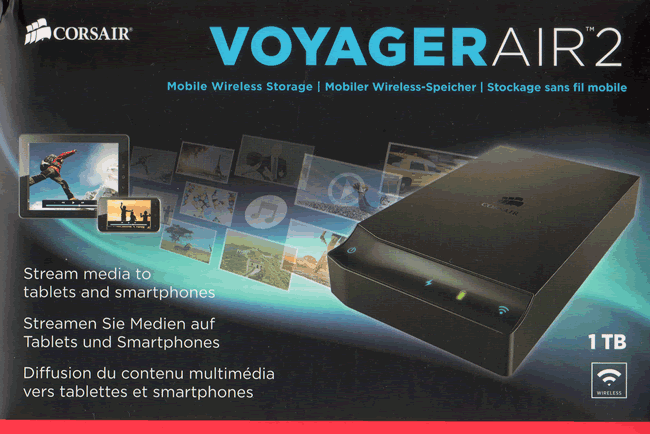
The
front of the box.
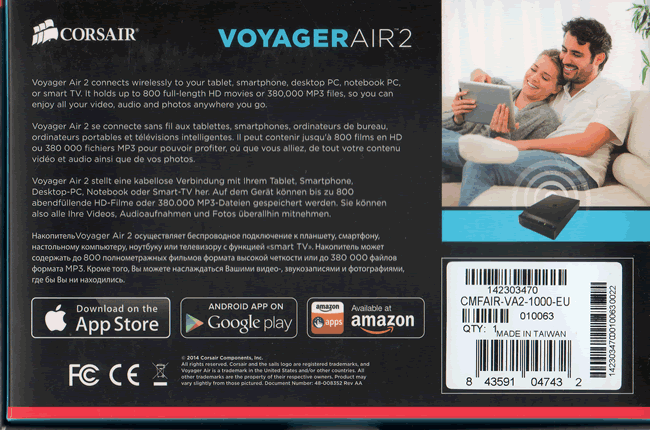
The
back of the box.
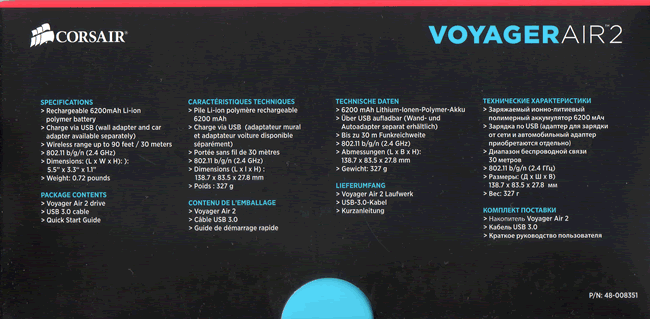
Rear
side,
You
will find this text in all three remaining sides of the box.
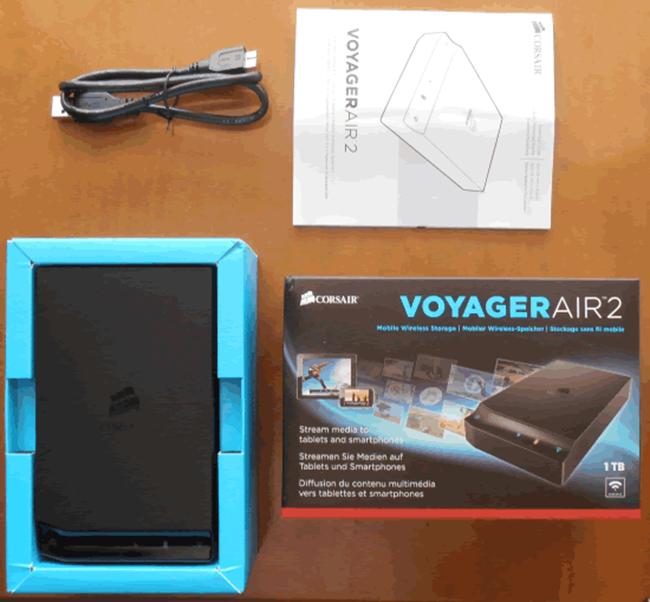
Inside
the box we will find the Voyager AIR2, a quick user guide, and a USB cable.
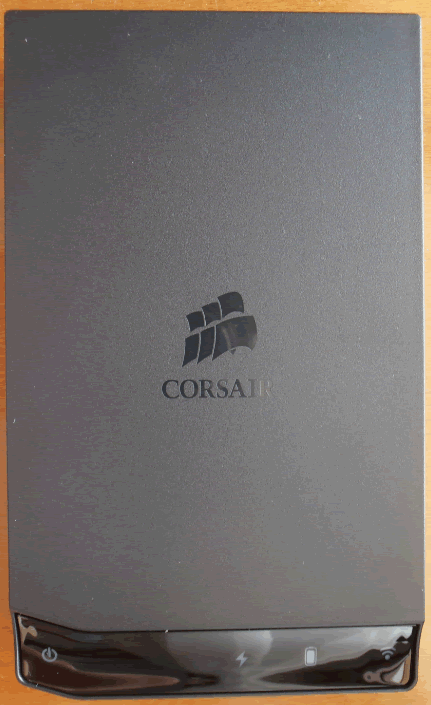
The top view of the Corsair Voyager. In the
middle there is the Corsair logo, and on the bottom we find the Power indicator,
which is also used as a button to power the Voyager AIR2 on and off, and after
that there is an indicator that will light when the voyager is connected to external
power. Next is the battery indicator, a three colour LED, and the Wi-Fi LED which
again is used as an ON/OFF switch.


The three major indicators, are lit up in
blue. The battery LED is green when the battery is higher than 75%, amber for
5-75%, and red when the battery is less than 5%. You can charge the battery via
USB3 or directly with a 12V DC power supply.
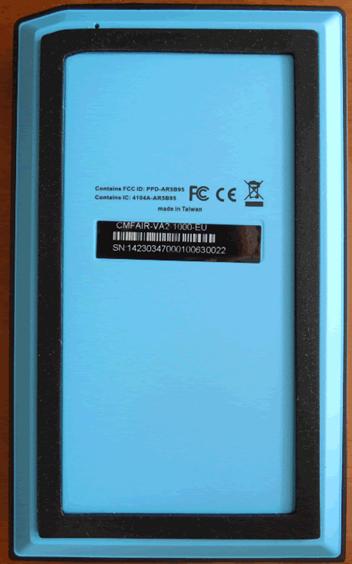
The
bottom of the Corsair Voyager AIR2.
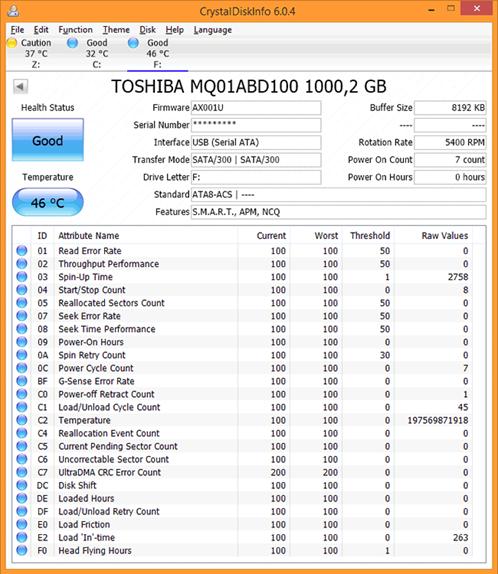
Additional
info on the internal hard drive of the Corsair Voyager AIR2
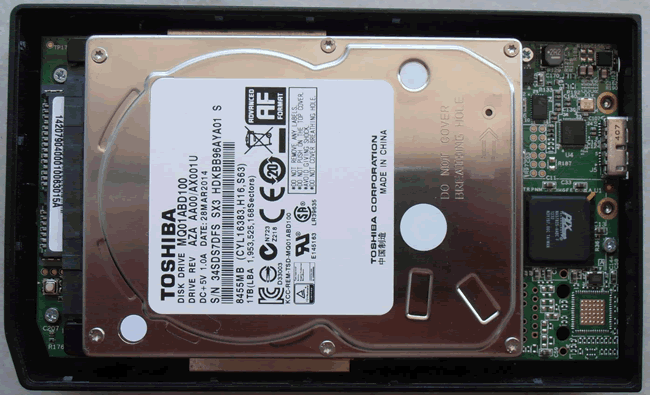
Here
is a look inside the Corsair Voyager AIR2.
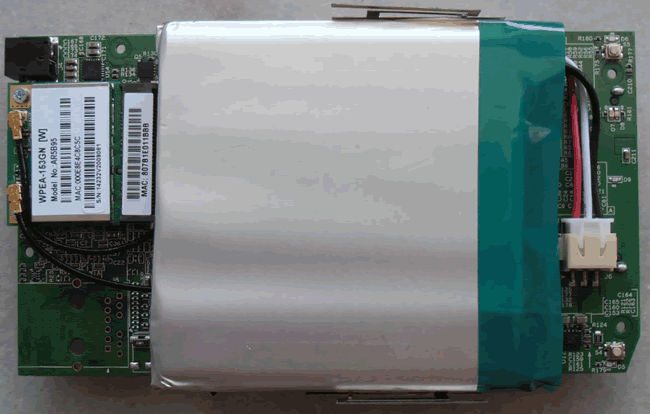
Removing the screws we gain access to the
other side, and there we find the Wi-Fi card, and the battery. The battery in the
Voyager AIR2 is rated at 6200mAh which should be able to last for close to
seven hours, depending on use, and below the battery there are four screws to secure
the hard drive. In any case I will strongly advise not opening your Voyager AIR2
because you will invalidate your three year warranty.
Specifications
Here are the Specifications for the Corsair
Voyager AIR2, you can also find them in Corsair website.
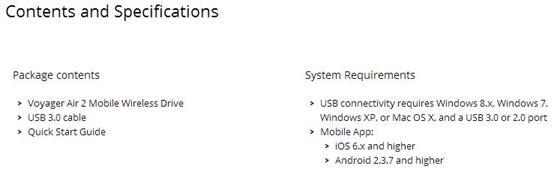

Now let's start our tests for the
Corsair Voyager AIR2...
Test system and test procedures
For this review I will be using a PC with
the following configuration.
PC
- MOTHERBOARD: Gigabyte P55A-UD4
- CPU: Intel
i5-750 @ 3.4GHz - CPU COOLER: Cooler Master Evo 212
- RAM: 2x4GB
Kingston HyperX - VGA: ATI
Radeon HD 5670 - HDD1: Kingston
V200 240GB (OS Drive) - HDD2:
Samsung Spinpoint 1TB (storage)
Testing methods
I will try to keep my testing methods as
simple as possible and also as repeatable as possible. So I will run some
simple benchmarks, starting with ATTO and moving on to CrystalDiskMark,
and finishing my tests with HD Tune. All tools can give a good
impression of how the drive performs in synthetic benchmarks. Most times I am
running my tests with the FAT32 file system that many manufacturers
continue to ship their drive formatted with, but in this case Corsair send the
drive with the NTFS files system so I will only test it with the NTFS
file system. The tests are simple tasks such as copying/pasting from one drive
to another, and also a small compatibility test with a list of various consumer
devices that I use in my house.
NTFS Tests
ATTO
I will be starting the NTFS tests with ATTO.
This time I will be running them with the drive formatted using NTFS, the file
system that most people will probably be using. So let’s see the performance
with the NTFS file system.

The Corsair Voyager AIR2 gives a very good
result in this test, for a USB3 hard drive.
CrystalDiskMark
For my second test I will be using
CrystalDiskMark, this tool can give a better idea of the overall performance of
the Corsair Voyager AIR2.

Below
you will find a graph that compares the Voyager AIR2 with previous drives that
I have tested.

Read
speed results

Write
speed results
Crystal Disk Mark shows the speed that I
pretty much expected from a 5400 RPM hard drive.
HD Tune
HD Tune will be the final benchmark for the
NTFS tests.

Below
I present a graph with previous drives that I have tested.

In this test we can see from the above
graph that the Corsair Voyager AIR2 shows an uncommon trend, and as a result the
numbers in this test are low, but for an external 2.5" hard drive this
speed should be sufficient for any daily task.
Conclusion
Performance was as expected from a 5400 RPM
hard drive, fast for your daily needs but nothing ground breaking.
Let’s move to the next page for some
real world tests ...
Real world tests
In this set of tests I will use the same
files that I used in all my previous reviews, as I believe that this will give
an idea of the real performance of the drive that is currently being tested.
MP3
I will start my tests by performing a very
common task, and that is copying 1.36GB of MP3s files from the RAM disk to the
destination hard drive, and also from the hard drive to the RAM disk. You can
see the result for the Corsair Voyager AIR2 in the graph below.

Nice and solid performance for the Voyager
AIR2 when it’s connected via USB3.
Pictures
For the next test I will copy 3377 assorted
picture files with a total size of 2.56GB from the RAM disk to the HDD and vice
versa.

Again we see a solid performance with USB3
for the Corsair Voyager AIR2.
Video
I will finish my tests by copying an MKV
file and an SRT file from the RAM disk to the HDD and also from the HDD to the RAM
disk. The two files have a total size of 3.46GB

Finishing this set of tests we see the
Corsair Voyager topping the chart with its solid overall performance.
Compatibility
This is a simple test, in which I will plug
the Corsair Voyager AIR2 into various devices, two PCs, a laptop, a netbook,
one mini Hi-Fi, a media player, and two TVs, to check the compatibility. So
let’s see if the Voyager AIR2 works on all these machines.

Zero compatibility issues for the Corsair
Voyager. I also tested the Wi-Fi connectivity with a Dell Inspiron 3537 laptop,
and LG P970 Smart phone and the vidon.me AV200 media player, and for all of
these devices I had zero issues.
Wi-Fi
I have to admit that Wi-Fi isn't my preferred
way of connecting to the internet, or to any other devices, and most
importantly not the way that I would choose to transfer files. Sometimes
however you don't have the option of a USB3 port nearby, and in that case the
Corsair AIR2 can be a very handy tool to help you get over certain limitations.
Time to stop complaining about Wi-Fi and start typing my thoughts about the
Corsair AIR2.
So it is time to start some tests over Wi-Fi.
I first ran the three tests that I always run in the real world tests, copying
MP3, MKV, and pictures from the PC to the Corsair Voyager AIR2 and vice versa.
In the graph below I present the test results. Keep in mind that the results
will vary depending on your hardware.

As I imagined the speed isn't that fast
when it comes to transferring files over Wi-Fi, but if you don't have another
option then you will have to wait a little more for your task to be completed.
Corsair Voyager AIR app
Corsair offers their app for IOS, and also
for Android on Amazon, so I went ahead and installed the Voyager AIR app on my
LG P970. Immediately I was able to connect to the Voyager AIR2 and see the
contents on the hard drive. When you first login to the Voyager AIR2 there isn't
a password, so I would strongly advise you to make one so that your files can't
be viewed from anyone that is within range of the Voyager AIR2 Wi-Fi. Also by
setting up a password you will be able to use the Voyager AIR2 as a
pass-through and provide internet access to other connected devices. You can
also enable DNLA and stream your content though supported devices.
Let's take a quick look at the Corsair
Voyager AIR2 app for Android.


My first impression of the application is
that it's very easy to use and has a clean look, however I would have liked to
have had the option to move the app from the phone memory to the SD card. For
further information you can visit the Corsair website to find out more.
One thing that I need to mention is that
the Voyager AIR2 had no issues displaying a 720p movie on three different
devices, a media player, my laptop, and my mobile phone. Overall, the
connectivity options that the Voyager AIR2 offers will cover most of your needs
and most importantly is only a few clicks away from your fingers.
Now let's move on to the conclusion of
this review....
Positive:
- Clean and simple look.
- Connectivity.
- Battery lasts for up to 5 hrs.
- Build quality.
- Compatible with Windows/Linux/Mac OS, ISO
and Android. - Simple to use.
- Very good read/write performance as a
USB3 drive. - Three year warranty.
Negative:
- Price.
The closing sentence is,
“I have to say that I am impressed by
the Corsair Voyager, and it is packed with more features than I can use.
Connectivity is another strong point for the Voyager AIR2 and you can add to
that the 1TB hard drive that offers all the storage you need when you are on a
trip or just camping. The Corsair Voyager AIR2 can be, and is, a very useful
tool, not just a smart portable external hard drive."
I will therefore be giving the 'Very good'
award to the Corsair Voyager AIR2.