Pages:
 |
Review: Eminent |
Eminent was kind enough to give us a lend
of two hard disk enclosures for review, one for 2.5” hard disks and the other
for 3.5” hard disks. The 2.5” model features both USB2.0 and eSATA
connectivity and a backup button. This enclosure is bus powered, so no
separate power supply is required. The 3.5” model features USB2.0
connectivity, supports both SATA and IDE hard disks and includes a vertical
stand.
While one can easily pick up an external
hard disk that is ready to use, an external enclosure provides several advantages
over a complete unit: The user can use their preferred hard disk brand and
model, where as some external hard disks do not give a clue as to what hard disk
is inside. When upgrading to a larger hard disk or even an SSD in a laptop,
the 2.5” enclosure allows the original hard disk to be used as an external
drive, such as for additional storage capacity or for backing up to.
In this review, we take a look at each
enclosure, their ease of use and how well they perform in comparison to having
the hard disks installed internally. To test the limits of each enclosure, we
will run a set of benchmarks with an OCZ Vertex 2 SSD installed and compare
these results to having this SSD installed inside the computer. Finally, we
run a set of real world file copy, read and delete tests to see how the
enclosures perform with typical everyday use.
Eminent Company Information
Eminent produces a range of consumer
electronics, including set-top media players, computer peripherals (external
HDD, USB Hubs, card readers, mice, etc.), network devices (routers, switches,
PowerLine Ethernet, Wi-Fi, etc.) and accessories such as audio, video and data
cables and power supplies. They also have a range of home automation and
security products such as remote control lighting, smoke detectors, security
alarms and CCTV.
Further information on the Eminent company
profile, including their product range can be found on their website.
Retail packaging
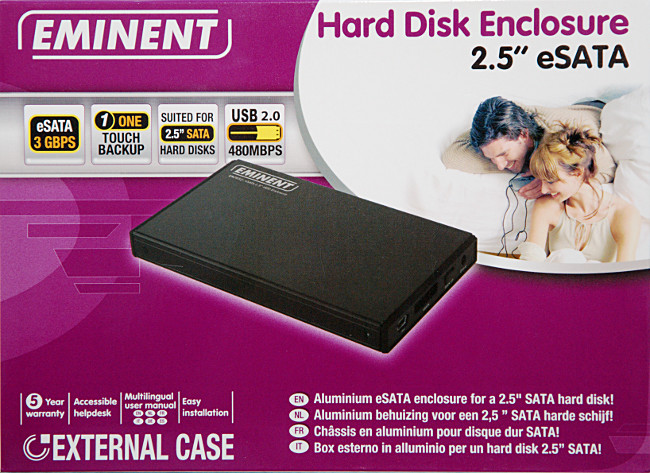
The HDD enclosures came in retail
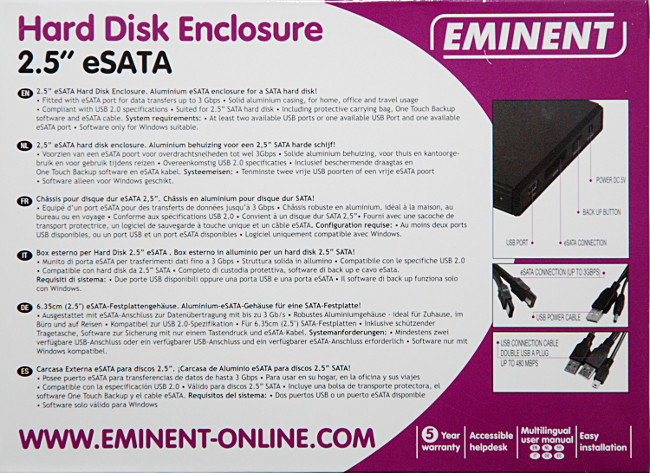
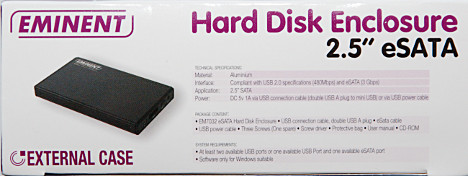
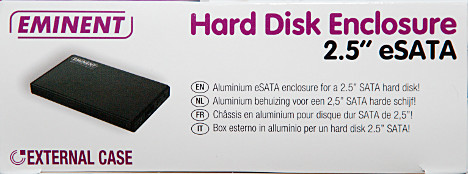
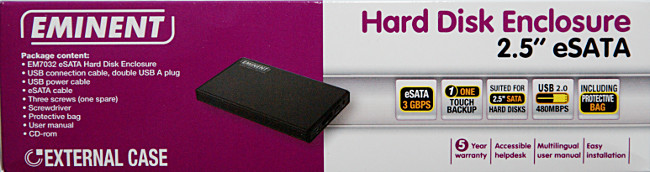
packaging, as shown in the following images:
2.5” Enclosure - Front
2.5” Enclosure - Rear
2.5” Enclosure - Left Side
2.5” Enclosure - Right Side
2.5” Enclosure - Top Side
2.5” Enclosure - Base Side
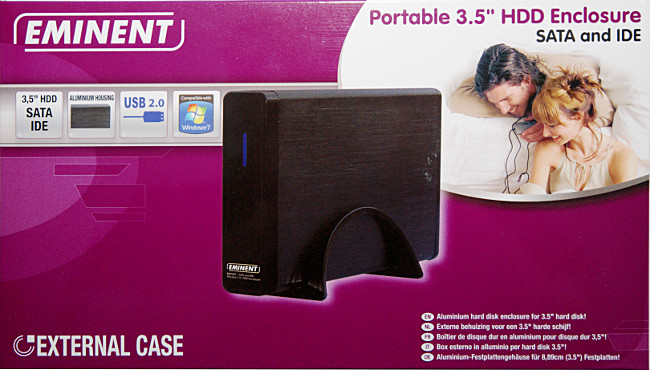
3.5” Enclosure – Front
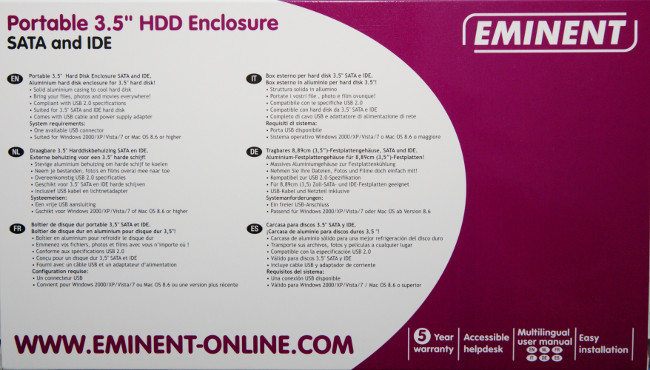
3.5” Enclosure – Rear
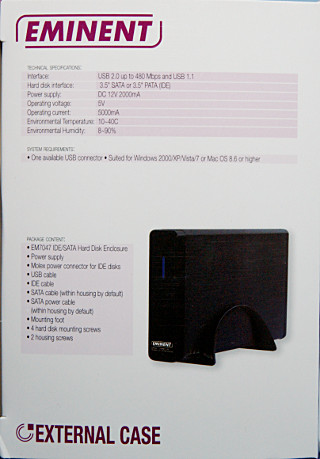
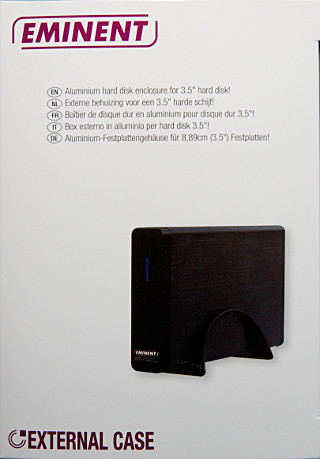
3.5” Enclosure – Left & Right Sides
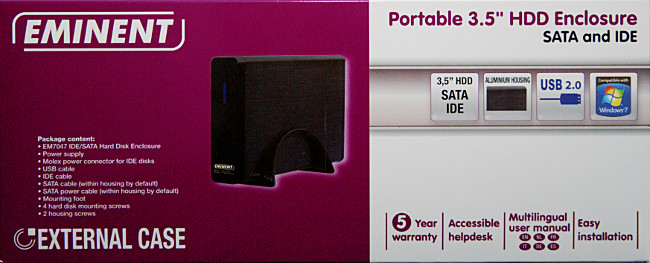
3.5” Enclosure – Top / Base Sides (same content)
What’s inside the boxes?
The following shows what each enclosure came
with.
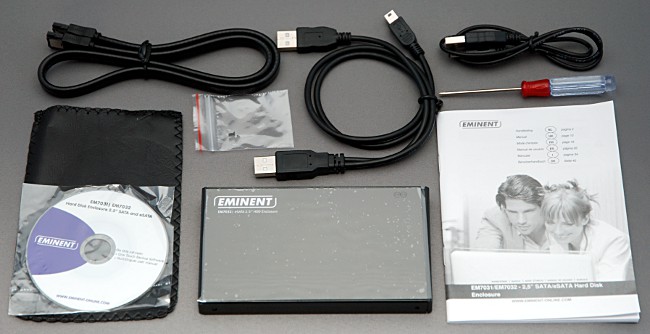
2.5” Enclosure package contents
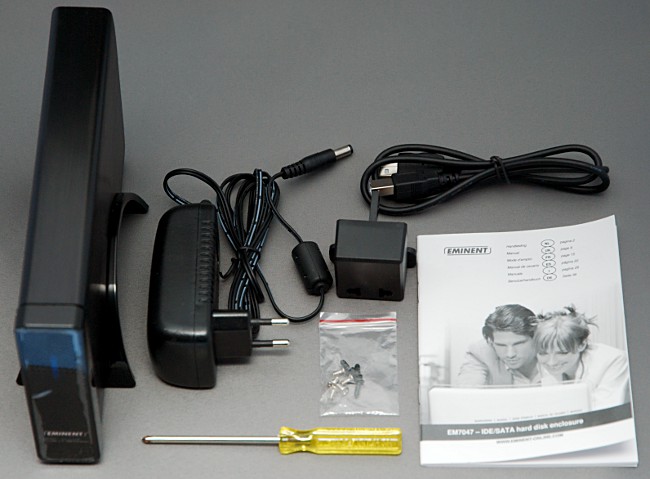
3.5” Enclosure package contents
Breakdown of the 2.5” enclosure bundle content:
- Eminent USB/eSATA 2.5” HDD enclosure
- Carry case
- eSATA cable
- Mini USB to 2xUSB A plugs cable
- USB to 5v DC plug
- Screw pack
- Mini Philips screwdriver
- Backup Software CD
- User guide
Breakdown of the 3.5” enclosure bundle content:
- Eminent USB 3.5” HDD enclosure
- Vertical stand
- USB A to B cable
- DC power supply
- EU to UK power plug adapter
- Screw pack
- Mini Philips screwdriver
- User guide
Each bundle has everything one needs to get
started, including the screwdriver! It is nice to have both cables bundled
with the 2.5” enclosure, as some multi-connectivity enclosures only include the
USB cable. Both enclosures also come with a spare screw, something we have not
seen before with any DIY kit.
Now, let’s take a look at the enclosures:
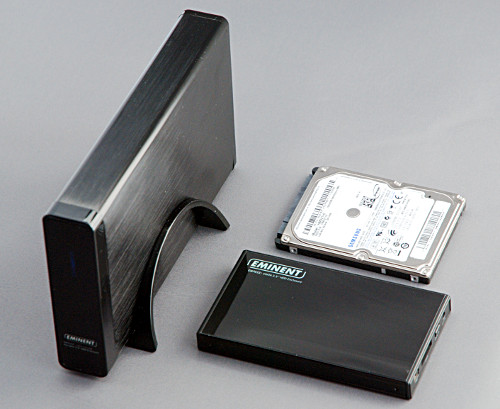
2.5” & 3.5” HDD enclosures along with a 2.5” hard disk
The 2.5” enclosure has a glossy top surface,
while the 3.5” enclosure has a brushed style surface on each side with a glossy
front panel. A small drawback with the glossy finish is that this easily
attracts fingerprints.
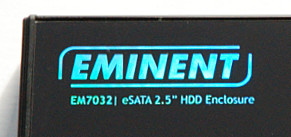
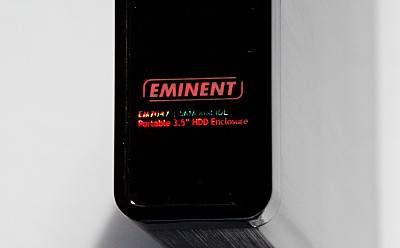
The Eminent logo of each enclosure is
holographic, varying in colour hue depending on the angle. The effect is
stronger on the 3.5” enclosure where a rainbow of colours is visible at certain
angles:
2.5” Enclosure logo
3.5” Enclosure logo
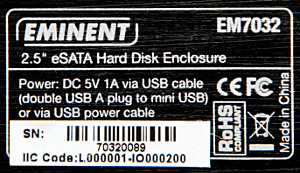
The 2.5” enclosure has a label on the back
showing its power requirements:
Now, let’s see the connections of each
enclosure:

2.5” Enclosure connections
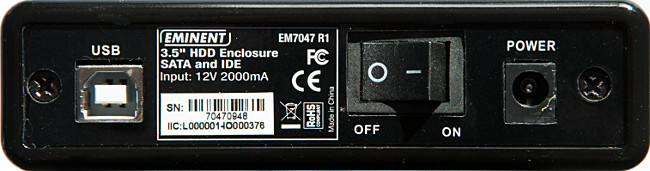
3.5” Enclosure connections and info label
The 2.5” enclosure has a mini-USB
connection, which both powers the drive and connects it. For eSATA
connectivity, the eSATA port provides connectivity, while the DC jack supplies
power using the included USB to DC power cable. The “Back up” button works
with its included software to initiate a backup process each time this button
is pressed.
The 3.5” enclosure is more basic, with USB
and power connections, along with a power switch.
Product Specifications
The following are the specifications, as
printed on the packaging of each enclosure:
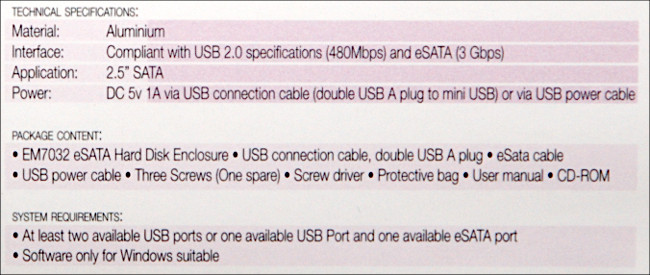
2.5” Enclosure Specifications
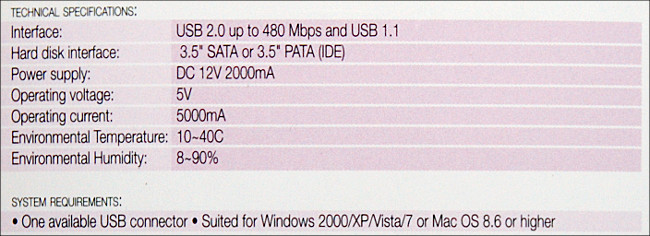
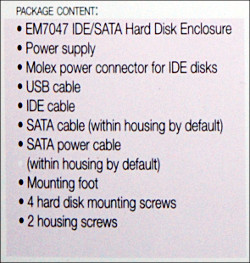
3.5” Enclosure Specifications
One thing which a few of our members
pointed out in our external Samsung HDD review is that a USB port is only
designed to supply up to 500mA of current and that the use of a USB ‘Y’ cable
is not a certified method of providing additional power. As some 2.5” hard
disks have a power requirement of greater than 500mA, it is worth noting that
no 2.5” bus powered HDD enclosure is officially USB certified due to the
>500mA current requirement to power certain 2.5” hard disks.
As we can see above as well as in the
specifications, the 2.5” HDD enclosure requires 1A of power, which means that
there is a possibility that it may cause issues with certain hardware that
those does not tolerate the combining of power from two USB ports. Note that
with the eSATA connection, the enclosure is powered by a single USB port with
the included USB to DC plug. Throughout our review, we have not encountered
any computer that was unable to power the enclosure with either our Samsung
2.5” 320GB SATA hard disk or the Vertex 2 inside.
The 3.5” enclosure is powered by its
included DC power adapter, so this model should not have any issue even with USB
ports that have a strict 500mA current limit.
Now let’s head to the next page where we
will look at our test PC and testing procedures…
Test Equipment
The following are the specifications of the
computer this product has been tested on.
Computer 1:
- Crucial 2GB x 2 kit 240pin DDR3 PC3-8500
- Gigabyte S1156 Intel P55 motherboard - GA-P55-UD4
- Intel Core i5 Quad 750 2.66GHz 8MB cache
- Antec Three Hundred Black Case
- Sapphire HD4350 512MB PCIe DVI graphics card
- Samsung Black DVD+/-RW SH-S223B SATA
- Lite-On DVD+/-RW SOHW-1693S ATA
- OCZ Vertex 2 120GB SSD FW v1.29
- Samsung F3 1TB 7200RPM HDD
- Western Digital RE4-GP 2TB 5400RPM HDD
- ASUS U3S6 PCIe x4 USB3.0 / SATA 6Gbps
- Corsair 450W ATX PSU
- Windows 7 64-bit Enterprise Edition
Digital Cameras:
- Nikon D60
SATA SSD and hard disks used for testing inside the enclosures:
- OCZ Vertex 2 120GB SSD FW v1.29
- Samsung 320GB 5400RPM 8MB cache, model HM321HI
- Western Digital Caviar Blue 500GB 7200RPM 16MB
cache, model WD5000AAKS
The
camera was used to take the product photography.
When
we refer to the hard disks in this review, we will refer to them as the OCZ
Vertex 2 for the SSD, the 2.5” HDD for the Samsung 2.5” drive and the 3.5” HDD
for the Western Digital Caviar Blue 3.5” drive.
Test applications
To test the performance of the Samsung HDD,
we will be using the following test applications in this review:
- HD Tune Pro
- ATTO
- CrystalDiskMark x64
- (Various in-house batch file scripts)
Test procedures
Unlike external hard disks that usually
come preformatted in FAT32, hard disks that are used in self-build enclosures
must be formatted prior to use. By default, Windows XP, Vista and 7 format
external hard disks in the NTFS file system, so all our benchmarks and real
world tests will be conducted with the drive formatted in NTFS with a single partition
filling the capacity of the drive.
Due to the variation in performance from one
USB controller to another, we will conduct all tests in this review using the
same USB front port of our review PC. The eSATA tests were conducted with the
motherboard’s rear eSATA connection.
For all tests, we will test with the
following configurations:
- OCZ Vertex 2 – Installed in the PC for
Reference - OCZ Vertex 2 – 2.5” Enclosure connected
by eSATA - OCZ Vertex 2 – 2.5” Enclosure connected
by USB - OCZ Vertex 2 – 3.5” Enclosure connected
by USB - 2.5” HDD – Installed in the PC for
Reference - 2.5” HDD – 2.5” Enclosure connected by
eSATA - 2.5” HDD – 2.5” Enclosure connected by
USB - 3.5” HDD – Installed in the PC for
reference - 3.5” HDD – 3.5” Enclosure connected by
USB
For the real world testing, we will test
the following with each configuration:
- Copy a large 1GB file from the RAM drive
to the HDD. - Read the 1GB file.
- Copy a large 1GB folder consisting of
8,247 JPEG files in a hierarchy of 245 folders. - Read this entire folder’s content.
- Delete this folder.
We chose a RAM drive as the file copying
source to minimise the latency as much as possible for the read source. For
the read tests, the files are simply read by our script without being stored
anywhere. All timings are measured by script with accuracy to 1/100th
of a second. The computer was rebooted after each write test and prior to the
delete test.
The purpose of the delete test is to show
how long it takes to delete a large folder, as this task can be quite tedious
with a large set of folders and files
Note that as all the real world tests are
conducted with a blank drive, the performance will vary depending on the amount
of data the drive contains, especially for the tests with a hard disk installed
inside the enclosure.
Note: Due to
the large number of benchmarks we have carried out for this review, we have
decided to only show individual graphs for the HD Tune Pro tests. All other
tests, including the real world tests are shown as graphs.
Installing the hard disks
Before we can use either enclosure, we
first need to install a hard disk in the enclosure. Both enclosures came
disassembled with the screws in the provided screw pack. So we take a quick
look at the assembly process for each enclosure.
2.5” Enclosure
This enclosure was very straightforward to
install. The power and data connectors are fixed in place on its circuit
board, so it was just a matter of attaching this to the hard disk:

Once attached, this simply slid into the
aluminium enclosure. Finally, two screws are inserted at the rear using the
included screwdriver.
3.5” Enclosure
This enclosure took a little extra effort
to put together. The SATA and power cables were already attached to the
circuit board, so we attached the other ends to the drive. The hard disk then
needs to be seated and screwed in place, which is quite a tight fit for the
cables as shown here:

We didn't have an IDE hard disk handy, so
we were unable to check how easily an IDE hard disk could be installed, but as
shown above, the two cables for IDE connection are provided. Once the hard
disk is seated, it was just a matter of sliding this into the aluminium case
and screwing it closed.
Now let’s head to the next page, where
we carry out the HD Tune Pro benchmarks…
HD Tune Pro – OCZ Vertex 2 120GB Installed
We start our benchmarks by running the HD
Tune benchmark.
Before we test the OCZ Vertex 2 in the HDD
enclosures, we first need to get a reference with the OCZ Vertex 2 installed
inside our review PC:

Now let’s see how the OCZ Vertex 2 performs
while installed inside each enclosure:

2.5” Enclosure – Connected by eSATA

2.5” Enclosure – Connected by USB

3.5” Enclosure – Connected by USB
Even with the eSATA connection, we can see
a sharp drop off in performance from the internal connection. However, it is
worth noting that the PC’s eSATA port performs worse than on board SATA due to
its hot plug features being enabled, so it is quite likely that we will see
this graph even with a passive eSATA to SATA adapter to connect the OCZ Vertex
2 to the eSATA port.
For the USB connections, we see a
noticeable difference between both enclosures, despite using the same USB port
on the PC, with slightly lower read performance and a much larger access time
on the 3.5” enclosure.
HD Tune Pro – 2.5” enclosure with Samsung 2.5” 320GB HDD
Installed
Now that we've seen how each enclosure
performs with a near ideal drive installed, let’s see how the enclosures
perform with a typical hard disk installed.
As with the SSD, we start with the Samsung
2.5” hard disk installed inside our PC for reference:

Now for the drive installed in the 2.5”
enclosure:

2.5” Enclosure - Connected by eSATA

2.5” Enclosure – Connected by USB
Unlike the differences we saw between
internal SATA and eSATA with the Vertex 2, the differences here for the Samsung
2.5” hard disk are close to negligible, with just a 0.4MB/s difference in the
average transfer rate and 0.3ms higher average access time.
When connected by USB, the transfer rate
was 1.5MB/s slower than with the SSD inside, but considering the high cost
difference between SSD and hard disk per Gigabyte, for USB operation, a hard
disk is adequate, especially for bulky file transfers where access time is not
that important.
HD Tune Pro – 3.5” enclosure with Western Digital Caviar
Blue 3.5” 500GB HDD Installed
Again, we start with the drive installed in
our review PC for reference:

Now for the hard disk installed in the 3.5”
enclosure:

With this test, the USB transfer rate is
very near to what we saw with the OCZ Vertex 2 installed. However, when compared
to the 2.5” enclosure with a spinning hard disk installed in each, this
enclosure performed 1.9MB/s slower in the transfer rate.
HD Tune Pro – Summary
The following graph shows a quick summary
of the average transfer rates with each configuration:

As we can see here, the 2.5” enclosure is
the better performer, outperforming the 3.5” enclosure in every test.
Now let’s head to the next page, where
we carry out benchmarks in ATTO and CrystalDiskMark…
ATTO disk benchmark
ATTO has become a standard tool for measuring
the data throughput of hard drives and flash drives. It measures the
performance of reading and writing, using different file sizes and block sizes.
The following are graphs plotting the
results from each test result:

ATTO read results involving the OCZ Vertex 2 120GB

ATTO write results involving the OCZ Vertex 2 120GB

ATTO read results involving the Samsung 2.5” 320GB HDD

ATTO write results involving the Samsung 2.5” 320GB HDD

ATTO read results involving the Western Digital Caviar Blue 3.5” 500GB HDD

ATTO write results involving the Western Digital Caviar Blue 3.5” 500GB HDD
In the ATTO tests, the 2.5” and 3.5” enclosures performed
very similarly in USB mode with the Vertex 2 installed. We can also see how differently
the 2.5” enclosure behaves with a Vertex 2 installed compared with a hard disk
installed, especially when comparing eSATA performance with OCZ Vertex 2
installed against the SSD reference.
CrystalDiskMark 3.0
Crystal Disk Mark is quite a handy
benchmarking application, as it focuses on the file sizes that can cause a
problem on a system drive as well as external drives.
The following graphs show the results for
each drive:

CrystalDiskMark sequential transfer results involving the OCZ Vertex 2 120GB

CrystalDiskMark random transfer results involving the OCZ Vertex 2 120GB

CrystalDiskMark sequential transfer results involving the Samsung 320GB 2.5”
HDD

CrystalDiskMark random transfer results involving the Samsung 320GB 2.5” HDD

CrystalDiskMark sequential transfer results involving the Western Digital
Caviar Blue 500GB 3.5” HDD

CrystalDiskMark random transfer results involving the Western Digital Caviar
Blue 500GB 3.5” HDD
The first two graphs with the Vertex 2
clearly show the limits of each enclosure. Interestingly, while the 2.5”
enclosure does better with sequential reading, it is the other way around with
sequential writing. For small random access transfers, the writing and reading
performance is very similar between both enclosures. Again, we can also see
how the eSATA is a bottleneck to the Vertex 2, but the Samsung 2.5” HDD
performs about just as well in the enclosure as when installed in the PC.
Summary
The read and write transfer rates are
pretty good for a USB enclosure, achieving pretty much the limit for USB 2.0,
with 4K random access throughputs similar to with the drives installed internally
for hard disks. With our 2.5” 5400RPM hard disk, the eSATA port on the 2.5”
enclosure gave nearly identical performance to having the hard disk installed
internally. The eSATA on the other hand became a significant bottleneck for
the fast OCZ Vertex 2, although this is likely more due to the limitations of
the review PC’s eSATA controller than the enclosure itself.
Let’s head on to the next page for some
real world testing…
Real world tests
As with benchmarking USB pen drives, it is
pointless conducting an endless amount of benchmarks on an external hard disk
enclosure. Real users may conduct a few benchmarks when they first put their
kit to together, but most users simply want a hard disk enclosure that performs
well in the real world.
The benchmarks have so far shown us that
this hard disk provides reasonably good results over USB 2.0. However, these benchmarks
alone say very little about how the drive will perform in the real world.
Real world single file copy test
The most common task people use an external
hard disk for is transferring bulky files from one computer to another. So in
this test, we will measure how long it takes to transfer a 1GB file to and from
each enclosure, as well as reference tests for each drive where the hard disk
or SSD is installed inside the PC.
We used a script to measure the timing,
with the source file stored on a RAM disk to prevent the read source becoming a
bottleneck and the computer was rebooted after the write test to clear the
cache. These tests were repeated to cover each hard disk or SSD and connection
method.
The following are the results:

Total time taken to write the 1GB file

Total time taken to read the 1GB file
Just as we saw earlier with the sequential
benchmarks, the 3.5” enclosure is quicker at writing bulky files, but when it
comes to reading, the 2.5” enclosure is quicker. The same holds true whether
there is a hard disk or SSD installed. The Vertex 2 Internal vs. eSATA results
also show a noticeable difference, however, when the SSD is swapped with the
Samsung 2.5” HDD, the difference is pretty much negligible
Real world small files copy test
Not everyone uses a USB hard disk for bulky
video files. In fact, some simply use it to back up their documents and
photos, many of which could range from a few Kilobytes to a few Megabytes per
file. So in this test, we time how long it takes to copy 8,247 photos in a
hierarchy of 245 folders totalling 1GB to and from the drive.
Like the previous test, these files are
stored on a RAM disk as the source and we used a script to measure the timing.
The computer was rebooted after each write test to clear the cache.
The following are the results:

Total time taken to write the file set.

Total time taken to read the file set.
When it comes to small files, the
difference between the 2.5” and 3.5” enclosures becomes quite noticeable, with
the 3.5” enclosure winning for write tests and the 2.5” enclosure still beating
the other on read tests. The eSATA interface clearly shows its advantage again
over USB. While the Vertex 2 SSD is excellent at small write transfers, we can
see here that using it over USB with either enclosure would be a very serious
bottleneck to its performance, especially with the hard disk over eSATA results
taking a third of the write time and half of the read time of running either
enclosure with the Vertex 2 inside over USB.
Real world file deletion test
One issue we noticed in the past when it
comes to external hard drives is the amount of time it takes to delete a large
folder from the drive, in some cases taking several minutes for a folder with a
very large hierarchy of folders and files.
So for this test, we simply timed the
duration it took to delete the hierarchy of 8,247 files and 245 folders from
the hard disk. The computer was rebooted before we ran this test to clear the
cache. The timing was measured by a script.

Even though deleting files should result in
very little data being read from or written to the drive, there are massive
timing differences here. For the 2.5” enclosure connected by USB, it takes
roughly five times longer for the SSD and twice as long for the hard disk
compared to with these drives installed internally. For the 3.5” enclosure,
the SSD still took five times longer, but the hard disk took four times longer
than having these drives installed internally. Interestingly, the eSATA seemed
to perform slightly better than with the drive installed internally for both
the SSD and hard disk.
Summary
The real world tests gave fairly similar
results to the synthetic results earlier for bulky transfers, with the 2.5”
enclosure performing slightly better than the 3.5” enclosure both over USB in
reading and vice versa with writing. The eSATA interface again clearly blows
away the USB connection, delivering roughly the same performance as an internal
SATA connection for the hard disk and reasonably good performance for the OCZ
Vertex 2 SSD.
What did surprise us is just how much the
timings varied when deleting files, with USB taking up to 5 times the length
over an eSATA connection, even though file deletions should result in very
little data being transferred to or from the drive.
Software Bundle
The 2.5” enclosure came with a CD-ROM
containing backup software, so on this page, we will take a quick look at the
features of this software. The following appears when the CD is loaded:

On the next screen, we get the option of
installing the software, a driver for Windows 98 and view the user manual. The
Windows 98 driver is an unusual thing to see now, but does show that Eminent
wants to make sure this enclosure will work even on old hardware:

The next couple of screens go through the
installation wizard, giving us a choice of components to install (Driver,
Desktop icon & Quick launch icon) and destination folder. The installation
is actually quite light as shown in the following screen:

Backup Software – Setting Up
Once the installation is complete, the
backup utility window automatically appears:

As we can see here, it is as basic as a
backup utility can get. I.e. choose the source folder, destination location and
click “Backup Now”. The “Enable One Touch Backup” option enables the button at
the back of the 2.5” enclosure, so pushing this automatically runs the backup
process:

As far as we can tell, the backup only
gives the ability to select a single folder to backup, so this software is not
really suitable for those who store data in multiple locations or across
multiple drives. However, it is useful if the drive is to be specifically used
to backup a single project, as then it is just a matter of pushing the backup
button each time a backup is required.
One issue we did encounter is that the
backup utility throws up a UAC request during each boot right after the desktop
appears, at least on our Windows 7 x86 based desktop.
Restoring data
There is a good chance over time that files
and folders will become misplaced, deleted or overwritten or in a more severe
case the main hard disk fails!
The backup software itself does not seem to
have any restore function, however upon a quick look at the enclosure’s drive
content, it turns out that the backups are simply a direct copy of the source,
so there is no need to use any software to recover the backed up data:

Let’s head on to the next page to
conclude our review …
Positive
- Both kits come with cables, spare screws
and even a screwdriver. - 2.5" enclosure is very quick to
assemble. - Brushed finish on 3.5" enclosure and
glossy finish on 2.5" enclosure. - Bus powered on 2.5" enclosure; no
power supply required. - Physical on/off switch on 3.5"
enclosure. - eSATA on 2.5” enclosure achieves near
internal SATA performance with hard disks. - Reasonably good USB performance for both
enclosures. - 2.5" enclosure includes backup
software and legacy Windows 98 support. - Operates on all our USB ports, even ports
which fail to spin up other bus-powered USB drives. - Both enclosures appear to be reliable
with not a single dropout throughout our review.
Negative
- Tight cable spacing inside the 3.5"
enclosure makes it little awkward to assemble. - The glossy finish on the 2.5"
enclosure is a serious fingerprint magnet. - 2.5" enclosure backup software
throws up a UAC request on every windows start-up. - Small file handling a little sluggish over
USB with both enclosures. - No HDD activity LED on the 3.5"
enclosure. - No fast connection option (eSATA or
USB3.0) on the 3.5” enclosure. - Like most HDD enclosures, these lack the
official USB certification.
Conclusion
The retail package is very well presented
for each enclosure. Printer manufacturers are the worst for skimping on the
essential connectivity such as leaving out the USB. With Eminent, not only did
they include all the connection cables, including an eSATA cable for the 2.5”
enclosure, they also included spare screws and even a screw driver to assemble
the kit! Assembly for the 2.5” was as straightforward as connecting the
back-plate board to the hard disk, sliding it into the enclosure and inserting
the two screws at the back. The 3.5” enclosure was a little more awkward due
to the tight spacing for the cables.
The 2.5” enclosure has reasonably good USB
performance, while its eSATA performance is the equivalent to having the hard
disk installed internally. Like most external 2.5” hard disks, it has the
advantage of being bus powered, which means that no separate power supply is
required. However, as we have discovered during our review, a hard disk with
high power consumption will seriously breach the 500mA current limit of the USB
port, especially with hard disks rated over 1A where even the two USB
connections would draw more current than what the USB ports are designed to
supply. On eSATA, the power is supplied by just a single USB port, further
limiting the power. This kit also includes basic backup software.
The 3.5” enclosure is a little slower than
the 2.5” enclosure, especially when reading files and also lacks eSATA connectivity.
On the other hand, it has IDE connectivity inside which is useful for reusing
an old IDE hard disk lying around. As this enclosure is mains powered, this
should work with any USB port without worrying about whether the port will
supply enough current to power the drive.
With the growing number of computers and
laptops now available with USB3 connectivity, it would be nice if these
enclosures included USB3 support, especially the 3.5” enclosure which does not
have eSATA connectivity.
To sum it up, this is what we would say for the 2.5”
enclosure:
“The 2.5” enclosure is ideal for anyone
looking for an easy to assemble SATA hard disk enclosure, with the ability to
connect it by eSATA.”

Now for the 3.5” enclosure:
“The 3.5” enclosure is ideal for someone
looking for a basic USB enclosure to make use of an existing SATA or IDE hard
disk lying around.”