 |
Review: |
Eminent were kind enough to
send us their EM4072 GigaShare PRO NAS DUO for review.
NAS is becoming very popular
for sharing media and files around the home via a home network. In this review we
will examine how the EM4072 performs as a NAS, and its usability.
Eminent may not be a brand you
have heard of outside of Europe, or even the Netherlands, but Eminent have a
long history of providing communication equipment, so let’s see how the EM4072
performs.
If you would like to read more
about Eminent, you can find more details at their website.
Packaging
The device we received for
review was the retail package. Let’s first take a look at the packaging.

Box front
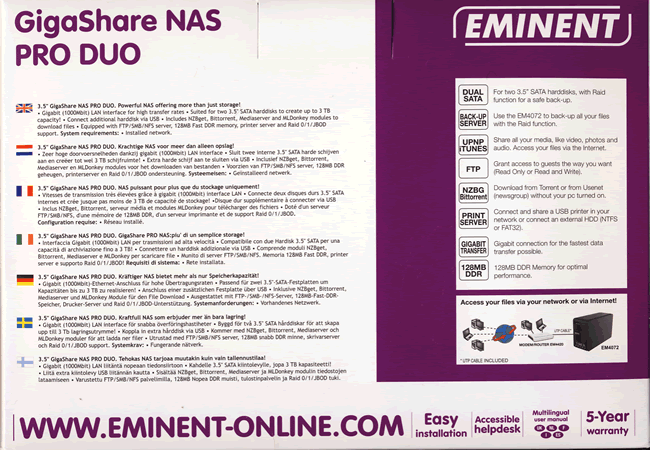
Box rear
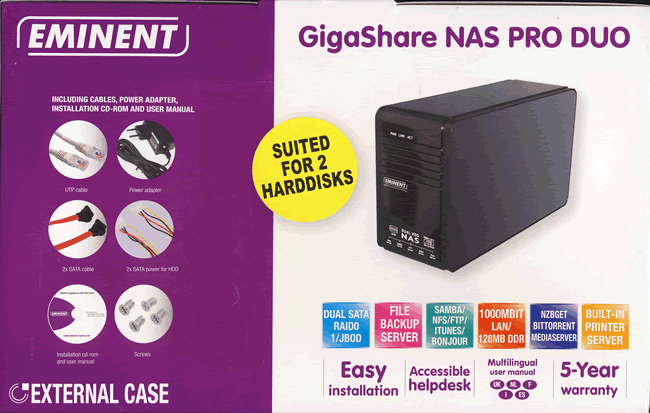
Box top
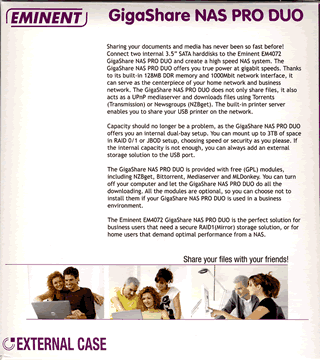

Box left and right sides
NAS hardware system
Now let’s take a look at the Eminent
EM4072 NAS box itself, and the supplied accessories.
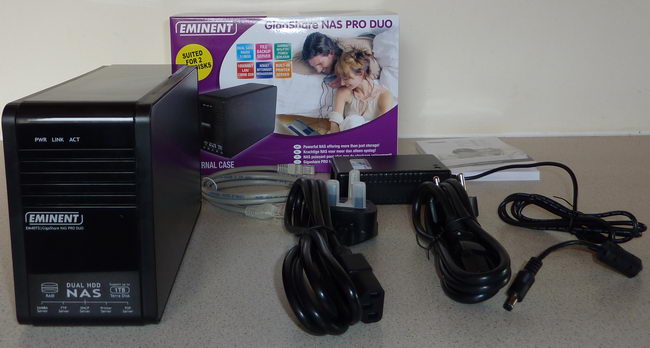
As we can see from the above
screenshot, the package contained the following items.
- EMINENT GigaShare NAS PRO
DUO EM4072 - European power supply
- UK mains cable
- European power cable
- CAT6e Gigabit LAN cable
- Instruction book
- Software CD-ROM
EM4072 NAS box

EM4072 front
On the front of the box we can
see a power, link, and activity LED’s, we can also see the box provides support
for dual HDD in a RAID configuration. We can also see that the EM4072 supports
Samba server, FTP server, DHCP server, and P2P server. The Eminent EM4072 is
also attractively styled, perhaps understated, but very tasteful.
Now let’s take a look at the
back of the box.
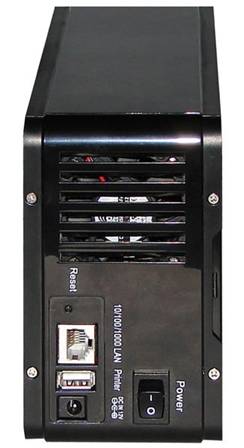
EM4072 rear
On the rear of the unit we can
see following connectors and switches.
- Power switch
- Reset button
- Gigabit LAN socket
- Printer/USB socket
- DC 12V in socket
We can also see a cooling fan
at the top of the box.
Chipset
As the unit was on loan, we
didn’t feel we should open it up to look inside. However, the Eminent EM4072 is
based on a STORLINK SL3516 CPU (GEMINI) with an M-TEK G24102MKG RAID
controller, and 128MB of DDR2 RAM.
Fitted HDD
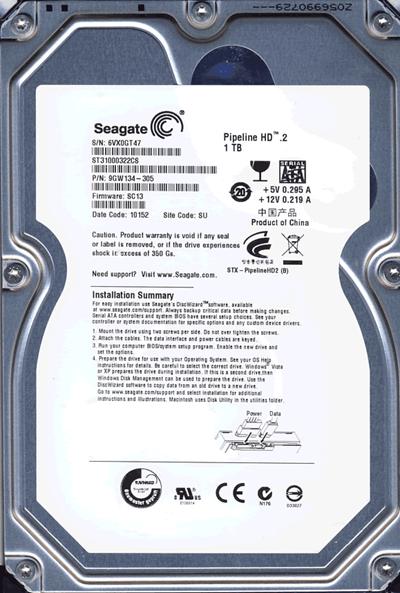
Our review sample came fitted
with 2x Seagate ST31000322CS Pipeline HD2 series HDD configured as RAID0.
These drives are SATA2 compliant, have 8MB of cache and a rotational speed of
5900RPM.
Please note
that the Eminent EM4072 will normally be supplied without any pre-fitted HDD,
and instead be supplied with 2x SATA data and power cables, allowing the user
to fit their own HDD storage solution.
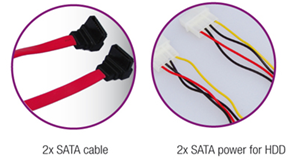
Supplied SATA data and power cables
Software CD-ROM
To complete the package, the
Eminent EM4072 is also supplied with a range of utilities and software which
can be installed onto the NAS.
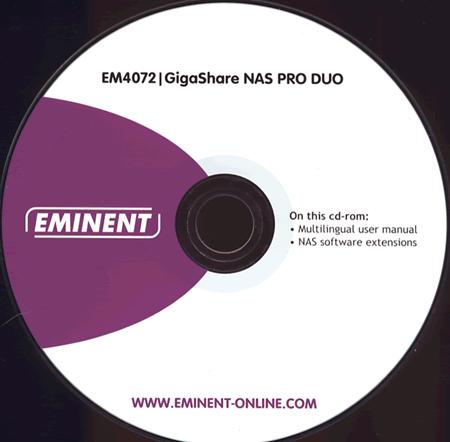
Our review sample came with
all the necessary software pre-installed, but the supplied CD-ROM includes all
the software required and instruction manual in several languages, including
English, in PDF format.
Let’s head
to the next page where we will have a look at the features of the Eminent
GigaShare NAS PRO DUO...
Main features
Let’s first take a look at the
Eminent EM4072 specifications

From the specifications we can
see that the Eminent EM4072 NAS has a Gigabit LAN interface, room for two HDD
in a RAID0/1/JBOD configuration, and we can also see the unit has 128MB of DDR2
memory.
The Eminent EM4072 NAS has
support for all the popular server configurations. Also worth noting that unit
comes with a 5 year warranty.
You may also notice a list of
operating systems that the Eminent EM4072 is compatible with, and we can also
see that Windows 7 is missing from the list. We were in contact with Eminent,
and they assured us that the EM4072 was Windows 7 compatible, and indeed, this
proved to be the case, and we carried out all our tests on the EM4072 with our
network connected PC’s running Windows 7.
Server features
The Eminent EM4072 has several
built in server applications. Let’s take a brief look at them on this page.
Syabas media server

The Syabas media server allows
video, music, and pictures to be streamed and viewed around the network, or via
the Internet. We can see above, the easy to use web interface. The setting tab
also allows a password to be set to prevent unauthorised access.
Transmission (Bit
Torrent server)

The transmission client allows
torrent files to be shared on the network or via the Internet, using an easy to
use web interface.
MlDonkey server

The mldonkey application
allows files to be shared on the Internet using P2P.
NZBGet (newsgroup
client)

The NZBGet application allows
Internet News groups to be browsed and files downloaded via the web interface.
Print Server

The print server allows a
printer to be shared around the network, when the printer is connected to the
Eminent EM4072 NAS box, via the Print server USB socket on the rear of the
unit.
Let’s head
to the next page where we will look at NAS setup and security features.....
Eminent EM4072 setup
and security features
Setting up the Eminent EM4072
is a very straightforward task.
First we connected the network
cable to a Netgear GS605 Gigabit switch, which is a five port low latency
switch with 1000mbps bandwidth per port.


We then connected the other
end of our network cable to the LAN port on the Eminent EM4072, connected the
power supply and switched on the EM4072 NAS box.
After the NAS box had finished
booting which takes around 90 seconds, we then inserted the supplied CD-ROM into
our review PC, and then ran the NAS search and configuration utility.

The utility found the Eminent
EM4072 without any problems, and as we can see the NAS box is seen as
“Gigashare”.
From here we just selected the
OK button and were then taken to the IP settings screen.

From this dialog box we can
set the EM4072 IP address manually or have it allocated one via DHCP, we
decided to set the IP address manually. After this was completed it was a
simple matter of clicking on next, then saving the configuration to the Eminent
EM4072.
Opening the Network browser on
our review PC allowed us to continue setting up the Eminent EM4072 via the easy
to use web interface using Internet Explorer 8 or Firefox.
Below we can see the view from
our review PC’s network browser.

To continue the setup
procedure we will have to log into the EM4072 via Internet Explorer 8 or
Firefox. There are two ways to do this.
Open Internet Explorer (or
Firefox) and type in our NAS boxes IP address or simply double click the
“gigashare” icon in the network browser.
When the setup page is opened
in your web browser, we can then navigate through the rest of the setup
options.
First we have to log in to the
EM4072.

Logging in is a simple matter
of entering the admin user name and password.
After login completes we are
greeted with the following menu.

The first tab has a utility to
set up the RAID array, and allows any HDD’s to be partitioned and formatted.
Disk Tools tab

As we said, our review sample
had already been configured, and as we can see, the two Seagate HDDs have been configured
as RAID0 with a Linux EXT3 partition. The following RAID configurations are
available.
- RAID 0 (both HDD striped
with 2TB of storage) - RAID 1 (both HDD are
mirrored) - JBOD (both are spanned)
in this case giving 2TB of storage with no stripping)
The following partition
formats are also allowed for both internal HDD and externally connected USB
HDDs.
- Linux EXT2
- Linux EXT3
- FAT 32 (NON RAID)
An HDD formatting option is
also provided from the Disk settings tab, which allows any HDD, to be formatted
and used with the Eminent EM4072 NAS box, including an external USB connected
HDD.

In the above screenshot we can
see our RAID0 array, and there is also a sleep option available to allow the
HDDs to enter a sleep mode when not in use. As it happens, the Seagate HDDs
installed in the Eminent EM4072 will enter into sleep by themselves after a
short period of inactivity.
System tab
The system tab allows many of
the features of the Eminent EM4072 to be set from the web interface. Let’s take
a look at the options available.

The system information link, lists
the Host name, Host IP, Product name, Firmware version, and the Client IP
address.
Lan settings

This dialog allows automatic
or manual setting of IP address and DNS server address. For this review we
decided to set these manually.
Time Settings

The time settings dialog
allows the internal clock in the Eminent EM4072 to be set manually or via an
Internet time server.
Other settings
Other settings that are
available from the system tab are listed below, and should be fairly self
explanatory.
- Save
configuration (saves the current settings to the
Eminent EM4072). - Restore
configuration (restores the current settings to
the Eminent EM4072 from a file stored on another PC). - Firmware
update (updates the Eminent EM4072 from a
downloaded firmware update file stored on another PC). - Install
software (allows new software to be installed from
an installation file stored on another PC or from a CD-ROM. - Email
notification (allows you to send notification
messages to an email address. - Turn off
server (shuts down or restarts the Eminent EM4072
NAS box.
Setting up the basic settings
of the Eminent EM4072 was extremely easy. We had these basic settings done in a
matter of a couple of minutes.
Let’s head
to the next page where will look at the server and security settings.......
Now let’s take a look at the
Eminent EM4072 server and security settings.
Setting up a user
account
Clicking on the “accounts” tab
will bring up the following dialog, where user accounts and permissions can be
setup on the Eminent EM4072.

The user management tab allows
new users to be added or removed from the Eminent EM4072.
I created a test account for
myself on the EM4072.
Share management dialog

In this dialog we can set
permissions for each user on the network or Internet. This allows who is
allowed to view and use my files stored on the EM4072.

In the above dialog, we can
setup a share using an IP address; this can either be an IP on the home network
or an Internet IP address.
Group management

The group management dialog
allows new groups to be setup with permissions that span across a whole group
of users.
Summary
Setting up the user accounts
and permissions was a very simple affair. It was also possible to allow or deny
access to other peoples shared folders, and allow access to the EM4072 from the
Internet, knowing that other people’s private data would remain safe.
Server settings
We have already covered the
server settings on the setup page, but let’s take a brief look at the manual
settings and features.
File server

Everything here is fairly self
explanatory.
We can enable or disable the
file server and FTP access; we can also enable or disable the NFS server
settings, and enable or disable Guest access and also set and enable a quota
for quest access.
DHCP server

In this dialog we can enable
or disable the DHCP server feature and setup the optional DHCP server settings
such as, Subnet mask, Default gateway, primary and secondary DNS, DHCP start
and end IP addresses, maximum lease time, check the lease list, and finally set
a static IP address.
Print server
It is possible to connect a
USB printer to the Eminent EM4072 NAS box, and allow the printer to be shared
across the network.
We connected an Epson laser
printer to the USB print server port of the Eminent EM4072 NAS box, and
configured the printer via the web user interface.
The printer can then be used
on all computers on the network, and is seen on our Windows 7 review PC like
the following.

We tested if the NAS connected
printer would function correctly across the network, by sending various
printing tasks from other PC’s connected to the network. Be it pictures, MS
Word documents or simple text files, the printer worked flawlessly.
Other server settings
There are a few other dialogs
on the server tab, so let’s take a very brief look at them.
- Bonjour
(seamlessly links with ITunes on the other PC’s on the network). - Media
server (sets permissions on the media server and
links to the inbuilt media player). - MLdonkey
(sets up and links to the inbuilt P2P application). - Transmission
(sets up and links to the inbuilt torrent client). - NZBGet
(sets up and link to the inbuilt News group reader).
Let’s head
to the next page where we will take a look at media sharing features and
performance....
Media sharing features
and performance
In all probability, the main
reason that most people will buy a NAS is for sharing and streaming media
across a home network. It is very appealing to have a central unit, which
doesn’t consume large amounts of power 24/7, yet still allows video, audio, and
picture files to be available to all PC’s on the home network, without having
to run the main PC to allow people on the home network to access them.
Before the NAS can share these
files, they first have to be copied onto the NAS box. In the case of the
Eminent EM4072, it is a simple affair of copying any files you want to share
with everyone to the “public” folders, and any files you only wish to share
with a few people into more private folders, which you have already set
permissions earlier using the user management dialog.
In the case of the public
folders, they are set as follows by default.
- Video
- Audio
- Pictures
You just copy the appropriate
file types to the designated folder and you are ready to go.
Copying the files is time
consuming task, and we will look at the file copying performance of the Eminent
EM4072 a little later in this article.
The most important thing we
wanted to test in this section of the article is how well the Eminent EM4072
can serve these media files, even when under heavy load with multiple users
streaming files to their own PC.
For these tests we had the
following devices on our network.
- PC1
(our review PC connected via gigabit LAN) - PC2
(our optical drive review PC, connected via gigabit LAN) - Laptop
(connected via wireless G) - Netbook
(connected via wireless G) - Sony PS3
(connected via wireless G)
All our PCs including the
Laptop and Netbook has Windows 7 installed, the Sony PS3 was running the latest
version of the PS3 system software.
The first thing we tested was
that all our devices could find the Eminent EM4072 media server on the network,
there are no problems to report as far as this is concerned, even the Sony PS3
found the EM4072 media server, and listed all the available files for
streaming.
Play or display a
random file
The next test was to pick
random files from the Eminent EM4072 for each of our devices, and see if we
could view or play the files. Again there were no problems to report, be it
video, audio, or picture files, none of our network connected devices had any
problems in displaying or playing the files.
Heavy load test
This time we wanted to test
how much load the Eminent EM4072 could cope with. A NAS box should be able to
serve multiple files at the same time to different PCs on the network;
otherwise it is of little use.
To really stress the Eminent
EM4072 we decided to try and stream several video files at the same time to all
our connected devices. We first ripped a 1080P HD video to the Eminent EM4072
and left the file uncompressed.
As we can see from the
screenshot below, our HD video had a bit-rate of 21.24mbps

We knew that this bit-rate
would probably be too much for wireless G, so we streamed the 1080P video file
to our two PCs connect via gigabit LAN, and then selected normal SD AVI videos
to be streamed to the laptop and Netbook , and also to the Sony PS3.
The Eminent EM4072 didn’t even
break into a sweat over this task, and playback was smooth on all our devices
which were quite impressive.
Other combinations worked
equally well, including streaming video to a couple of PCs and playing music on
the PS3, it handled it all with ease.
Internet streaming
We thought this was worth a
try, but our Internet connection was not fast enough to stream anything other
than pictures and MP3 audio files, but it did work.
Summary
As a media server, the Eminent
EM4072 performed extremely well and is very much suited to this task. There is
really no more can be said, it simply worked well.
Inbuilt Internet
applications
What can be said about these
applications?
They are not something I would
personally use, as I much prefer to be around when downloading or uploading
files to the Internet and much prefer the applications that I’m familiar with
on the main PC.
I did however briefly test
them, and they all worked as they should, they just seemed a bit cumbersome
compared the applications I would normally use for these tasks. Other than
this, I don’t feel it would be fair to criticise them any more than I have.
They do work.
Let’s head
to the next page where will test out file transfer performance....
In the section of the article
we will test the transfer rates from and to the Eminent EM4072. For these tests
we will copy various files types to the Eminent EM4072, then copy the files
copied back to our review PC.
First we had to find out what
our gigabit LAN could cope with. To test this we transferred a single large ISO
file from PC2, to PC1. Both these PCs are connected via our Netgear GS605
gigabit switch. Both of these PCs are also fairly powerful PCs with Intel Quad
core processors, and both PCs are also fitted with fast generation 2 SSDs.
Gigabit LAN reference
result

As we can see, our LAN could
cope with 66.21 Megabytes per second. This should be more than enough bandwidth
for our NAS box.
Now let’s copy some files to
and from the Eminent EM4072 NAS box.
MPEG2 video file
(1.4GB)

We can see that file reading
from the Eminent EM4072 was faster than writing. With our single large MPEG2
video file, reading speed was 21.06 Megabytes per second, while writing speed
was 11.55 Megabytes per second.
MP3 audio files (30
files with a total of 104MB)

With audio files it was pretty
much the same story, reading speed was higher than writing speed. Reading speed
was an average of 15.49 Megabytes per second, while the writing speed average
was 10.95 Megabytes per second.
JPG picture files (30
files with a total of 142MB)

Once again we can see that
reading speed is higher than writing speed. This time the average reading speed
was 16.08 Megabytes per second, while writing speed was 10.82 Megabytes per
second.
Summary
While these tests were brief,
they clearly give an indication of file transfer rates with the Eminent EM4072.
While performance isn’t blistering by any means, it should be fast enough for
most people’s needs, given that once the file or files are copied to the
Eminent EM4072; they will spend most of their time being streamed from the
Eminent EM4072.
Miscellaneous tests
Let’s finish our testing with
some miscellaneous tests.
Copy files around the
Eminent EM4072 system
The Printer server port on the
Eminent EM4072 can also be used to connect an external HDD to expand the
storage space available to the Eminent EM4072, or for transfer of files to or
from the Eminent EM4072.
For this test we connected a
bare OCZ Core V2 SSD, which is also fitted with a USB2 connector, and then
copied a large 700MB video file from the Eminent EM4072 to the connected USB
drive, then copied the same file back from the connected USB drive, back to the
Eminent EM4072.
For a final copy test we
copied a single video file which was 700MB in size, from one folder in the
Eminent EM4072 to another folder on the EM4072.
The obtained results are
below.

We won’t be breaking any speed
records, but copying files around the Eminent EM4072 worked without any
problems.
Power consumption
One reason to have a NAS
rather than running a fully fledged PC for serving files, is the fact that NAS
units generally will consume much less power.
We connected the AC mains plug
of the Eminent EM4072 into an Efergy plug in power meter, and measured the
amount of power the unit was drawing in various states.

The results were as follows.
- Powered on and streaming
3 video files (23.2 Watts) - Powered on with HDDs in
sleep mode (8.4 Watts) - Standby mode (5.8 Watts)
Noise level
While we did not have any
sound level measuring equipment available, we used our ears just to listen to
the noise levels coming from the Eminent EM4072.
Unfortunately, the Eminent
EM4072 is a fairly noisy unit. It appears that the cooling fan runs at full
speed as long as the unit is powered and not in sleep or standby mode. The fan
is fairly small and runs at quite a high speed, this makes for an annoying
amount of noise from the unit. The pre-fitted HDDs were quiet in operation,
with just the odd click of the heads moving as they accessed data on the
drives.
This is not a unit you would
want to have running in a quiet lounge, as even with the TV at a normal volume,
you can still hear the fan in the Eminent EM4072. If the unit can be placed in
another area of the house, then this is unlikely to be a problem, but this is
something you should consider before purchasing the Eminent EM4072.
Price
The Eminent EM4072 has a
reasonable recommended price tag of €199.
This is quite attractive considering the unit comes with a 5 year warranty.
This
concludes our tests; let’s head to the final page and our final thoughts and
conclusion.....
Our final thoughts and
conclusion
As a NAS box, the Eminent
EM4072 performs very well. It is not the fastest NAS box out there, but it does
have a decent turn of speed, and is well capable of streaming files to many
users on a home network.
The Eminent EM4072 is also a
very easy unit to configure and use. Once you have setup the LAN settings, user
accounts, and user permissions, you can more or less forget about the unit and
just use it.
The setup menu’s themselves
are easy to navigate and use, and we had the unit configured and running within
a couple of minutes.
The supplied software is there
for those who want to use it; it’s functional and does what it has to do with a
minimum of fuss.
Let’s sum up the unit.
Main positive points
- Flawless media streaming
capabilities. - Very good user account
control features and privacy levels. - Reasonable file transfer
speeds - The print server works
extremely well. - Stylish design.
- 5 year warranty
- Easy to setup and use.
- HDD RAID capable.
The main negative
points
- Noise levels from the
cooling fan. - No HDDs are fitted as
standard.
To sum up, this is what
we would say
The Eminent EM4072 is a
reasonable NAS solution, It’s media streaming capabilities were flawless during
our test period, and really the unit has very few weak points, the exception
being the noise level from the cooling fan.
All in all, the Eminent EM4072 does what it sets out to do with a
minimum of fuss, has a good feature set, and works very well indeed.

You may discuss this review
below.