 |
Review: EMINENT |
EMINENT NL was kind enough to send us their
latest HD Media player for review, the EM7075-DTS. The EMINENT EM7075-DTS supports
every major video, picture, and audio format, plus it can stream videos,
pictures, and audio from the pc or directly from the internet.
In this review we will check out the
performance of the EMINENT EM7075-DTS HD Media player.
Company Information
Eminent
means 'excellent' and that is what we want to be. Eminent home automation
solutions and ICT accessories allow customers to benefit from the possibilities
offered by the digital world. End users and resellers take advantage of maximum
support: an accessible helpdesk, 5 year warranty, easy installation and
multilingual user manuals. Eminent Europe BV is a member of the TKH Group, but for those of you wishing to find out
more, you can read about it on the EMINENT website (PDF format).
Packaging
Let's now take a look at the packaging that
the media player is shipped in.
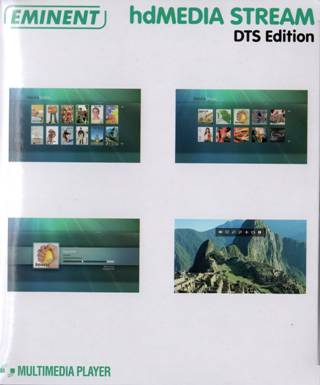
We can see the package and contents below.
Package

Box front
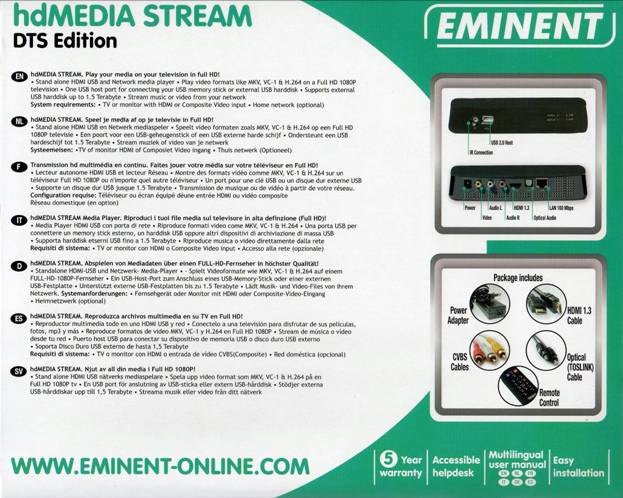
Box rear
Box
left and right sides
Box
top
What’s inside the box
Now it’s time to take a look at the media
player itself and what it came shipped with.
The package contained the media player, power
cable for UK and EU, power supply unit, USB cable, HDMI 1.3 cable, CVBS cable,
optical (TOSLINK) cable, network cable, remote control and two AAA size batteries,
software disc, and instruction manual; it had all the cables you might want, an
excellent job there.
Now let’s take a
look at the media player.
Media
player front
The front of the EN7075-DTS is simple, it has
the IR connector, a USB2 host and four LEDs to display the device status.
Media
player rear
On the rear side of the EM7075-DTS we can
see the power connector, audio and video connectors, the HDMI port, an Optical
audio output and the 100Mbps Ethernet connection.
On the bottom of the drive we found one
label and we can see the serial number of the media player, plus some extra info
about media player.
EM7075-DTS Specification
Here we can see some of the technical
specifications.
Now let’s head on to the next page where
we can take a look at the features of the media player….
Test equipment
For this review we will be using the
following equipment:
Hardware:
·
23” LG TV/MONITOR mpeg4 full HD
·
PIONEER 5.1 AMPLIFIER
·
AIWA Speakers 120Watt 6Ω (two speaker setup)
·
Verbatim 2.5” 320Gb USB2 HDD
·
Seagate 1.5 TB Barracuda LP (On an external case via USB2)
·
Toshiba 8GB USB stick
Now let’s have a first look of the media player
Features
General introduction
Before we go to the introduction we had to
update the firmware with the latest beta firmware that EMINENT provided us.
The update process was very easy; we simply
extracted the files into a USB stick and connected it to the EMINENT media
player, after 2-4 seconds the media players interface told us that we can
install a new version of the firmware. The media player updated the firmware
within a few seconds all we had to do was wait. We took some pictures of the
firmware update process.
Now let’s take a closer look in the
media player, keep in mind that we connected it directly with an HDMI 1.3 cable
to the TV and with the optical output to our amplifier.
In the main screen we have five icons that
show us the functions of the media player; we can navigate through them by
using the left and right buttons on the remote. We can see the Video, Music, Photos,
Settings and networking icons, we will take a closer look at each of them in
next parts of the review.
A first look
We connected the media player with our TV
via HDMI, inserted the power cable, and clicked the switch to allow the drive
to start, it took less than 4 seconds for the media player to boot, and here we
can see the first screen.
The first impression that we get from the
media player is that it’s a very user friendly. Navigating through the menus is
simple and fast and it doesn’t require much time to get used to it. The menu
icons have a good size that makes them easy to see and to identify the section
that you are in.
The remote control is small and has all the
buttons that you will be using every day and nothing unnecessary. It takes two
AAA size batteries and again you won’t need much time to get used to it.
Here is closer look of the layout of the
remote control buttons.
Now let’s head over to the next page
where we will test video playback ability of the media player....
Video playback capabilities
We start the review with some video and
audio tests. The first impression we get is that the player can play all the
files that we tested without any issues, so let’s start.
First we started with the typical XviD/DivX
files, note that the files we tested were encoded with different versions, plus
some of them had AC3 sound and not only one stream of audio (some had multiple
audio streams). We didn’t encounter any problem with the DivX/XviD playback.
Then we made a copy of the movie “Iron Man”
in ISO (full movie and movie only), the player was able to play the ISO file
without any issues, we could select the audio streams that the movie had and
also the subtitles that the DVD had. The only thing that we didn’t like was
that the player was going directly into the main movie although we had the DVD
ripped with the menus. After the ISO test we went on and ripped the iron man
movie (main and full movie) again at the external had drive to test the IFO/VOB
playback of the EM7075, again the player was able to see all the audio
languages that we had kept and the subtitles without any problems, but again it
failed to play the menu of the DVD.
It was about time to see how good the Eminent
media player is with high definition, so we encoded some MKV, MP4 and AVCHD and
also we made a full rip of a Blu-ray disc as an ISO file and as a folder on our
hard disk. First we tried some MKV files from (both 720p and 1080p) with
internal and external subtitles, also with multiple audio streams, and the
EM7275-DTS had no issues playing the selected media, then we tried some MP4
files (720P) and again the player was able to play the file perfect without any
problems.
For the next test we tried to playback a Blu-ray
disc from the 2.5” external hard drive in ISO mode and file mode. We started with
the tests in file mode, and the player was able to play all three audio streams,
also it had no problems showing the Greek subtitles from the M2TS files.
Finally we tested the ISO we made, and here we had some troubles, the playback
wasn’t stable, the picture and sound was freezing frequently so it was
impossible to watch the video, and once again the media player was going
directly to the main movie and skipping the main menu (this maybe had to do
with the external HDD, but at this moment it was the only hard drive that had
enough free space for testing).
Finally we tested some MOV,MPEG1, MPEG2, TS
files, and we didn’t have any playback issues.
|
File |
MKV |
MP4 |
AVHCD |
BLU RAY |
BLU RAY |
DVD |
DVD (ISO) |
XVID |
DIVX |
MOV |
MPEG |
TS |
|
EMINENT |
YES |
YES |
YES |
YES |
YES* |
YES |
YES |
YES |
YES |
YES |
YES |
YES |
*we had some problems with playback which might have been the 2.5”
external hdd we used
So as we can see, the player can play all
kinds of video files and plus it can downmix DTS and AC3 into two channels
incase that you don’t have a 5.1 system or you don’t want to use your 5.1
amplifier to listen. So the general conclusion of the video playback ability is
that it’s great and almost with zero issues.
Here is a screenshot of the settings that you
will see when you are watching a 720p video, we would like to say that the top
icons will be the same regardless what type of video you are watching.
So let’s take a closer look at these top
function icons of the EM7075-DTS.
First we have the Audio button that will
allow you to select different audio languages, the second icon is for the
subtitles and this one too will allow to select the subtitles that you want, the
third and forth icons are the zoom in/out, and the fifth is the position move
icon that will allow to move the picture left/right/up/down, the sixth icon is
the repeat, in case that you need a loop of one or more videos being played
back more than once, and finally the last one is the info icon that will
display the filename of the video you are watching (e.g. 2012.mkv) and the
current time position of the film
We were given the chance to test the player
on a PHILIPS 37” full HD TV, and also with a DENON 7.1 amplifier
with B&W 5.1 speakers, so it was again HDMI with the TV and optical
connection to the amplifier. The first feeling we got is that the picture
quality is very good, almost excellent, also we saw the 5.1 mark in the
display of the amplifier, both ac3 & DTS in different movies. So as it was
expected, we got carried away and watched some movies.
To summarize, both audio and video was
extremely enjoyable and you can easily get carried away with HD movies with DTS
sound, a combination that you can’t bypass.
Now let’s head over to the next page
where we will test audio and picture ability of the media player....
Audio and Picture features
Audio Tests
Now it’s time to look at the audio playback
ability if the EM7075-DTS. The manufacturer says that the drive can play WMA,
WMA Pro, AAC (MPEG 4), AC3 (Dolby), MP1, MP2, MP3, WAV, PCM, LPCM, FLAC, so we
created some test files in MP3 format, we made some mono, stereo files with
different bitrates (CBR: 32, 64, 96, 128, 160, 192, 224, 256, 320 VBR:32-320) also
with different sample frequencies (32kHz, 44.1kHz and 48kHz), also some MP3
files that had the CD cover embedded, the player had no problems playing the
test MP3 files and it was able to show the cover pictures that were embedded in
the files, and this was extremely pleasing.
Next we used Windows Media Player to create
some wma and wma pro files with various bitrates and once again the player had
no issues playing the files (we would like to note that the files we made had
no copyright protection). As we were getting closer to the end of the audio
tests we tried some MP4 and FLAC and again the player had no issues playing
them. The final test we made was to try and play some OGG files, and the player
played again the files we tested. One thing that we need to add is that in the
manual or in the box cover the Eminent didn’t have the OGG format in the
support list.
|
EMINENT EM7075-DTS |
||||||||
|
MP3 CBR |
MP3 VBR |
|||||||
|
32/32kHz |
OK |
32/44,1kHz |
OK |
32/48kHz |
OK |
32-320/32kHz |
OK |
|
|
64/32kHz |
OK |
64/44,1kHz |
OK |
64/48kHz |
OK |
32-320/44,1kHz |
OK |
|
|
96/32kHz |
OK |
96/44,1kHz |
OK |
96/48kHz |
OK |
32-320/48kHz |
OK |
|
|
112/32kHz |
OK |
112/44,1kHz |
OK |
112/48kHz |
OK |
|||
|
128/32kHz |
OK |
128/44,1kHz |
OK |
128/48kHz |
OK |
|||
|
160/32kHz |
OK |
160/44,1kHz |
OK |
160/48kHz |
OK |
|||
|
192/32kHz |
OK |
192/44,1kHz |
OK |
192/48kHz |
OK |
|||
|
224/32kHz |
OK |
224/44,1kHz |
OK |
224/48kHz |
OK |
|||
|
256/32kHz |
OK |
256/44,1kHz |
OK |
256/48kHz |
OK |
|||
|
320/32kHz |
OK |
320/44,1kHz |
OK |
320/48kHz |
OK |
|||
|
WMA |
WMA Pro |
AAC |
MP3 |
WAV |
FLAC |
OGG |
||
|
EMINENT EM7075HD |
OK |
OK |
OK |
OK |
OK |
OK |
OK |
|
Let's have a look at the audio player of
the EM7075-DTS, as we said the player has no issues displaying embedded covers
on MP3 files, as we can see in the next picture.
Also you get the basic functions that you
will be having on your CD player, such as repeat track, repeat disk, the
shuffle function and the repeat shuffle. Here you can see the icons of the
repeat function.
So to test it to the limit, we had various
tracks from different styles of music from electro/techno/classical/pop to
rock, the sound was clear but as the volume was very close to the limit we did
have some distortion in low frequencies mainly because of our test speakers.
But we had the chance to connect the EM7075-DTS
to a better system for a few hours, a 7.1 Denon amplifier with 5.1
B&W speakers and the sound we got was crystal clear even when the
volume was again at levels that can make you leave the room.
In our conclusion of the audio abilities we
can say that the player has a very good sound.
Picture tests
One of the most common used features in a
media player is the display of pictures. So let’s find out how good the EM7075-DTS
is when it’s displaying pictures.
First we tried some high resolution
pictures taken with a 7.1 megapixel Canon camera and then we tried some other
formats and resolutions, all the test pictures we took from the camera were
displayed perfectly, however when the resolution of the file was getting
smaller we had to use the ZOOM OUT feature of the player, that’s because we had
set the player to fit the image and not to show the actual size of the image.
When we tried other formats (BMP/PNG/TIFF/GIF) the picture quality was also
very good with high resolution, and again we had to use the ZOOM OUT feature
for smaller resolution. The only negative was that the EM7075-DTS wasn’t able
to display the animation on our gif test files, the player was displaying them
as still images. Also when you are viewing some pictures you can do some
adjustments that are necessary, such as ZOOM IN or ZOOM OUT and also ROTATE the
image 90 degrees left and right as you can see in the picture and plus a repeat
function.
In the next page we will go into some
extra features of the EM7075-DTS such as Torrent and more ....
UPnP, NZB, YouTUBE and Torrent features
Networking test
One thing that can make your life easier is
the ability to connect your media player with your PC or a NAS box. The Eminent
supports UPnP and samba, in this part we tried the UPnP part, we connected it
with our test PC and we were able to stream audio, video and pictures from it.
First of all we had one hard drive in share
mode (full access for all users) and also some libraries in windows media
player, then we went into the networking settings of the media player and
put the static IP (you can also use DHCP) that we are using, and also the
gateway and DNS as you can see from the pictures.
After you have done this you can go back to
your PC and type Network in the explorer address bar and you will see
the following screen
We could see both the PC and the EM7075-DTS
and even we could copy/paste and even create or delete files from one system to
the other. Here is a picture of the EM7075-DTS seen as a network device.
Here we have a picture that will give you a
good idea on how this Networking looks on the TV. First we see that the EM7075-DTS
was able to see the PC
The next step is to press the OK and see
all the Hard drives and the four main categories, music, videos, pictures and
playlist, we selected the music category and went into the subdirectories of
that section, this example only contains the music part, but don’t worry things
don’t change much if you are in the video or picture folder.
Selecting Folders we can see the following
Screen
After this everything is becoming easy,
just select the folder you want inside and enjoy some music.
YouTUBE test
The EM7075-DTS also supports
watching videos from You Tube, so we tried some videos and we had zero
problems playing back the streaming videos from youtube, here is a
screenshot of that.
The last two features of the EM7075-DTS
are the NZB and Transmission modules, inside the CD you will find
a well written PDF document on how to make the modules work, therefore we won’t
go into an in-depth on these features. But before we finish this part, let’s
put our opinion and experience on these two features.
Transmission
is a torrent client that you can control over your PC using Firefox (or another
browser), you can select the torrent files that you want and let them be
downloaded to your USB hard drive that is connected to the EM7075-DTS. It’s
easy to use and it will make your life easier since you won’t have to leave
your PC open 24/7 and also the EM7075-DTS has no fan, so no more noise from all
the fans that cool your PC and also less power consumption.
The NZB module will allow you to
view news groups and download material to your USB hard drive; all this can be
done from the web based interface.
Now let’s head over to the conclusion
page.
Conclusion
Positive:
- 5 years warranty
- Very good Video quality
- Very good picture and audio quality
- Comes with any kind of cable that you
need - Easy to use and setup
- You can watch videos from YouTUBE
- Easy UPnP setup
- Torrent and NZB features
Negative
- Only one USB port
Conclusion:
The Eminent EM7075-DTS has proven to
be a very good media player.
First of all it came with a great package
that has everything that you need to get started, from the HDMI cable to Optical
cable, so you won’t need to purchase any cables. The player is very easy to
setup and to use.
The picture quality is very good, it can
display pictures with great quality, but the real treat comes when you start
watching HD videos, the picture is excellent, we can say the same thing about
the DTS/AC3 sound, but in case that you don’t have a 5.1 system or you don’t
want to use it, the player can downmix the sound to 2 channels.
As a music player it’s also very good and
it will play all the most common file formats, sound quality was very good, and
the player could also display the cover that was embedded in some of the MP3
files that we tested.
Now YouTUBE can be something that you can
enjoy in your living room, also you can stream media from your network thanks
to UPnP.
The only negative is that the player has
only one USB port, it would have been great if we could have another one.
As we summarize the review, we can say that
this is a very good media player, well built, and it will do all that Eminent
is saying it does without any struggle, also for as long as we had this unit
for our tests, we didn’t have any problems, it was working perfectly.