 |
Review: Eminent |
Eminent was kind enough to lend us their
8-port Gigabit Ethernet switch for review. The days of having just a single
computer in the home are pretty much at an end with the growing popularity of
network media players, networked hard drives (NAS), shared printers and so on,
so the consumer needs a network switch to network all these devices together.
While pretty much any 100Mbps or faster switch is more than adequate for
streaming Full HD video, other types of network communication such as transferring
large files from one computer to another can be a very tedious process,
especially several Gigabytes of data, such as to or from an NAS.
While most modern NAS units, laptops and
desktops are equipped with a 1Gbps network card, most consumers still use a
100Mbps switch or their router’s built-in switch, which is usually 100Mbps,
also known as Fast Ethernet. As a result, any network device with a 1Gbps NIC
can only operate at the legacy 100Mbps speed, a mere 10% of what it is
potentially capable of. So in this review, we will take a look at how this
network switch handles when compared with a legacy 100Mbps switch and also
against a direct PC to PC network connection. We will also try out various
other tests such how the switch handles with more than two ports running
sustained transfers.
Eminent Company Information
Eminent produces a range of consumer
electronics, including set-top media players, computer peripherals (external
HDD, USB Hubs, card readers, mice, etc.), network devices (routers, switches, PowerLine
Ethernet, Wi-Fi, etc.) and accessories such as audio, video and data cables and
power supplies. They also have a range of home automation and security
products such as remote control lighting, smoke detectors, security alarms and
CCTV.
Further information on the Eminent company
profile, including their product range can be found on their website.
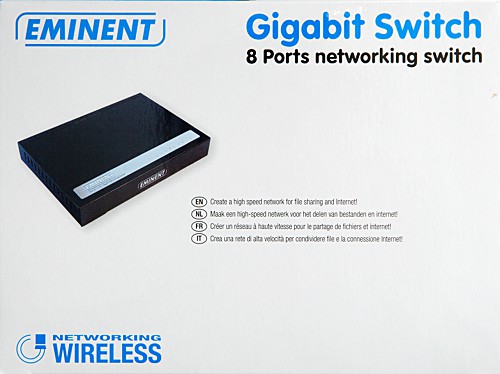
Retail packaging
The network switch was shipped to us in a shrink-wrapped
retail package, as shown in the following images:
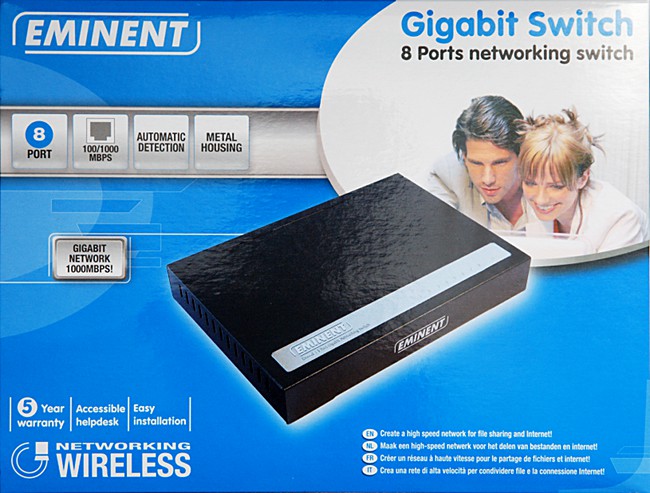
Front
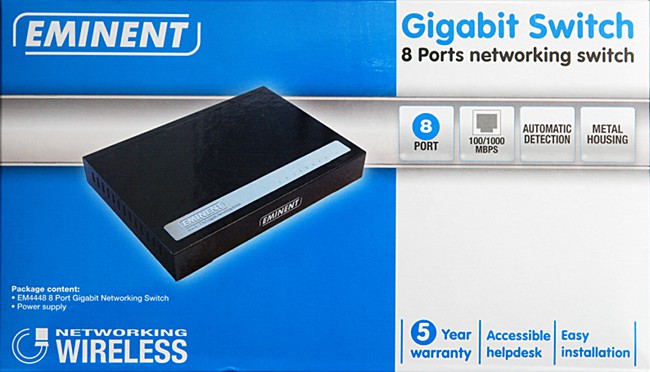
Above

Below (cropped)
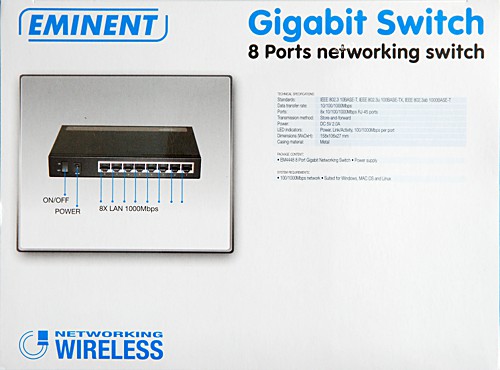
On the left
On the right

Back

Crop of English content on the back
What’s inside the box?
The following shows what the Gigabit Switch
came with:
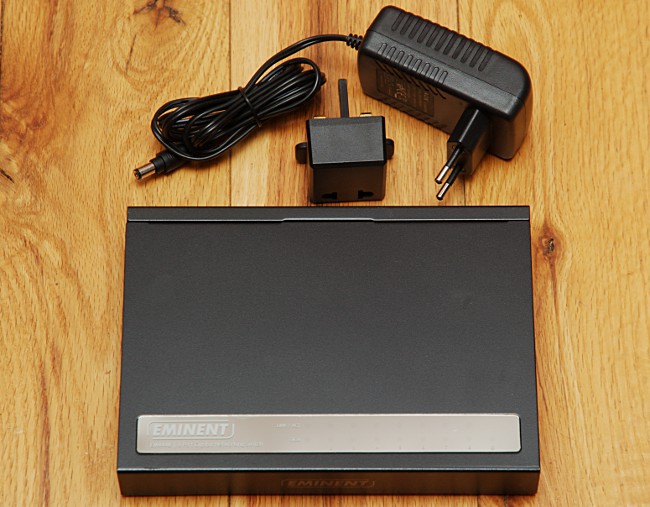
The contents are as follows:
- Eminent 8-port Gigabit Switch
- EU 2-pin power supply
- EU 2-pin to UK plug adapter
We were quite surprised to see no paper
material included such as a user guide or warranty card. As we received this
review sample directly from Eminent, it’s quite likely that this additional
material is not included with their review samples. This switch came with four
rubber feet already attached to the base.
Now let’s take a look at the switch:
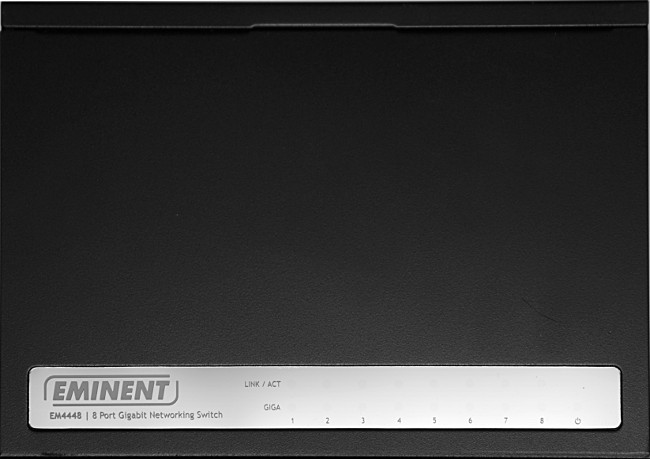
Top – The label is actually reflective and much darker than it appears here as
we’ll see shortly with a photo showing it powered up.

The front, left & right is plain, but with this logo on the front and
ventilation holes on both sides.

Rear, which includes 8 x Gigabit ports, DC power socket and the power switch
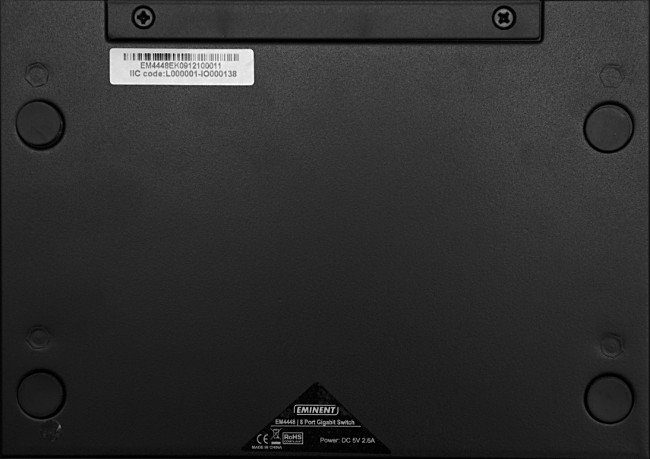
On the bottom, we see two info labels and the rubber feet.
The following shows the switch powered up
with various 10Mbps, 100Mbps and 1Gbps network hosts attached:
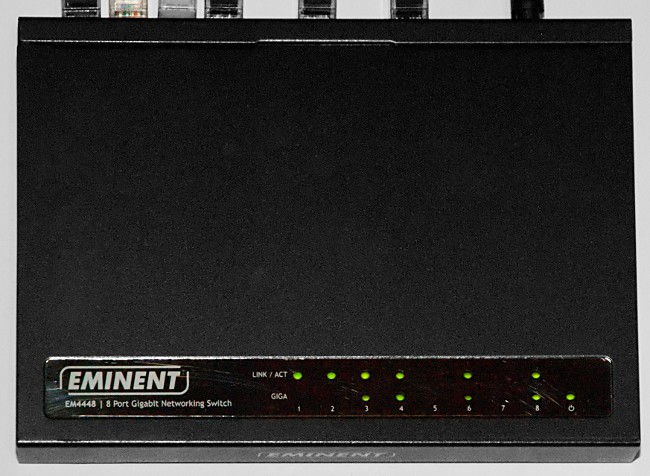
The Link / ACT LEDs flash during activity,
while the “Giga” LEDs light up for hosts that operate at 1Gbps. The switch
does not distinguish between 10Mbps and 100Mbps hosts, for example, port 1 has
a 10Mbps VoIP adapter attached, while port 2 has a 100Mbps host attached.
Product Specifications
The following are the specifications, based
on the packaging:
- Standards: IEEE 802.3 10BASE-T, IEEE
802.3u 100BASE-TX, IEEE 802.3ab 1000BASE-T - Data transfer rate: 10/100/1000Mbps
- Ports: 8x 10/100/1000Mbps RJ-45 ports
- Transmission method: Store-and-forward
- Power: DC 5V 2.6A
- LED indicators: Power, Link/Activity,
100/1000Mbps per port - Dimensions (WxDxH): 158x106x27 mm
- Casing material: Metal
- Automatic cross-over detection
- Power supply included
- LED on each port for link, activity and
speed
Now let’s head to the next page where we
will look at our test PC and testing procedures…
Test Equipment
The following are the specifications of the
computer this product has been tested on.
Computer 1:
- Crucial 2GB x 2 kit 240pin DDR3 PC3-8500
- Gigabyte LGA 775 Intel motherboard - GA-P35-DS3L
- Intel Core 2 Quad Q6600 2.4GHz 8MB cache
- Antec Three Hundred Black Case
- Sapphire HD4350 512MB PCIe DVI graphics card
- Samsung Black DVD+/-RW SH-S223B SATA
- Lite-On DVD+/-RW SOHW-1693S ATA
- OCZ Vertex 2 120GB SSD FW v1.23
- Samsung F3 2TB 5400RPM HDD
- Corsair 450W ATX PSU
- Windows 7 64-bit Enterprise Edition
Computer 2:
- Corsair 1GB x 4 DDR2 240 pin PC2-5300
- Gigabyte LGA 775 Intel motherboard - GA-P35-DS3L
- Intel Core 2 Quad Q6600 2.4GHz 8MB cache
- Nvidia GeForce 8400 GS 256MB PCIe graphics card
- Samsung SH-S203B ATA DVD SATA DVD writer
- Plextor PX-116A3 ATA 16x DVD-ROM
- Western Digital Caviar 640GB 16MB cache 7200RPM
HDD x 2 - Corsair 450W ATX PSU
- Windows 7 64-bit Enterprise Edition
Laptop 1:
- Toshiba A120
- NIC: Intel Pro/1000 PL 1Gbps
- Added: Corsair 1GB DDR2 PC2-5300
- SSD: Kingston SSDNow SNV125-S2BD/128GB
- Windows 7 64-bit Enterprise Edition
Laptop 2:
- Fujitsu Siemens Esprimo D9500
- NIC: Gigabit Ethernet
- Windows 7 PE for tests
Digital Cameras:
- Nikon D60 DSLR
Other Gigabit switches used in this review:
- D-Link Green DGS-1008D, H/W Ver. F2.
Additional network devices attached:
- Belkin 200Mbps Homeplug (100Mbps port)
- Cisco PAP2T VoIP adapter (10Mbps port)
We
only have 4 computers with Gigabit network cards available for this review, so
bandwidth tests are limited to what these four computers can sustain. The
second laptop was borrowed for the duration of the review. As we were unsure
whether any of its applications would interfere with our tests due to running
corporate network security software and full HDD encryption, we ran all our
tests on it from a bootable Windows 7 PE disc.
The
Nikon D60 DSLR was used for the photography throughout this review.
Test applications
To test the performance of the switch, we
will be using the following test applications in this review:
- ATTO
- CrystalDiskMark x64
- HRPing
- (Various in-house batch file scripts)
Test procedures
Testing a network switch is very different
to testing any drive or NAS, since this switch is simply a store and forward
device. When the first switch was developed, it was originally designed to
replace the network hub, where instead of simply repeating the incoming data
out of all ports, the switch works out which MAC address belongs to which port
and sends the datagram out the correct port. The advantage here is that the
switch can handle much greater traffic than a network hub, while also
eliminating the issue of collisions, where two hosts send out data at the same
time.
To simulate a file server for our tests, we
have shared the following on Computer 1:
- Network drive with 8,247 JPEG files in a
hierarchy of 245 folders, stored on the OCZ Vertex 2 SSD. - Blank network drive running off a 1GB RAM
drive to run ATTO, CrystalDiskMark and other benchmarks. - 100MB archive placed on this RAM drive
for network loading tests.
We chose the OCZ Vertex 2 for the pictures,
as its read performance well exceeds the capacity of Gigabit Ethernet for it
to be a bottleneck. For the write benchmarks, we chose the networked RAM drive
to prevent a bottleneck in our write benchmarks, including ATTO and
CrystalDiskMark.
Before we take a look at the switch, we
first need to run a few tests under an ideal connection scenario, which is
where we have a network cable connected directly between Computer 1 and
Computer 2. This way we can use this reference to see what impact the switch
has on the connection in our later tests.
Fast Ethernet
Before Gigabit Ethernet, there was 100Mbps
Fast Ethernet, a standard still widely used today. In fact, many computers and
especially most Netbooks and consumer LAN-enabled consumer electronics have
legacy 100Mbps Fast Ethernet ports. So, let’s find out the maximum throughput
we can get between our two PCs with the network cards operating in 100Mbps Full-Duplex
mode. As most 100Mbps network cards do not support Jumbo Frames, we will not
use Jumbo frames for any of these tests.
ATTO disk benchmark
ATTO has become a standard tool for measuring
the data throughput of hard drives and flash drives. It measures the
performance of reading and writing, using different file sizes and block sizes.
The following is the result of ATTO running
on a networked RAM drive from the remote computer:

From this test, ATTO achieved about
11.6MB/s, which is very close to the maximum 100Mbps is capable of.
CrystalDiskMark 3.0
Crystal Disk Mark is quite a handy
benchmarking application, as it focuses on the file sizes that can cause a
problem on a system drive or in this case a network drive.

If these results were directly from a hard
disk, the 4K results would be very impressive and here we are seeing this
across a network. However, when we look at 512K write and sequential
performance, it is clear that 100Mbps is a severe bottleneck for large
transfers, so while placing SSDs in a webserver will speed up random IO
performance of very small files; it will do little to improve large network
transfers.
Gigabit Ethernet without Jumbo frames
Gigabit Ethernet has been standard in most
business network backbones and is only starting to take off in consumer
networks with the help of lower switch prices and Gigabit Ethernet becoming
standard in most motherboards and high end NAS drives. As not all Gigabit
adapters support Jumbo frames, we will first run our tests with Jumbo frames
disabled, which is the default setting used in most Gigabit network drivers.
ATTO disk benchmark
The following is the result of ATTO running
on a networked RAM drive from the remote computer:

It is quite clear that Gigabit Ethernet
offers a drastic difference in performance, peaking at over 100MB/s in a few of
our write tests.
CrystalDiskMark 3.0
Now for the Crystal Disk Mark results:

Not only do we see a near 10-fold increase
in sequential performance, there is also a very noticeable increase in 4K
transfers, showing that by using SSDs in a server, Gigabit Ethernet makes
better use of its small random IOPS capabilities. Note that the network
adapters in our review PCs do not support multi-threaded transfers, otherwise
the 4K QD32 would show a much higher result, so these 4K QD32 can be ignored in
all test results in this review.
Gigabit Ethernet with Jumbo frames
Many Gigabit Ethernet adapters now include
Jumbo frame support. Jumbo frame support increases the Maximum Transmission
Unit (MTU) size beyond 1500 bytes, with some Gigabit adapters supporting up to
9000 byte MTUs. The advantage here is that the larger frame size makes more
efficient use of the bandwidth, improving transfer rates closer to the
theoretical maximum Gigabit Ethernet can handle. While both our PCs were
configured with a 7K MTU for Jumbo frames, based on using the “ping -f -l” test
we found that the largest MTU we can send between the PCs is 4000 bytes.
ATTO disk benchmark
The following is the result of ATTO running
on a networked RAM drive from the remote computer:

When compared with the earlier ATTO test
without Jumbo frames, we can see that using Jumbo frames gives us roughly a 5
to 10% improvement in write transfers and a 20% improvement in read transfers
CrystalDiskMark 3.0
Now for the Crystal Disk Mark results:

Again, we can see the advantage of using
Jumbo frames on Gigabit Ethernet. Of course, Jumbo frames only work if both
ends have Jumbo frames enabled and every network device in between is capable
of dealing with Jumbo frames. We will see later in this review whether the
Eminent Gigabit switch handles jumbo frames.
Now let’s head to the next page, where
we carry out some benchmarks through the Eminent Switch…
On the previous page, we saw how fast our
two PCs performed as a file server and client over Gigabit Ethernet with a
direct connection. As most consumers will network more than two network
devices together, such as their broadband router, network media player, an NAS
and so on, the most practical way to network everything together is with a
network switch.
So now we will repeat the Gigabit Ethernet
tests with and without Jumbo frames, but this time through the switch. To assess
our results and see how they compare with our other Gigabit switch, the D-Link
Green 8 port Gigabit switch, we will list the results in a table after each
test.
ATTO disk benchmark – No Jumbo frames
The following is the ATTO result:

Let’s see how it compares with the direct
connection reference and also our D-Link switch:

Left to right: Direct – Eminent – D-Link
From the figures here, the switch had a
slight lead here in the write transfers and a little slower in the read
transfers, when compared with the direct connection and D-Link. As a switch
stores and forwards data, it tends to smooth out the transfer, so this is the
reason we see it leading and falling behind from one transfer to the next.
CrystalDiskMark 3.0
Now for the Crystal Disk Mark results:

Let’s see how it compares with the other
results:

|
|
100Mbps |
Gigabit |
Eminent |
D-Link |
|
Seq Read |
11.53MB/s |
91.82MB/s |
90.73MB/s |
91.51MB/s |
|
Seq Write |
11.49MB/s |
102.3MB/s |
101.8MB/s |
103.1MB/s |
|
512K Read |
11.45MB/s |
88.91MB/s |
88.39MB/s |
88.64MB/s |
|
512K Write |
11.28MB/s |
101.9MB/s |
95.78MB/s |
102.3MB/s |
|
4K Read |
3.613MB/s |
10.87MB/s |
10.79MB/s |
11.1MB/s |
|
4K Write |
3.507MB/s |
10.45MB/s |
10.26MB/s |
10.4MB/s |
For sequential transfers, this switch is
about as fast as a having a direct connection and just slightly behind the
D-Link switch. However, it’s a little slower at smaller block sizes such as
512K. Whatever way our client PC sends 512K data blocks back to the other PC
with the network drive, it struggles a bit on this, but it's unlikely to be noticeable
in the real world.
4K transfers are about as good as with a
direct connection and about three times better than with a 100Mbps link. As
these 512K and 4K results are outside the capabilities of any hard disk, these
results would only be achievable with cache hits (e.g. web server with a lot of
RAM), solid state drives or in this case running the network share off a RAM
drive.
ATTO disk benchmark – Jumbo frames
Now let’s see how the switch performs with
Jumbo Frames. Before we ran these tests, we were able to confirm that the
switch indeed handles our 4KB MTU size. We are not sure what the largest MTU
this switch supports, as 4KB is the largest MTU we can use between our two PCs
even with a direct connection.
The following is the ATTO result:

Let’s see how this compares with the other
results:

As with the direct connection, we see a
significant improvement in read and write transfers by simply enabling Jumbo
Frames. The transfer rates are pretty much the same between both switches.
CrystalDiskMark 3.0 – Jumbo Frames
Now for the Crystal Disk Mark results with
Jumbo Frames enabled:

Let’s see how this compares with the other
results:

|
|
Gigabit |
Eminent |
D-Link |
|
Seq Read |
109.4MB/s |
106.6MB/s |
106.2MB/s |
|
Seq Write |
109.3MB/s |
108.6MB/s |
108.8MB/s |
|
512K Read |
105.7MB/s |
103.3MB/s |
103MB/s |
|
512K Write |
105.7MB/s |
103.9MB/s |
104.8MB/s |
|
4K Read |
11.19MB/s |
11.03MB/s |
10.94MB/s |
|
4K Write |
10.41MB/s |
10.25MB/s |
10.26MB/s |
While not quite the performance of a direct
connection, these transfer rates are probably as good as one will get with a
Gigabit switch and the difference between using a switch and a direct
connection would be negligible for file transfers unless timed in this case.
The D-Link switch returned pretty much identical results also. Again, these
smaller block sizes are only achievable with a very fast solid state drive or
where the reads are all cache hits from the network source. For a consumer
NAS, the hard disks or even the NAS processing power itself will most likely be
the bottleneck.
Let’s head on to the next page where we benchmark
simultaneous transfers over the switch…
As we mentioned earlier, a network switch
is designed to take data in one port and pass it out another, unlike a hub
which takes in data, repeating it out all ports. This means that if the switch
is powerful enough, it can take data in on two ports and pass it out another
two faster than one gigabit in total, something that would not be possible with
a network hub.
Ideally for this test, we would need to
have a Gigabit device attached to every network port, all operating at maximum
capacity. However, as we only have four computers with a Gigabit adapter for
this review, we will attempt to run a transfer between the two laptops at the
same time as between the two desktop computers. Apart from in a large corporate
environment where a Gigabit switch is used in a backbone to join multiple
networks together with several servers, most consumers will very rarely carry
out more than two large simultaneous transfers on separate computers with two
other devices (e.g. two NAS drives) at the same time.
Preparation
To prepare for this test, we set up a RAM
drive on one laptop and shared it over the network. We connected the other
laptop to this network drive and ran a script to endlessly read a large 100MB
archive placed on the network drive. The script recorded the time taken after
each transfer, so we can then work out the transfer rate.
To start with, we ran the script between
the two laptops and got a steady transfer rate of 72.2MB/s.
While this transfer rate is significantly
lower than what we got from the two PCs, both laptops are a few years old and
likely have their internal network adapters running off a PCI bus, which
becomes bottleneck. However, this should be sufficient for this test
considering this is likely to be around the speed that a typical network drive
or NAS would be able to supply across the network. Unfortunately, neither
laptop supports Jumbo frames.
CrystalDiskMark 3.0 – No Jumbo Frames
Now we will run CrystalDiskMark between the
two PCs as previously, but this time with both laptops endlessly reading a
100MB file from one laptop to the other through the switch.

Now let’s see how this compares with the
earlier results:
|
|
Eminent |
D-Link |
Eminent |
D-Link |
|
Seq Read |
90.73MB/s |
91.51MB/s |
91.77MB/s |
91.51MB/s |
|
Seq Write |
101.8MB/s |
103.1MB/s |
105.0MB/s |
102.8MB/s |
|
512K Read |
88.39MB/s |
88.64MB/s |
89.07MB/s |
88.6MB/s |
|
512K Write |
95.78MB/s |
102.3MB/s |
101.7MB/s |
102.1MB/s |
|
4K Read |
10.79MB/s |
11.1MB/s |
108MB/s |
10.43MB/s |
|
4K Write |
10.26MB/s |
10.4MB/s |
10.32MB/s |
10.38MB/s |

In this test, we had to double-check our
results, as not only did the Eminent switch appear to be unaffected by two
simultaneous transfers, it actually speeded up a little! The D-Link on the
other hand had a very slight drop in performance. However, what is clear here
is that users do not need to worry about network transfers interrupting
streaming HD video, let alone VoIP, especially if the transfers are between two
separate hosts to those supplying or connecting to the HD video stream.
CrystalDiskMark 3.0 – Jumbo Frames
Now let’s repeat the tests with Jumbo frames
enabled between the two PCs. As we mentioned earlier, neither laptop supports
Jumbo frames, so the laptop running the script will continue endlessly reading
a 100MB file from the other laptop without using Jumbo frames.

Now let’s see how this compares with the
earlier results:
|
|
Eminent |
D-Link |
Eminent |
D-Link |
|
Seq Read |
106.6MB/s |
106.2MB/s |
108.4MB/s |
108.9MB/s |
|
Seq Write |
108.6MB/s |
108.8MB/s |
109.0MB/s |
109.6MB/s |
|
512K Read |
103.3MB/s |
103MB/s |
104.4MB/s |
105.2MB/s |
|
512K Write |
103.9MB/s |
104.8MB/s |
104MB/s |
104.6MB/s |
|
4K Read |
11.03MB/s |
10.94MB/s |
11.1MB/s |
11.1MB/s |
|
4K Write |
10.25MB/s |
10.26MB/s |
10.43MB/s |
10.36MB/s |

Like the test without Jumbo frames, it
seems like the switch performs better when working with additional load. We
are not fully sure why this happens, but it could be down to energy saving,
where the switch adjusts its processing power according to the network load.
This time we notice a similar occurrence with the D-Link switch.
Bandwidth test - File Transfers
In this test, we run the same script
between the two PCs, where we place the 100MB archive on the shared RAM drive
on one PC and endlessly read it from the other PC.
With the scripts running simultaneously
(PC1 to PC2 and Laptop1 to Laptop2), we measured the following throughputs
through the switch:
|
Running |
Measured |
Transfer rate |
|
PC to PC |
PC to PC |
107.78MB/s |
|
PC to PC + Lap to Lap |
PC to PC |
107.92MB/s |
|
Laptop to Laptop |
Laptop to Laptop |
72.2MB/s |
|
PC to PC + Lap to Lap |
Laptop to Laptop |
74.94MB/s |
|
PC to PC + Lap to Lap |
Total |
182.86MB/s |
As we don’t have any additional computers
with a Gigabit network to load the four remaining ports, it is very likely that
this switch will handle much more capacity than this, considering we did not
see any drop off in performance when loading four ports.
We did attempt running simultaneous
transfers in both directions between the two PCs, but found that even with a
direct network connection, the transfer rate of each transfer would be cut in
half. While we could get specialist network traffic software to fully load
each port with bidirectional traffic, this is outside the scope of this review.
On this page we take a look at how
responsive the switch is when faced with sustained data transfers. We have
already had bad past experiences of switches that would be easily crippled once
2 hosts attempted sustained data transfers. Next we will carry out a simple
real world test where we copy 1GB worth of small files across the network. Finally
we will measure its power consumption.
Ping tests – No load
While the switch is clearly able to handle
multiple sustained transfers, for a gamer it is critical that the switch
remains responsive, especially under heavy load.
So to start with, we measure the ping time
between our two PCs with a direct connection and repeat the ping test through
each switch. For the ping test, we used HRPing, which is a command line ping
utility that can measure to a nanosecond, unlike the Windows ping utility which
can only measure to the nearest millisecond.
The following are the average results of
250 echo requests:
|
Connection |
Average RTT |
|
Direct connection |
0.214ms |
|
Eminent Switch |
0.216ms |
|
D-Link switch |
0.206ms |
As we can see here, the switch’s latency is
pretty much negligible between the two hosts.
Ping tests – With load
In this test, we measure the ping response
between the two laptops through the switch and run with the 100MB file copy
script running between the PCs.
|
Loading |
Eminent RTT |
D-Link RTT |
|
No load |
0.727ms |
0.614ms |
|
PC to PC load |
0.679ms |
0.610ms |
As with the simultaneous load tests, both
switches remain responsive whether unloaded, or in this case with a sustained
transfer between two hosts. What we can also see is that the network adapter
makes a much greater difference to the latency than the switch does,
considering the no load ping result here between the two laptops is at least
three times the latency of the no load ping result between the two PCs.
Small File Real World test
For this test, we have prepared a folder
consisting of 8,247 JPEG files in a hierarchy of 245 folders, totalling 1GB and
stored on the OCZ Vertex 2 of Computer 1. We share this folder over the
network and run a script on Computer 2 to read the entire folder content. For
each method of connection, the script repeats the copy process 10 times to get
an average. Based on the timings, we can then work out the throughput. When
we ran the read test directly on Computer 1 sharing out this folder, we got an
average read rate of 215MB/s; this is mainly due to the files becoming cached
in RAM.
|
Connection method |
No Jumbo Frames |
Jumbo Frames |
|
100Mbps Direct |
4.68MB/s |
N/A |
|
Gigabit Direct |
15.99MB/s |
16.5MB/s |
|
Eminent Switch |
15.59MB/s |
16.01MB/s |
|
D-Link Switch |
15.69MB/s |
15.66MB/s |
While we get very good sustained read
transfer rates over the network, it is quite clear that network shares struggle
with small file sizes at least with our network adapters and through Windows’
built-in file sharing, even with Gigabit Ethernet using a direct network cable connection.
Jumbo frames give about a 0.5MB/s performance through the Eminent switch as
well as the direct connection, but no improvement for the D-link switch in this
test.
Power consumption
Like a broadband router, most consumers
will leave the network switch permanently on. As with any electrical appliance
left on around the clock, every watt makes a difference to the electricity
bill, much more so than a higher wattage appliance run for a short period of
time. For example, a router left on around the clock which uses 20 watts will
consume 0.48kWh per day, based on 24 hours x 0.02kWh. A 2000 watt electric
cooker oven running for 6 minutes will appear to use a lot of energy just to
heat up a few scones, but a quick calculation of 0.1 hour x 2kWh gives 0.2kWh,
which is less than half of what the 20 watt router uses in a single day!
We tried using a Brennenstuh energy meter
for this measurement, but no matter what type of load we placed on the network
switch, the meter read 0 watts. This meter has roughly a 5 watt minimum
measurement, which means that this switch uses very little energy.
Let’s head on to the next page to
conclude our review …
Positive
- Performance about as fast as having a
direct network cable connection, handling at least 109MB/s per port. - Latency of a few nanoseconds
- No drop in performance with 4 computers
with Gigabit NICs running sustained transfers. - Stable, did not crash a single time
throughout our review. - Automatic cross-over detection
- Very low power consumption, lower than the
minimum our energy monitor could measure. - Black metal casing
Negative
- No LED distinction between legacy 10Mbps
and 100Mbps
Conclusion
Like a broadband router for connecting the
Internet, a fast reliable switch plays a vital role to having a fast network,
since practically all network traffic flows through it, especially in a network
where this is the only switch connected.
The aim of this review was to check out
what latency and performance impact this switch has, when compared with a
direct network connection between two computers and also with another Gigabit
switch. What we found in this review is that switches have come on a long way
in the past couple of years, as I remember working with older 24-port Fast
Ethernet switches where running a sustained transfer between two ports was
enough to cripple the switch’s performance to the point where additional transfers
would result in trivial tasks such as browsing the Internet becoming rather
sluggish through the switch.
This switch did not lose any performance
when running two simultaneous transfers from two computers to two other
computers, where the total traffic going through the switch well exceeded
1Gbps. Even with sustained transfers, the switch did not respond any more
slowly with ping times, between two hosts not involved with the transfers,
being practically unaffected.
The switch looks much like any other 8 port
switch, with activity LEDs and a second row of LEDs to indicate which
connections are running at 1Gbps. It is nice to see that it has a metal case,
which helps draw away the heat. Its air vents are on both the left and right
sides, which helps prevent dust collecting inside or blocking the vents as in
the case with switches that have top vents. The only negative we noticed is
the lack of 10Mbps indication, which our D-Link switch has. For example, if we
plug in a VoIP adapter which uses a 10Mbps connection, there is no distinction
between this and another port running at 100Mbps.
Finally, the energy consumption of the
switch was lower than the minimum our energy monitor is capable of reading.
To sum it up, this is what we would say for the Eminent
Gigabit 8 port switch:
“The Eminent Gigabit 8 port switch is the
ideal choice for anyone looking to connect up to 8 Gigabit hosts where the
switch needs to handle multiple sustained transfers without impacting on the
performance of the other hosts attached to this switch.”