|
Review: |
A lot of you will already be
familiar with what a Network Attached Storage (NAS) unit is.
For those that aren't, it's
essentially an intelligent storage device that's attached to your network which
is used for backing up and sharing data across your network.
Almost all units these days
support wireless media streaming and other advanced features which we'll look
at during the course of this review.
Until recently I was new to
this particular technology and was looking for a simple, inexpensive,
convenient and secure way of backing up my data.
NAS fulfils all those
requirements and after considerable research this is the NAS unit I chose to
purchase myself.
It's a budget model (relatively
speaking) aimed at the small office/home office (SOHO) user but as we'll see it
packs in a lot of features normally found only on more expensive devices.
The Iomega StorCenter ix2-200
is available in three capacities 1TB, 2TB & 4TB and it's the 2TB model I'm
reviewing here.
The current retail price of
the 2TB unit is £309.99 however if you shop around it can currently be
purchased online for under £220.
If you would like to read more
about Iomega, further details can be found at their website.
Retail Packaging
The unit I bought was the full
retail version so let's have a look at the box.
The first thing you will
notice is that rather confusingly the packaging refers to the Iomega StorCenter
ix2 (which is still available but isn't as advanced as this unit) and not the
Iomega StorCenter ix2-200.
This unit is in fact the
Iomega StorCenter ix2-200 so for sake of clarity and in order to avoid any
confusion I've used the full reference throughout this review.
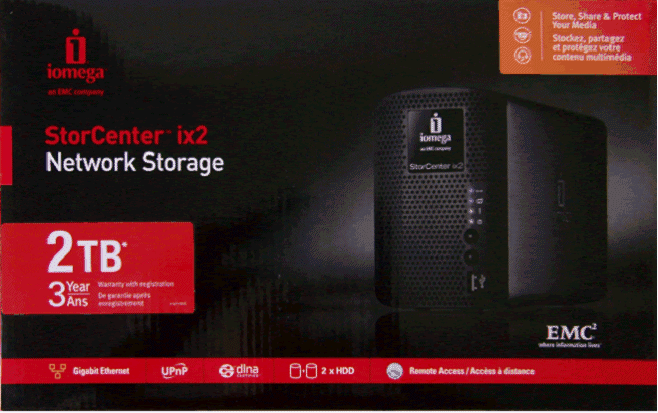
Box front
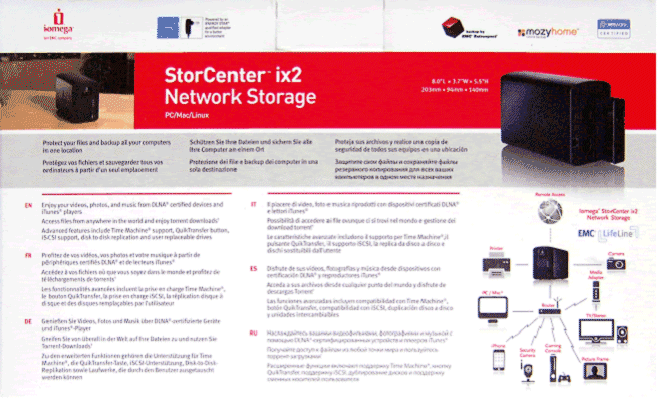
Box rear
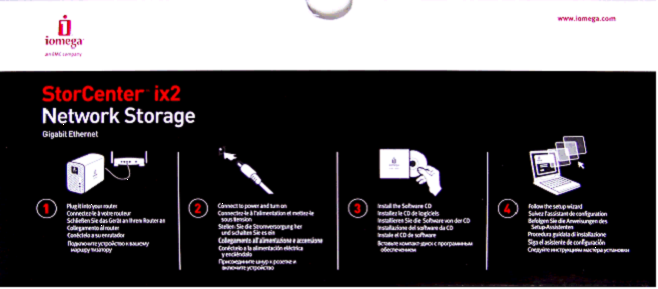
Box top
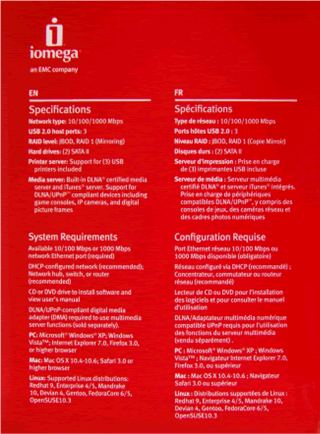
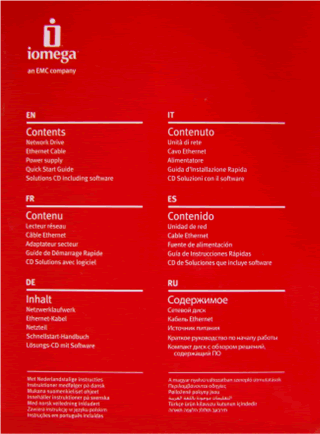
Box left and right sides
What's in the box
Here are the contents of the
box together with the manuals and accessories as supplied.
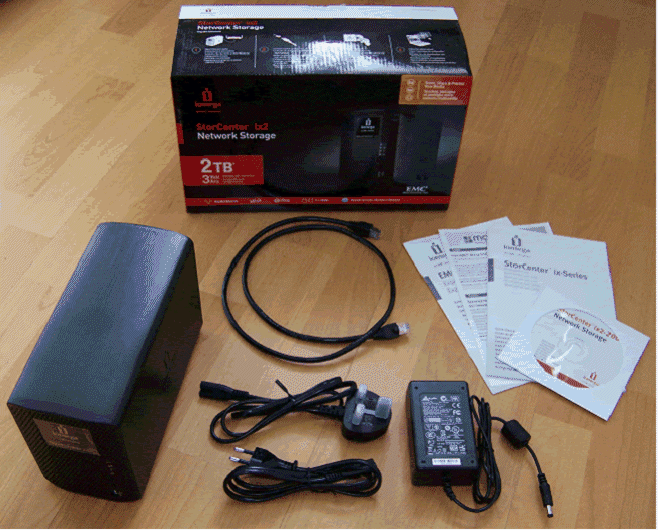
As we can see from the photo
we have:-
- Iomega StorCenter ix2-200
Network Storage unit - Two pin power cable
- Three pin UK power cable
- CAT5e Gigabit Ethernet
cable - Universal
transformer/power supply unit - Three Instruction Leaflets
- Software CD-ROM
Iomega StorCenter ix2-200
Network Storage unit
Physically the unit has an
attractive and sturdy design with a blackened brushed metal case, capped on
either end by pierced and moulded plastic inserts.
This unit is remarkably small
and neat and side on it's almost exactly the same size as a standard paperback
novel, which isn't a great deal bigger than the actual drives themselves.
The official dimensions are (WxDxH):
9.4 cm x 20 cm x 14.1 cm and the version on test weighs in at 2.3kg.
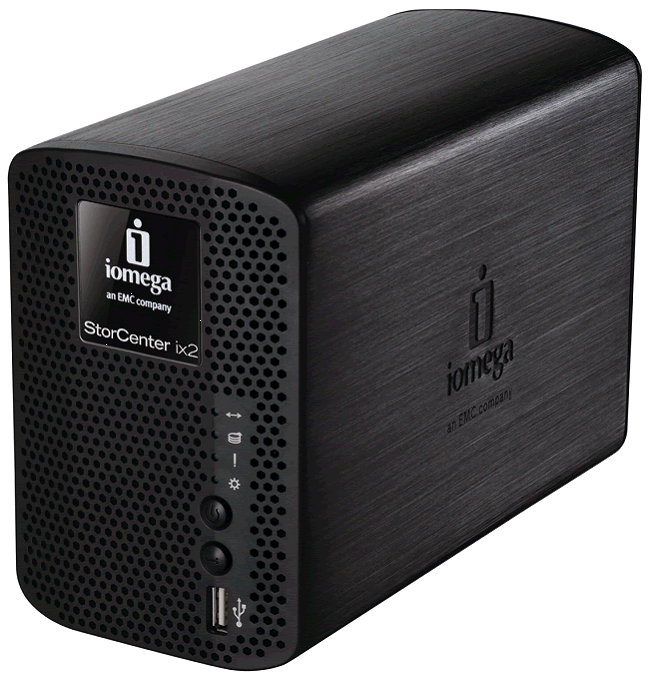
Iomega StorCenter ix2-200 Network Storage - front side
view
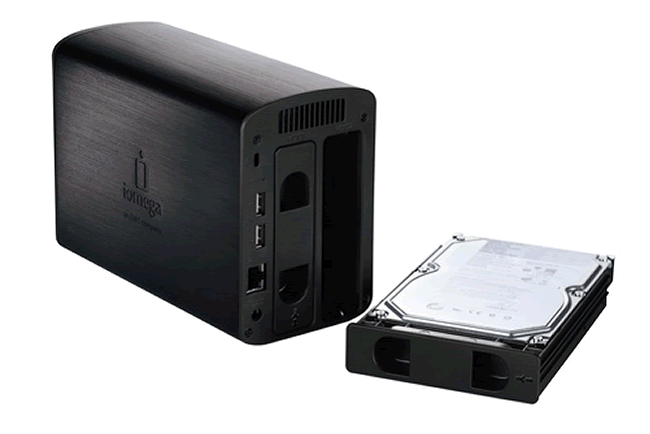
Iomega StorCenter ix2-200 Network Storage - rear view
with drive removed
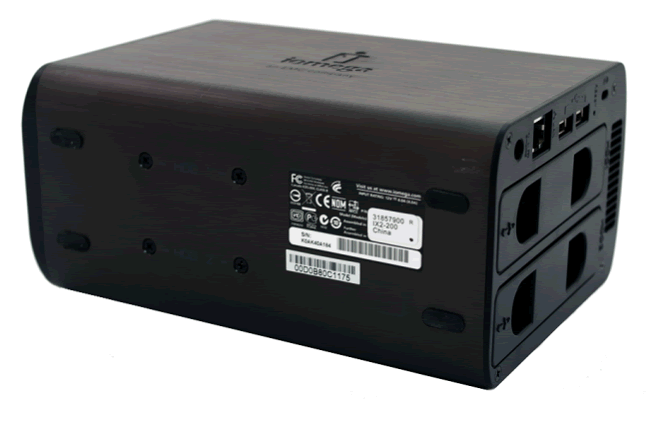
Iomega StorCenter ix2-200 Network Storage - base of
unit
Features on the front
of the NAS unit
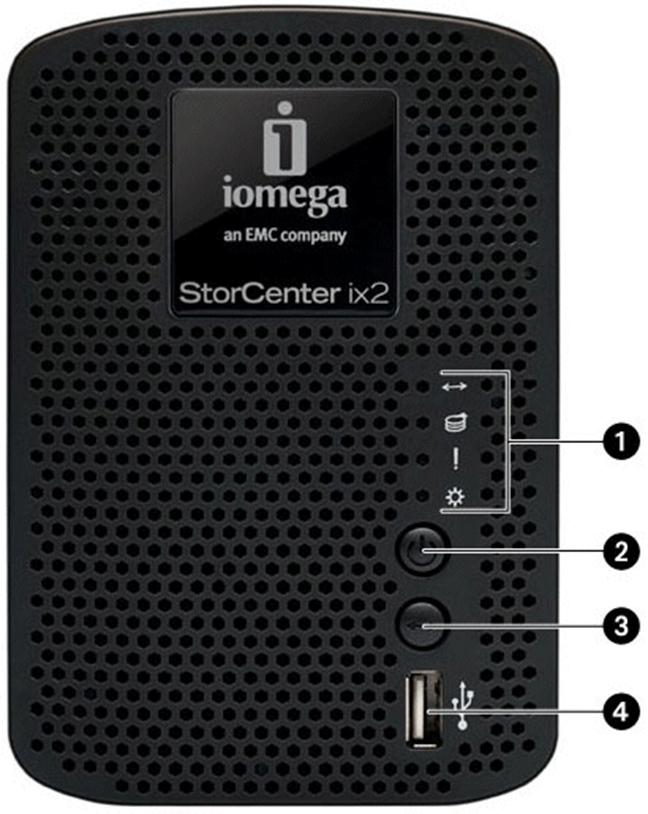
Front Schematic
On the front of the device we
can see several features which are as follows:-
(1)
The four lights which are the status indicators.
In
order from top to bottom we have the 'QuikTransfer' Indicator, the Drive
Activity Indicator, the System Status Indicator and the Power Indicator.
(2)
The Power button.
(3)
The 'QuikTransfer' button.
(4) A
High-speed USB 2.0 port.
Features on the rear of
the NAS unit
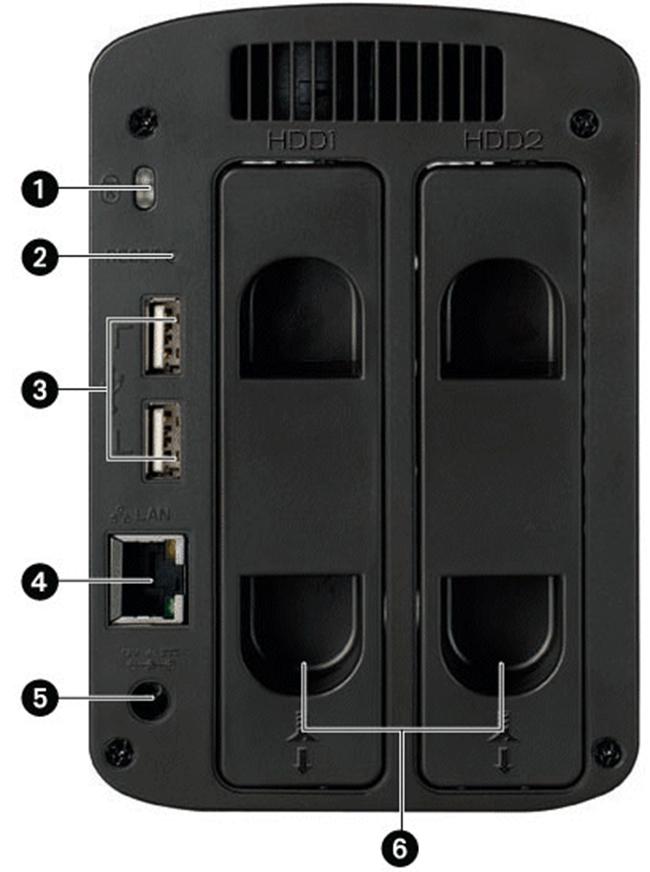
Rear Schematic
The features on the rear of
the unit are as follows:-
(1) Security
Lock - Connect a security cable to prevent theft.
(2) Factory
Reset Button - Hold the RESET button for four seconds to return to factory
defaults. All settings will be lost.
(3) Two
High-Speed USB 2.0 Connectors - Supports devices such as USB storage devices
and printers.
(4)
Gigabit Ethernet connector that automatically detects network speed
(10/100/1000Base-T).
(5) Power
Connector.
(6)
The two drive caddies labelled as HDD1 & HDD2.
Internal Chipsets
Internally the device is based
around the Marvell 'Kirkwood' 88F6281 processor.
It's the 1.0 GHz version with
a 'Sheeva' CPU core that features in this unit and it's supported by 256 MB of
Zentel RAM allied with 128 MB of Hynix NAND flash memory.
A Marvell 88E81116R Gigabit
Ethernet interface and an ALCOR AU6256 4 port USB 2.0 hub handle the
connectivity requirements.
Hard Drives Installed
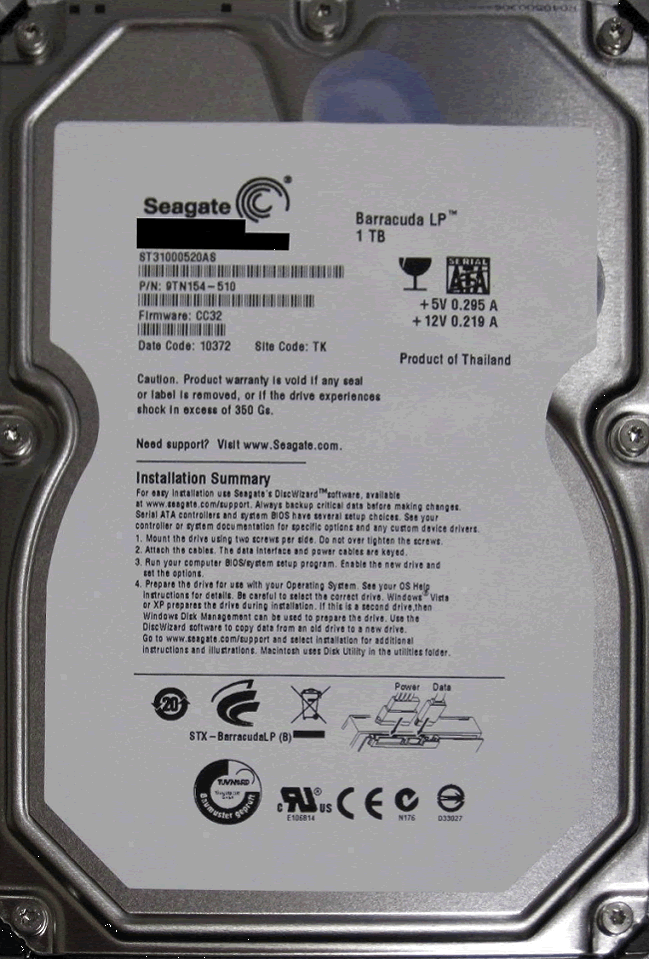
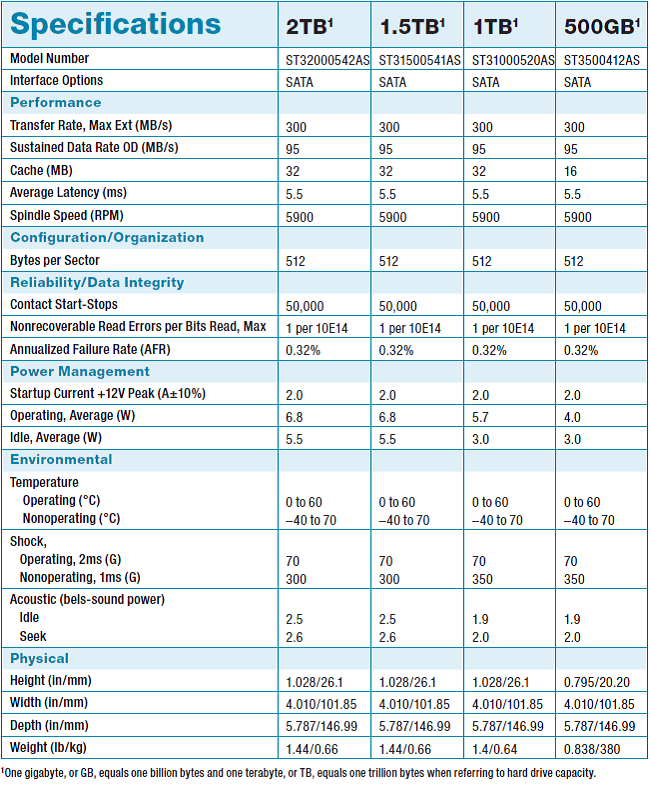
The unit comes preinstalled
with twin 3.5" 1TB ST31000520AS Barracuda LP or super low power drives,
which according to Seagate can save up to half the power consumption of normal desktop
hard drives and have the following official specifications.
By default the drives are
preconfigured as a RAID 1 array with all system software preinstalled.
The drive caddies are each
secured by two screws on the base of the unit and the drives are user
replaceable.
Software CD-ROM
The supplied CD contains:-
- Iomega StorCenter Manager
software. - EMC Retrospect Express HD
- backup software. - An installable HTML instruction
manual in eleven different languages.
Device Specifications
& System Requirements
Specifications
- Network
type: 10/100/1000Mbps - USB 2.0
host ports: 3 - RAID
level: JBOD (Spanned), RAID 1 (Mirroring) - Hard
drives: (2) SATA II - Printer
server: Support for (3) USB printers included - Media
server: Built in DLNA® certified media
server and iTunes® server. Support for DLNA/UPnP™ compliant
devices including game consoles, IP cameras, and digital picture frames. - Operating
System: EMC LifeLine operating system which is
based on Linux. - AC
Voltage: 100-240 VAC - Power
consumption: 5 Watts (min) - 19 Watts (max) - Acoustic
noise: 28 dBA maximum
System
Requirements
- Available 10/100 Mbps or
1000 Mbps network Ethernet port (required) - DHCP-configured network
(recommended); Network hub, switch, or router (recommended) - CD or DVD drive to
install software and view user's manual - DLNA/UPnP-compliant
digital media adapter (DMA) required to use multimedia server functions
(sold separately). - PC:
Microsoft® Windows® XP; Windows Vista™; Internet
Explorer 7.0, Firefox 3.0, or higher browser - Mac:
Mac OS X 10.4-10.6; Safari 3.0 or higher browser - Linux:
Supported Linux distributions: Redhat 9, Enterprise 4/5, Mandrake 10,
Devian 4, Gentoo, FedoraCore 6/5, SopenSUSE10.3
You will note that Windows 7
isn't mentioned here.
Iomega's website states that the
Iomega StorCenter ix2-200 supports Windows 7 and this is confirmed as my device
was configured, set up, and used, via my main PC running Windows 7 Home Premium
64bit. No operating system related incompatibilities or anomalies were
experienced throughout these tests or during the weeks I've been using this
unit.
Warranty details are as
follows:-
|
STORCENTER |
AMERICAS OR THE ASIA-PACIFIC REGION |
EUROPE, THE MIDDLE EAST, OR AFRICA |
RECONDITIONED |
|
ix2-200d |
1 |
2 |
90 |
Setup and Installation
There are a couple of ways of
setting up the device.
The first is to run the
installation CD which launches the combined installer shown below.
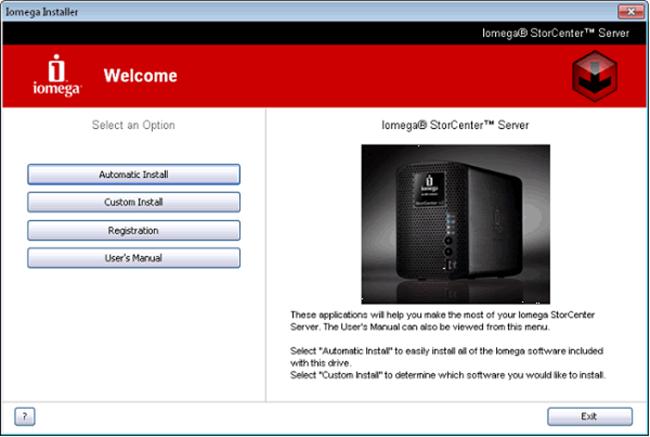
Selecting 'Automatic Install'
sets up both the StorCenter Manager software and EMC Retrospect Express HD.
'Custom Install' allows you to
chose what to install although at the very minimum the StorCentre Manager software
must be installed.
'Registration' allows you to
register your purchase with Iomega.
Finally, the user manual can
be installed to your hard drive in a choice of eleven languages. The manual is
in HTML format, is fully searchable and divided into logical sections. I found it
to be well written, very clearly explained and pleasingly comprehensive.
Here's what happens if you
select the custom install option.

When you click on the 'info' button the following
product details are displayed.


The second method, which I
preferred, is to download the latest software from Iomega's website and install the
applications individually.
I normally do this anyway when
installing new hardware but the specific reason I did it this time was that
none of the enclosed documentation or software supplied mentions Windows 7,
although I'd made sure to confirm in advance that the device was indeed Windows
7 compatible before ordering, as my current main PC is running Windows 7 Home
Premium 64bit.
As it happens the version on Iomega's website has a slicker
installation routine, is unbelievably easy to follow, and is more up to date so
I'd recommend that anyone buying this device downloads the latest version
rather than relying entirely on the CD.
Iomega boast that it only
takes four clicks to set this device up. The information contained in
their quick setup leaflet is extremely scant to the point of being
virtually non-existent so it's just as well that they live up to their claims.
Having been through the installation
process I can see why they rely on less documentation since the setup really is
as simple as it can get and is genuinely one of the easiest setup procedures
I've ever seen on any device. Personally though I'd like to see just a
little bit more in the way of documentation as I like to know what to expect before
I get started but this really is only a minor quibble and to be honest I can't
fault the installation routines.
Basically you install the
supplied StorCenter Manager software on the main machine then on any of the
machines that you want to access the drive.
These screens are so easy to
follow that they're pretty much self explanatory so I don't really
need to elaborate too much on the actual process, but here's what happens.

First choose your Language.

Welcome Screen

Network Connections

Power Connections

Power on the device
As part of the setup process
you're also asked to enter a main username/password and basically that's it!
The device is now set up as a
Raid 1 (mirrored) array with two network folders mapped by default ('public
& 'Backups').

The 'public' folder contains
popular default entries but you're free to change these to whatever you want.
The 'Backups' folder is required for the EMC Retrospect Express HD backup software.
Essentially you're now free to
start using the device via Windows Explorer but if you want to configure things
further or create and grant access to other users/devices you need to access
the StorCenter Manager software.
So let's have a look at the
features of the StorCenter Manager software next.
The StorCenter Manager
Software
The StorCenter Manager
Software is very comprehensive with a web interface that has a clean and
pleasingly modern look to it.
It's not only easy to use but
very intuitive and even users with very basic knowledge should have no
difficulties accessing all the features via the tabbed interface.
Main Screen

This is the main screen that
provides access to the most common functions and access to all the other
functions via the tabs.
The Dashboard Tab

The dashboard provides some
basic hardware details and status information.
The 'View hardware status'
link reports the internal temperature of the unit and (in units that support
it) fan speed.
It should be noted that the Iomega
StorCenter ix2-200 doesn't have a cooling fan though with Iomega favouring a
small mini-blower instead. So for this unit zero RPM is always shown
next to the fan speed and the green tick purely indicates that the mini-blower
is still working properly.
The mini-blower is
exceptionally quiet though.
Setting up and
controlling additional users

Here we can add in users, set
user levels and control access to individual folders.
It's exceptionally easy to set
all this up and I was impressed with the access controls on offer.
Creating a user is as easy as
clicking on the 'Add' button above and entering the details below.

The non-administrative user access
levels for individual folders can then be determined by firstly selecting the
'Shared Storage' tab below.

Clicking on the spanner icon
next to a folder then brings up a screen where a simple tick box allows you to
determine whether the folder is to be secured or not. The screen after this
(shown below) allows you to set the individual permissions for that folder as
follows.

Once the user account and any
required permissions have been set up it's simply a case of installing the
StorCenter Manager software on any other device(s) that you want to be capable
of accessing the Iomega StorCenter ix2-200 (which can be a Windows PC, Mac or
Linux system).
I installed the software on my
wife's laptop running Windows XP and once logged in the NAS was automatically
detected, set up and mapped in Windows Explorer, with only the folders that I'd
granted access to being accessible. Secured folders without access permissions
are not only protected but completely invisible to users without appropriate
permissions.
All in all very very easy to
set up and I was up fully and running within two minutes.
The StorCenter Manager
Software
Key Features
The 'Settings' tab provides
access to a wide range of features as shown below.

So let's find out what is on
offer.
|
Function |
Description |
 |
Allows users to manage the From here you can manage The full manual for EMC Retrospect You can also schedule 'copy I can see this as being is a |
 |
Allows you to automatically The Automatic configuration options |
 |
Allows you to specify the |
 |
A range of functions for · · · · |
 |
Quite a useful one this. It Full settings are available |
 |
Not terribly surprisingly Selecting 'Download' generates |
 |
This screen displays a list The Iomega StorCenter |
 |
Allows you to group users You can then set folder You can also view a full |
 |
Internet Small Computer On the Iomega StorCenter iSCSI drives are particularly |
 |
Displays a list of the Currently there are twelve |
 |
There are different sections
Media From here you can enable Having selected a media Playable content is then Obviously the options I had no difficulties Picture Allows you to automatically The files are transferred The settings here are again Another checkbox also lets Plug in the digital camera I found this quite a useful All in all this function works Video I haven't got a suitable Multiple IP video cameras Different recording schedules Recordings are automatically Limits can be placed on the You can also view a live |
 |
Allows manual configuration Jumbo frame support (which increases If you have a suitable FTP access to the NAS unit |
 |
This section looks after the You can select from seven The brightness of the lights |
 |
The Iomega ix2-200 acts as a This section contains a I tested this in Windows 7 Adding a connected printer to
I found this feature to be |
 |
Quite a simple feature that With some thought this feature |
 |
Allows remote access to the Once logged on remotely Certain features are not |
 |
A fairly basic search My own personal preference |
 |
Enables or disables the 'security Enabled, which I'd regard as Disabled, allows anyone |
 |
Enables or disables BitTorrent When enabled torrents can This is another very useful Downloaded content is saved |
 |
Updates the firmware of the The firmware update is first The unit I received shipped |
Additional Slideshow
Functionality
Iomega have also built a slideshow
function into the NAS unit which uses either a Cooliris or Adobe Flash plugin.
Personally I hadn't come
across the Cooliris software before but
it's widely used in a range of media devices including mobile phones, mp3
players etc.
Rather unusually though this
slideshow feature is only available when you access the unit via a web browser
(either remotely or locally) and not directly through the StorCenter Manager
software.
To access this feature locally
you need to key in 'https://storage/' into your browser (or the IP address if
you've changed it from the default) which, after you've logged in, brings up
the same StorCenter Manager interface except this time you can now drill down
through the folders and an additional 'start slideshow' link is now available.
I'm not sure why Iomega have chosen to disable
this option in the main StorCenter Manager interface as this seems somewhat confusing
and inconsistent.
As soon as you know that this
is the case though it's not really a problem, but I still can't see any logical
reason why they haven't included the slideshow functionality in the StorCenter
Manager as well.
It's a very minor quibble
though.
Interface wise Cooliris is very clean, functional and
easily usable.
In my opinion it's
particularly attractive looking software and it's positively dripping with
eye-candy. So I'd recommend using the Cooliris
option as it certainly seems to be a worthwhile addition to the software.
Power Saving Features
The Iomega ix2-200's power saving
features include automatic hard drive spin-down and an Energy Star®
certified power supply.
Seagate's "super low
power" drives, the ability to control drive spin down times, and the
options to adjust the brightness of the lights on the front of the unit, add up
to mean that this device has very lean requirements.
The official figures for this
are 19 Watts maximum power use (when both drives are being accessed) down to a
miserly 5 Watts with the drives spun down.
This is a particularly power
efficient device.
Performance Tests
For benchmarking purposes I
used ATTO's Disk Benchmarking software as this runs a series of copying
operations and measures the average read/write times for a very comprehensive
range of file sizes.
ATTO's software runs a large
number of multiple sequential operations for each file size and therefore
generates a very accurate average for each result.

My own network runs at
100Mbit/s which as can be seen above is too slow to push the Iomega ix2-200 to
its limits. What these tests do however demonstrate is that this device is more
than capable of pushing a 100Mbit/s network to saturation point (near to its
theoretical maximum speed of 12.5MB/s).
Given a full head of steam and
with a gigabit network the Iomega ix-2-200 is however capable of speeds much in
excess of this. A friend of mine recently bought the same unit and has kindly provided
me with the following test results which demonstrate what you can expect to
achieve when connected to a gigabit network.

Speed wise this unit is
actually pretty good. It isn't up there with the top enterprise class units but
it outclasses most other units in its price range and is therefore towards the
top end of the performance ratings for budget NAS units.
Additional Real World
Tests
Before we make our mind up
though let's have a look at some real world tests as well.
The same test files were used for
all these tests, firstly 100+ JPG files (averaging 2.5 MB each) and secondly a
single 1GB MPEG2 video file.
All results shown here are based
on the average of several test results.
Write Speed Tests
Here we see the results
obtained from copying the test files from my own PC to the NAS unit.

As with the benchmarking
software we can see that this is pushing the limits of my 100Mbit/s network.
Read Speed Tests
And here are the results when
copying the test files from the NAS unit back to my own PC.

Again this is similar to the
results produced by the benchmarking software.
Internal file copying
tests
To get an idea of the Iomega ix-2-200's
internal speed I carried out some copying operations firstly with 100+ JPG
files averaging 2.5 MB each.
Secondly with a single 1GB
MPEG2 video file.
The results obtained are as
follows.

Not exactly blisteringly fast
but remember that this is a worst case scenario since we're continuously reading
and writing both drives in the same array and there is therefore a natural
performance hit.
So what do
we make of all this. Let's go to the final page and find out....
Summation and Conclusion
Before
we look at the conclusion let's have a look at a summary of the main positive
and negative features as I see them.
The positives are.
- Relatively cheap price
(NAS hardware tends to be enterprise level equipment with an associatively
high price tag). - Small, attractive and
sturdily built appearance. - The unit comes
preconfigured with all hardware and system software already installed. - Decent if not amazing
speed but this is relatively fast for a budget NAS unit. - Extremely quiet in
standby mode. - Full RAID 1 support.
- Extremely
easy setup. In fact it just doesn't get any simpler than this. - Superb management
software. - USB Printer Sharing Support.
- Full User and User Group access
management. - Inbuilt BitTorrent
support. - Replaceable/swappable
hard drives. - Excellent media streaming
performance. - Support for digital
cameras and video surveillance cameras.
Efficient and economical power consumption.
As far as negatives go
there's really very little to report.
- No RAID 0 support,
however JBOD spanning allows for use of the full capacity of the drives
(in this case 2TB).
Noise levels when the drives are in use may be considered excessive by
some but providing the unit is sympathetically located I would personally
view this as within normal limits. - The printed 'quick
install' documentation could be a bit more extensive however given the
ease of installation this is really a very minor criticism. - It's not possible to directly
set user quotas with regard to total space consumed. This can be indirectly
achieved by placing size limits on folders the user has access to but
doesn't take into account folders accessed by multiple users so there's
nothing preventing any one of the permitted users grabbing all the space in
that folder up to the allocated limit. It's more of a feature request than
a criticism but I'd like to see the ability to apply size quotas directly to
users.
Conclusion
As we've seen earlier this NAS
unit is very small, very neat, easy to set up and in my view exceptionally easy
to configure.
Functionality wise this device
certainly doesn't betray its budget origins either as it's absolutely packed to
the brim with features.
Setup and installation
genuinely don't get any easier than this and the unit itself is intuitive and
transparently easy to use.
As far as noise goes, when the
drives aren't being accessed the noise levels are so quiet as to be
almost inaudible. This is at least partially due to the fact that the unit
doesn't actually have a cooling fan but uses a small mini-blower instead.
Naturally noise levels increase when in use and there's a low pitched rumbling
noise when the drives are being accessed however this is to be expected and is in
my view well within reasonable limits. So in general, providing it isn't
located directly on a surface that amplifies vibration, this unit is relatively
speaking very quiet.
If I were to be excessively
critical I could pick out a couple of very minor tweaks I'd like to see in the
StorCenter Manager software but realistically the software is extremely slick,
attractive, very easy to use and I can't really fault any of this.
Speed wise, although it's not
exactly going to set any records, it's more than adequate and is at the higher
end of the performance charts relative to other budget devices.
As I've said above it would be
nice to be able to directly set user quotas but this isn't by any means a deal
breaker and doesn't in any way detract from the unit's performance otherwise.
In general I really couldn't
be more pleased with the Iomega StorCenter ix2-200 Network Storage unit as it
easily satisfies everything I need and very much more.
Overall this is a superbly
featured, attractive, neat and keenly priced NAS unit which in my view makes it
exceptional value for money.


This is the current price for the Iomega StorCenter ix2-200 NAS
[field name=iframe]
You may discuss this review
below.