 |
Review: Kingston SSDNow V100 128GB Desktop Bundle |
Kingston NL were kind enough to send us their SSDNow V100 drive for reviewing. The drive is available with capacities of 64GB, 128GB and 256GB. You can get the bare drive, as well as a notebook or a desktop bundle.
Kingston Technology Company Information
Kingston Technology was founded in 1987 and has its headquarters in Fountain Valley, California. Kingston offers more than 2,000 memory products that support nearly every device that uses memory, from computers, servers and printers to MP3 players, digital cameras and mobile phones.
You can find out more about Kingston Technology on their website.
Packaging
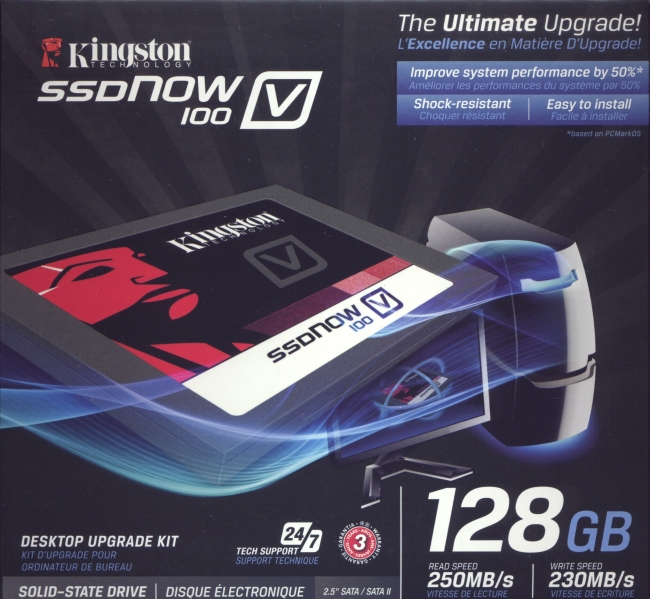
Package front
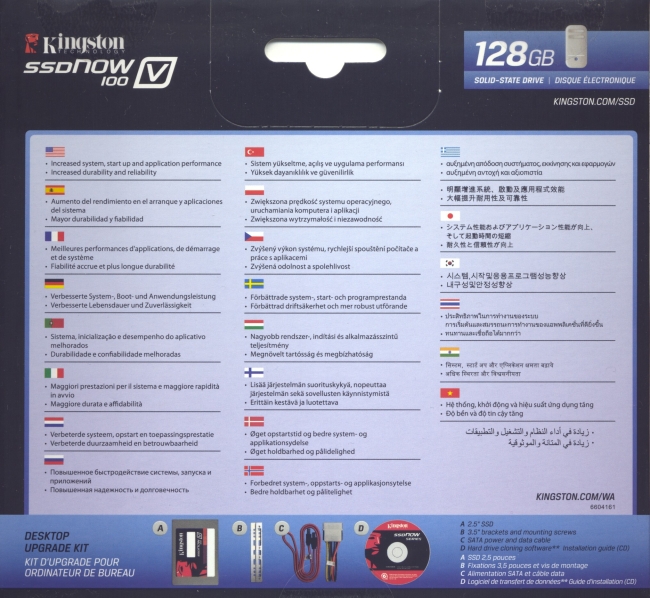
Package back
What's inside the box
Now it’s time to take a look at the drive itself and what the drive came shipped with.
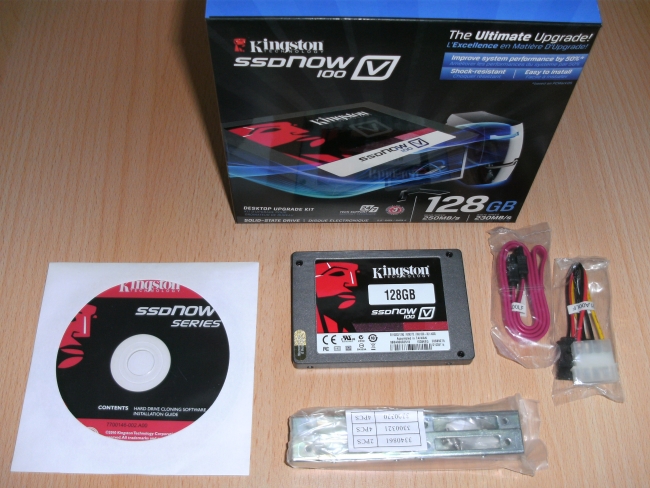
We received the desktop bundle of the SSDNow V100. This bundle consists of the drive itself, brackets (including screws) to make this 2.5“ drive plus a second one fit in a 3.5“ slot, an SATA cable, a 3.5“ to SATA power adapter and a CD containing an installation guide and a cloning software that will be tested later in this review.
Now let's take a look at the drive itself.
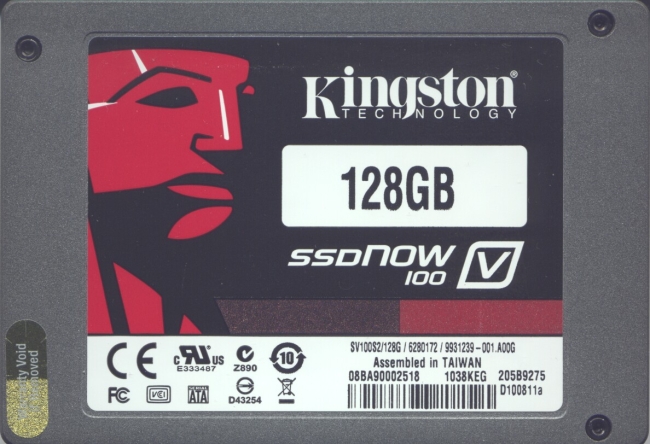
Drive top
On the top of the drive, we see the drive name, the model (SV100S2/128G), capacity, serial numbers and a warranty seal. We can also see that the drive was manufactured in Taiwan.
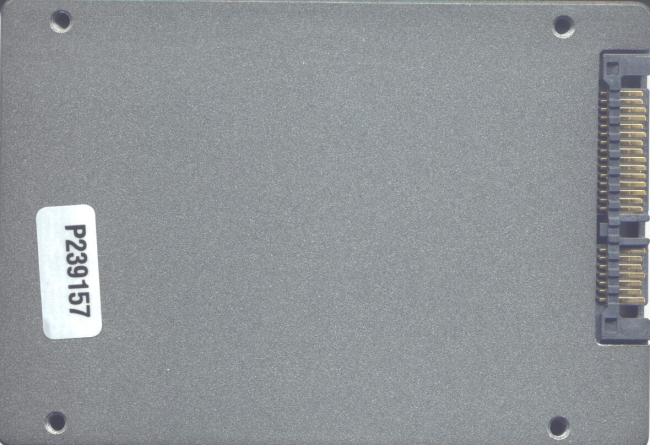
Drive bottom
On the bottom of the drive you can see a sticker and the SATA connector.
The drive itself is constructed with a solid metal case that looks like the drive will even survive being dropped from a table. However we did not actually test this.
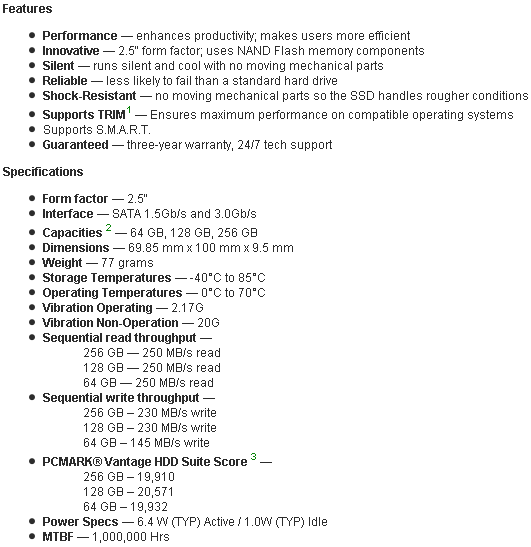
This is the drive's data sheet from the Kingston website. While the chipset is not listed on Kingston's site, several reports state that the SSDNow V100 uses a JMicron JMF618 processor.
Let's head on to the next page where we will take a look at the hardware and software used for testing...
Test machine
For this review we will be using a computer with the following configuration:
Hardware:
- Motherboard: Gigabyte GA-EP35-DS3R (Intel P35 chipset with ICH9R)
- Processor: Intel Core2Duo E8400
- RAM: 8 GB (4*2GB) OCZ PC2-6400U CL5 XTC OCZ2G8004GK
- GFX: Sapphire HD 3850 Ultimate 512MB PCIe
- Sound: Onboard Realtek HD Audio controller
- Hard disk OS: Samsung Spinpoint F1 HD103UJ
- Hard disk storage: Samsung HD501LJ
- PSU: BeQuiet Dark Power Pro P7-450W
- Operating System: Windows 7 Ultimate 64bit
The drive was connected to an SATA2 port of the ICH9R on the motherboard of our review PC. The SATA2 ports were configured to use AHCI mode.
Test applications
To test the performance of the SSDNow V100 128GB, we will be using the following test applications in this review:
- HD Tune Pro
- HD Tach
- ATTO
- Iometer
- AS SSD Benchmark
- CrystalDiskMark
Test procedures
As SSD technology has evolved a lot in the recent past and many basic benchmarks do not reflect the real performance of a drive in everyday tasks, we have limited our tests to just show a few synthetic benchmarks. They are complemented with advanced benchmarks using AS SSD and Iometer, followed by real world tests creating and copying files and running Windows 7 (64 bit) from the drive and comparing it to running the same OS installation from a HDD.
Drive preparation
We will be using results from our previous SSD reviews in some comparison charts. Some of the drives already were in a used state which may affect their performance. The tests in this review were made on an unused drive. In addition we performed a secure erase on the drive before cloning the Windows installation. All benchmarks that required partitions on the drive, these were created with NTFS filesystem and aligned to a 4K sector boundary.
Comparison graphs in this review will use the following colour scheme
 Kingston SSDNow V100 128GB (our review drive)
 Comparison SSD
 Comparison HDD
On the next page, we will have a look at some basic benchmarks...
HD Tunes Pro
First we will take a look at the drive's capabilities.

The drive came shipped with firmware D100811a, a firmware update was not available at the time of writing. We can also see that the drive supports TRIM and also Native Command Queuing (NCQ) which should positively affect the drive's performance in everyday use.


HD Tune Pro reads 64K blocks in its read benchmark. The Kingston SSDNow V100 achieved a good average read speed of 205.9 MB/s being very consistent throughout the whole capacity. While this is not a top of the class SSD result, it is still a huge difference compared to HDD.
CrystalDiskMark 3.0
Crystal Disk Mark is quite a handy benchmarking application, as it focuses on the file sizes that can cause a problem on a system drive.

CrystalDiskMark shows an impressive 258 MB/s read and 204.9 MB/s write speed in the sequential read and write benchmarks, even exceeding our fastest drive so far, the OCZ Vertex 2 which encounters performance drops due to the fact that it uses compression and CrystalDiskMark using random data that cannot be compressed. Also the 512K read and write test on our drive showed impressive speed. Unfortunately the drive's performance significantly drops when accessing data using 4K blocks which seems to indicate that the drive cannot handle a high number of IOPS (Input output operations per second)
ATTO
ATTO shows the drive's read and write performance using different block sizes.

We can see that the Kingston SSDNow V100 reaches its maximum read and write speed with block sizes of 256KB or more but getting slower on smaller block sizes. This is another indication that the drive is unable to handle high numbers of I/O operations per second.
HD Tach

While the read graph here shows a consistent speed of 215.4 MB/s, the write graph toggles between less than 20 MB/s and slightly above 100 MB/s with an average speed of 42.2 MB/s. As this benchmark software has not been adapted to Solid State Drives we probably should not worry too much about the results. However in previous SSD tests we had drives that also showed a consistent write performance with HD Tach RW.
Summary
The Kingston SSDNow V100 128GB is able to provide a very high data throughput when using large block sizes, however it slows down significantly on smaller block sizes.
Let’s head to the next page for our advanced test results...
I/O Performance
There is little point of having an SSD drive that has blazing sustained reading and writing speeds, if the drive can’t handle reading and writing of small random files. If you intend to use your new SSD drive to store and run your operating system, then the drive must be able to cope with the many small files that Windows will read and write on the drive continually. So we feel it is very important to test how many of these files a drive can handle in one second. We believe that anything over 1000 I/O’s per second would be enough for most users running a consumer grade mainstream PC, and should provide a smooth running system. But obviously, the more I/O’s that a drive can handle, the faster the drive will feel and leave more headroom for those huge multitasking sessions that users sometimes engage in. The things that we will look at are the total I/O per second and total MB/s.
Partition alignment and sector boundaries
Windows 7 will automatically align a partition when it is created, Windows XP will not. It is imperative that an SSD's partition is aligned. Windows XP is also restricted to sector boundaries, while Windows 7 will use 4K boundaries if it can.
Iometer allows us to set the sector boundaries for conducting the tests, and we have therefore set the sector boundaries at 4K, which means the Iometer tests are valid for Windows 7 and Windows Vista users. XP users may not be able to obtain such results.
AS SSD Benchmark


AS SSD benchmark shows high sequential read speeds of 243.67 MB/s and write speed of 219.26 MB/s, however the 4K reads and writes are slower than what we know from e.g. Indilinx or Sandforce based drives. In particular the 4K write test with 64 parallel threads shows a reduced performance compared to writing with just one thread which again indicates that the drive's chipset may have problems handling high I/O loads.
Iometer 4K random (outstanding I/Os = 4) write test
Our first test involves creating continual 4KB random files on the target drive with Iometer. We use a 4KB file size, as it is believed that Windows will create and modify many of this size of file constantly in the background during a typical Windows session.

IOPS

MB/s

The performance of this drive is somewhere between Indilinx and Intel based drives. While this is not too bad, other drives manage to provide much higher speeds.
Iometer 4K random (outstanding I/Os = 4) read test
If there are many 4K files created, then that must also mean that many 4K files need to be read. This test measures 4K reading performance.

IOPS

MB/s

The Kingston SSDNow V100 only manages to provide a fraction of the speed that other drives offer when reading random 4K areas. This is not what we expect to see from new drives.
Iometer 512K sequential (outstanding I/Os = 4) write test
Sequential writing performance is also very important; in this test sequential writing performance is tested.

IOPS

MB/s

Unlike what we have just seen on the 4K random writes, the Kingston SSDNow V100 outperforms most other drives. Slightly beaten only by the Vertex 2.
Iometer 512K sequential (outstanding I/Os = 4) read test
This test measures 512K sequential reading performance

IOPS

MB/s

Just like the 512K sequential write test, the SSDNow V100 is in the upper class of drives, probably reaching the limits of the SATA2 interface and only beaten by the Crucial RealSSD C300 when attached to an SATA3 controller.
Iometer Workstation simulation (outstanding I/Os = 64)
When running applications you will find that there is a mixture of small random files, and larger sequential files being created and read. Not only that, it isn’t just one file at a time. In this test we measure a simulated workstation pattern, with a queue depth of 64 (threaded)

IOPS

MB/s

In our workstation benchmark the Kingston SSDNow V100 again is one of the slower drives. However this is not really surprising, considering the bad results in our 4K tests.
Summary
While the drive outperforms most other drives in the sequential reading and writing tests, it is beaten by almost any other SSD when it comes to random 4K performance. When dealing with large files, the Kingston SSDNow V100 will be an excellent choice, however operating systems and many applications will also read and write much smaller areas of the drive where you may be disappointed in the performance.
Let's take a look at the included software on the next page...
True Image HD
The Kingston SSDNow V100 came bundled with a CD containing the drive's manual plus True Image HD software. This software is started by booting from the CD.

We can choose between several languages when starting True Image HD.

The Welcome screen provides the most important tools for adding a new drive to the system.
We decided to clone our system drive to the Kingston SSD Now V100+ using the automatic mode.

Beside the automatic mode, there is also a manual mode that allows you to further change settings like partition sizes or create new partitions. Unfortunately it is not possible to only clone single partitions this way which makes sense if your OS partition and other partitions are shared on the same drive and you just want to clone your OS partition. In this case you have to backup your partition to a different partition first and restore it from there. Cloning only works if the storage used on the source drive is less than the capacity of the target drive.

Before starting the clone process the allocation of the target drive before and after the operation are shown.

A progress window is shown while True Image HD copies data from the old drive to the Kingston SSDNow V100.

After a few minutes the cloning was completed. We can now run our operating system from the cloned drive.
Unfortunately True Image HD does not seem to be completely aware of SSD and does not always properly align the partitions to 4K boundaries. We cloned a Windows 7 installation that was properly aligned to 4K boundaries and so was the cloned drive. However when we used backup/restore to copy just a single partition to a cleared drive the target partition was not properly aligned as you can see on the following screenshot. This may adversely affect the system performance:

We then manually created the partition with Windows 7 and restored again. Now the alignment was OK:

Summary
The included True Image HD is a handy solution for transferring data from your old drive to the SSD. However it has downsides in being unable to clone single partitions directly and its inability to always properly align to 4K sector boundaries.
Let's compare the performance of the cloned Windows installation on the next page...
As previous real world tests have been carried out with different data and on different hardware, we will not provide comparison data from our previous SSD reviews. This also means that the results presented in this section can not be easily reproduced. In addition to the hardware differences also different operating systems or drivers may give different results that will make the tests impossible to reproduce. In order to measure the time required for these tests, we used a stopwatch. Due to the inaccuracy of starting and stopping the tests, the results were rounded to the nearest second.
Booting Windows installation
Most users will probably want to use their new SSD in order to run the operating system and applications. For this test we used the operating system installation on our review PC, a Windows 7 Ultimate 64 bit installation with the latest OS patches that was installed about four months ago. The following graph shows the times required for the login screen to come up (upper bar) and for the desktop to appear (lower bar) when we were using automatic Windows login

Using the SSDNow V100 as the PC's operating system drive reduced the Windows startup time by about 40%.
Creating large files
For this test we copied a 4GB file from a Ramdisk to the drive. In the following graph you can see the time required for writing the file.

The HDD required exactly twice the time of the SSD when creating the 4 GB file.
Copying large files
The file from the previous test was now copied from one location to another on the drive. In order to make sure that the file was not cached by Windows, the PC was rebooted first.

Again the SSD only required about half the time of the HDD for copying large files.
Copying multiple small files
For this test we used the files from a Windows XP Professional CD with integrated SP3 and a few drivers that were added using nLite. The data consists of 592MB in 7069 files and 518 directories. This data was then copied within the drive. Again we rebooted before the copy in order to prevent Windows from caching the files.

In this test we can clearly see the advantage of an SSD that has a considerably lower access time compared to HDD. While the SSDNow V100 was able to copy about 28 MB/s, the HDD was stuck at 11 MB/s.
Summary
The Kingston SSDNow V100 achieves about twice the speed of the HDD when operating on large files and about 2.5 times the speed when working with small files.
Let's head on to our conclusion on the last page...
Positive
- Excellent performance on sequential drive access
- Silky smooth operation as a system drive and completely stable
- Fast access times
- Completely silent operation
- Fast operating system load times
- Fast application loading
- Easy to use 3.5“ adapter set
- Clone software included
- MTBF: 1,000,000 Hrs
- Trim support (on compatible operating systems)
- Three-year warranty
- Live 24/7 tech support
Negative
- Very slow when operating on small block sizes
- Expensive with high cost per GB of user storage
Let us summarise the most important positive and negative points below:
The main positive points
It is very easy to use the desktop kit and install the drive in a 3.5“ drive bay. This kit also provides space to add a second 2.5“ drive. During our tests the drive showed a very high sequential read and write speed. Just like all other SSD drives that we have tested so far, access times are very low too.
The main negative points
As we have already stated, multiple times in this review, the drive is far away from the performance of Indilinx, Intel or Sandforce based drives when it comes to writing small blocks. In particular the read performance is a very limiting factor on this drive.
To sum up, this is what we would say:
It's not easy to judge this drive. When reading and writing sequential data, the drive outperformed most other drives. It was even faster than Sandforce based drives when writing random data as these drives gain a lot of performance by compressing data. On the other hand the drive's controller seems to be unable to handle a high amount of IO operations making it slow down in multi-tasking environments – not even to mention database applications that mostly access many small portions of data. However this drive is of course still much faster than any HDD.
A nice addition to the drive was the provided cloning software from Acronis. It is quite handy for moving your operating system to the new drive, however this software does not always align partitions properly, so it is highly recommended to partition the SSDNow V100 before cloning.
During regular PC usage of course we clearly noticed the difference between doing the same operations on SSD or HDD. Most operations on the Kingston SSD Now V100 only required about 50% of the time that we needed on the HDD. However other solid state drives achieve even better results without costing much more.
Due to the excellent sequential speed and the comprehensive equipment, we decided to give this drive a 3.5 stars rating.

This is the current price for the Kingston SSDNow V100 128GB Desktop Bundle:
[field name=iframe]
You may comment on this review below.
Thanks to:
 |
EFD Software for providing the fully licensed versions of HD Tune Pro |
 |
Simpli Software for HD Tach |
 |
Alex Schepeljanski for AS SSD Benchmark |