 |
Review: Samsung 840 Pro 256GB |
It was roughly one year ago that I covered the Samsung 840
Pro SSD, and I found it a very impressive performer. Quite a lot has changed
with the 840 Pro over that year. It has new firmware, and it now supports
'Rapid mode' via the Samsung Magician software. As we have already found out,
Rapid mode can substantially boost performance, and in this article, I'll not
only be testing the 840 Pro in Rapid mode, but also taking a look at what the
latest 840 Pro firmware has to offer with regards to performance.
The model I'll be testing is the 256GB version.
So let's find out how this SSD performs in our range of
tests.
Samsung company information
Samsung should need no introduction, but those of you who
would like to find out more about Samsung, can do so at their website.
The Samsung 840 Pro - 256GB SSD
Now it’s time to take a look at the drive itself and what it
came shipped with.
Packaging
The review sample I received was the basic kit, which is the
bare drive.
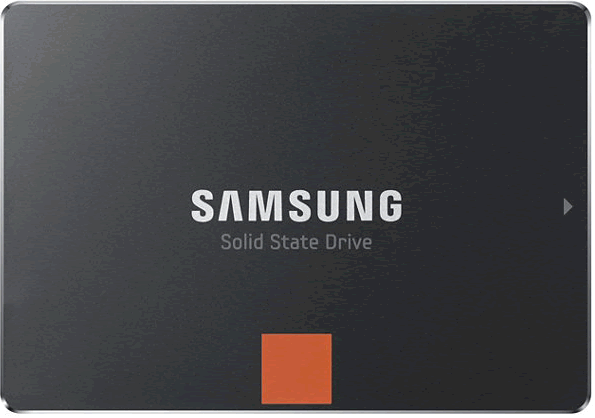
Drive top
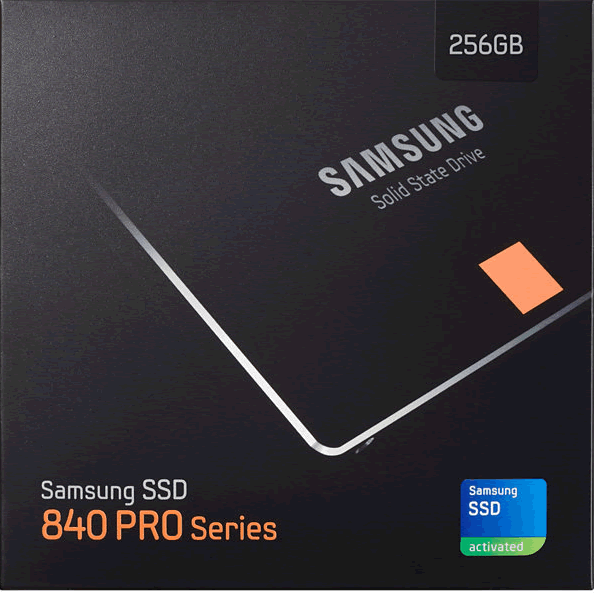
Box front
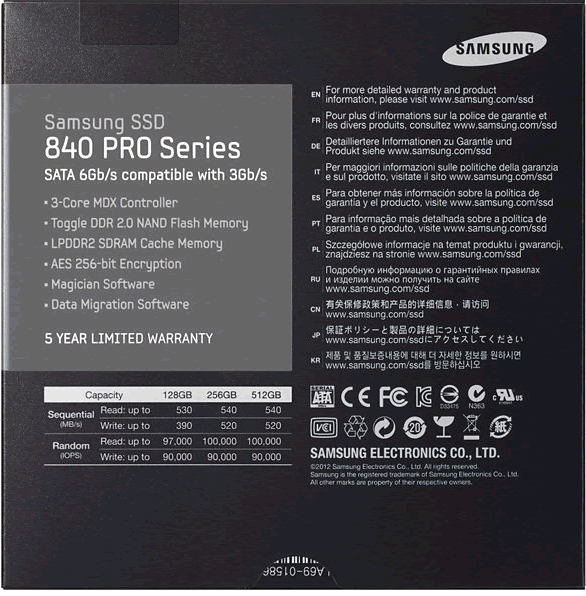
Box rear
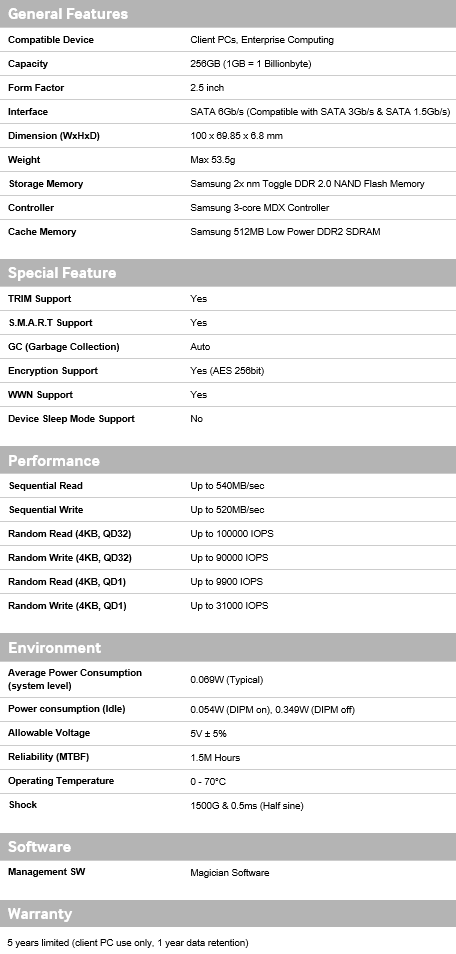
Specifications
Software
The software supplied, via download from the Samsung website,
is as follows.
- Samsung Magician 4.3
- Samsung Migration software (not shown or tested)
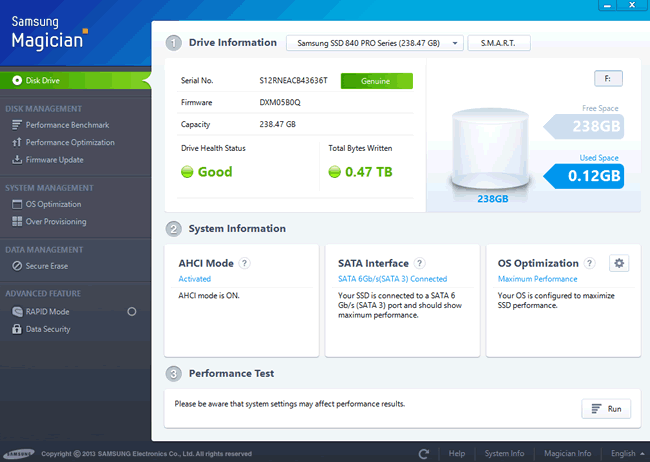
Samsung Magician
The Samsung Magician software allows the user to maintain
the SSD, and has the following features.
- Disk drive: Brings up useful information about the
SSD, including its health status, and how much data has been written to
the SSD. - System info: Allows the user to see system and
drive properties. - Performance Benchmark: Performs a basic benchmark
on the SSD. - Performance optimization: Performs a manual TRIM of
the SSD. - OS Optimization: Allows operating system features,
that can affect SSD performance, to be switched on or off. - Firmware Update: Allows the Samsung 840 Pro firmware
to be updated. - Secure Erase: Sends a Secure Erase command to the
SSD, clearing all NAND and returning the SSD back to its default factory
state. - Over Provisioning: Allows the user to set aside a
given amount of NAND as a manual over provisioning area. - SSD authenticity test: Checks to make sure
that the SSD is a genuine Samsung SSD. - Enable Rapid mode: Enables the NVELO 'Rapid' cache
feature.
Let’s head to the next page where we take a look at our
testing methods and the review PC....
Test machine
For this review I will be using a computer with the
following configuration:
Hardware:
- Motherboard: Asus Z87 SaberTooth (Intel Z87 chipset)
- Processor: Intel 4th generation Core i7 4770K
- CPU cooler: BeQuiet Dark Rock Pro 2
- RAM: 16GB Samsung Green DDR3 1600MHz (dual channel)
- GFX: Onboard Intel HD 4600
- Sound: Onboard Realtek ALC1050 HD audio controller
- Hard disk OS: OCZ Vector 256GB SSD.
- Case: Antec Performance One P280
- PSU: Antec True Power modular 550W
- Display: Dell UltraSharp U2412M 24” widescreen IPS LCD (HDCP
compliant) - Operating System: Windows 8.1 Professional 64bit
AHCI mode was also selected for all drives in the UEFI of
our test PC, and all tests were carried out in this mode. The SATA 6Gbps drivers
used on our review PC were the Intel Rapid Storage Technology (RST) Version
12.8.0.1016.
CPU power saving states were disabled for consistency, and
all the SSDs in this article were tested with all CPU power saving states
disabled.

Test applications
To test the performance of the Samsung 840 Pro SSD, I will
be using the following test applications in this review.
- HD-Tune Pro
- Iometer
- AS SSD
Benchmark - MyCE Reality Suite
- Anvil’s
Storage Utilities - PC
Mark 8
Test procedures
I will start off our testing procedures explanation by
stating that I did not run many synthetic benchmarks on the Samsung 840 Pro SSD.
You may ask why I have run so few synthetic benchmarks?
SSD technology has moved so fast in the last couple of years,
that basic synthetic benchmarks alone are now of very limited use, as they don't
really tell us much about performance and how the drive will behave in the real
world. I have therefore decided to show some basic benchmarks of the Samsung
840 Pro SSD, and will complement this with advanced benchmarks using IOMeter
and AS SSD benchmark. I will also show how the Samsung 840 Pro SSD performs in
the real world with our Myce Reality Suite test.
The reality of SSD performance
Whilst I can easily show you which SSD is technically the
faster, when you use one of these modern SSDs as an operating system drive it
becomes very difficult to tell them apart as far as performance is concerned.
A typical use of a small capacity SSD at the moment is to
have your operating system and applications installed onto the SSD. The
performance difference compared to a traditional HDD is enormous, however when
you start to compare SSD to SSD the difference becomes almost impossible to
detect.
Let’s look at why this is the case.
Drive A can boot to the desktop in 8.11 seconds, and drive B
can boot to the desktop in 8.12 seconds, the difference in time is
milliseconds, and can one really tell the difference?
The fact is, all modern SSDs are only ticking over when they
are only running the OS and launching applications, it’s only when you get to
some of the larger capacity SSDs, with enough free space to be able to hold the
actual data that you’re going to be working with, be that video, audio or
pictures, for example, that you actually get a tangible difference in
performance. This is where the SSDs with the better sequential performance start
to pull well ahead of the SSDs which have lower sequential read/write
performance.
Small file random IOPS vs sequential performance
IOPS
This is a fairly complex subject, but I will do my best to
explain things in a manner that is easy to understand.
The term IOPS is the amount of input or output transactions
that can take place in a one second interval, so for example, if an SSD is
quoted as being able to cope with 20,000 4K random write IOPS, then the SSD
should be able to cope with 20,000 input transactions in a period of one
second. If the same SSD is said to be able to produce 20,000 4K random read
IOPS, then the same SSD should be able to produce 20,000 4K random read output
transactions in a one second interval.
Ok, now we have some figures to work with, the next question
is how many IOPS are actually required?
This will depend on your usage pattern. If you are a typical
desktop user who browses the internet, does some word processing or perhaps
some audio or video editing, and perhaps plays a few games, then in actual
fact, you don’t need to have massive 4K random read/write performance. The
actual amount of 4K random performance that is required for a fast and smooth
running system for a desktop user with a usage pattern similar to the above
will be well under 1,000 4K IOPS.
On the other hand, if the SSD is being used for running a
large and complex database server, then 4K random performance is the absolute
measurement of how fast that server will run, as this type of application does
most of its input and output transactions in the 4K domain.
So why would I need an SSD with 80,000 4K IOPS for a
desktop?
In fact you don’t need this type of performance for a
desktop, but an SSD which is capable of coping with 80,000 4K IOPS will be
faster than an SSD which can only cope with 20,000 4K IOPS.
OK, I just said if under 1,000 4K IOPS are actually required
for typical desktop usage, why is an SSD with 80,000 4K IOPS faster than an SSD
with only 20,000 4K IOPS, confused?
You may ask, if I only require 1,000 4K IOPS surely the rest
is wasted?
While you may never need 80,000 4K IOPS, IOPS is all about
latency. The reason that an SSD can cope with as much as 80,000 4K IOPS is
because latency in this domain is very low. With 4K files, even if you require
to process 500 of them at the same time, you are not talking about a huge
amount of data, it has far more to do with how long it takes the SSD to process
a single file, and the amount of time required to process a single 4K is all
about how long it takes for the SSD to access or store that data before it can
move on to the next transaction.
In other words an SSD with 80,000 4K IOPS performance will
handle those 500 files faster than the SSD with 20,000 IOPS.
So how will a desktop user even notice this faster speed if
so little 4K random IOPS and data are actually used?
Multitasking is a good example. The more tasks you run at
the same time, you more you will notice the speed difference.
Sequential performance
I have always maintained that sequential performance was
every bit as important as small random file performance for a desktop SSD. To
me this was always so obvious for a desktop user. For example, let’s say you
want to launch an application or game. Both have some fairly large files to
load, and also a great many small files, but the point is, even the smaller
files are sequential in nature. Now let’s say you’re into audio or video
editing. Video files tend to be huge, and the files are written or read
sequentially. Isn’t this how many users are using their PCs these days?
Summary
So how does this shape up in the real world? Which is
better, massive 4K IOPS or massive sequential performance?
In an ideal world you want both, as an SSD with massive
random 4K IOPS and sequential performance will always be faster than an SSD
that has high sequential performance and moderate 4K random IOPS performance,
and the same applies to an SSD that has massive 4K random performance and
moderate sequential performance. The SSD which has high performance in both
patterns will always be the faster SSD.
However, you can still have an SSD that is very fast for
desktop use that has moderate random 4K performance and massive sequential
performance, the same can be said about a drive having massive random 4K
performance and moderate sequential performance, as it is about getting the
balance right if you have to compromise on one or the other.
Test drives
- Intel 520 series 240GB
- OCZ Vertex 4 512GB SSD
- OCZ Agility 4 256GB SSD
- Corsair Neutron GTX 240GB SSD
- Samsung 830 256GB SSD
- OCZ Vector 256GB SSD
- Toshiba THNSNF512GCSS
512GB SSD - Samsung 840 Pro 512GB SSD
- Plextor M5 Pro 512GB SSD
- Samsung 840 250GB SSD
- Kingston V300 240GB SSD
- OCZ Vertex 3.20 240GB SSD
- OCZ Vertex 450 256GB SSD
- Seagate 600 series 480GB SSD
- Samsung 840 EVO 250GB SSD
- Samsung 840 EVO 750GB SSD
- OCZ Vector 150 240GB SSD
- Samsung 840 EVO mSATA 1TB SSD
- Samsung 840 EVO mSATA 250GB
SSD - Samsung 840 Pro 256GB SSD
Drive preparation for running the tests
All the SSDs used in this article were in a clean and fresh
state when the testing period started. From then on, each drive had to rely on
its own NAND cleaning effectiveness for the remainder of the tests.
For the sake of clarity, I now only include SATA 6Gbps SSDs
in these tests, and all were connected to the native Intel SATA 6Gbps (port 0)
of my motherboard for these tests.
- All SSDs used in this article had their partitions aligned
to the Windows 8.1 x64 defaults.
Where I use graphs in this article to display results, I
will use the following colours to make it easier, for our readers to see which drive
we are reviewing.
 Samsung 840 Pro 256GB SSD
 Comparison SSD
Now let's head to the next page, where I look at some
basic benchmarks...
Synthetic Benchmarks
HD Tune Pro
In this benchmark I am checking sequential reading speed.

With an average sequential reading speed of 529.1 MB/s the Samsung
840 Pro SSD shows an excellent turn of speed.
Let's see how this compares to other recently tested SSDs in
the table below.

The Samsung 840 Pro 256GB SSD has done extremely well in the
HD Tune Pro 5 sequential reading test, and whilst there isn't a large margin
between the top SSDs, the Samsung 840 Pro 256GB is the fifth fastest in this
test.
AS SSD Benchmark
AS SSD benchmark is a benchmarking tool specifically
designed to test SSDs. The application tests sequential reading and writing
performance, 4K random reading and writing performance.
AS SSD benchmark also tests 4K threaded performance. This is
very exciting, as this test is the first available test that I am aware of,
that simulates how a PC operating system actually works. A modern PC and OS,
such as Windows 7/8 does not just run a single thread at a time, it runs many
threads. The AS SSD benchmark "4K 64Thrd" tests run 64 threads
simultaneously throughout the test. If this result is good, then you can be
pretty sure the drive will perform extremely well as a system drive.
After the tests complete, AS SSD benchmark derives a total
score for the drive being tested. This is based on all aspects of the test
results, and gives an indication of how the drive is performing overall.
Now let’s look at the result from the Samsung 840 Pro SSD in
the form of a screenshot. All our other comparison drives’ results are
presented in the form of a graph.


As we can see from the AS SSD test run, the Samsung 840 Pro
SSD has excellent reading performance, and writing performance is very good, finishing
this test in seventh place overall.
Anvil’s Storage Utilities
As well as performing SSD endurance tests. Anvil’s Storage
Utilities has a very nice SSD benchmarking application. The SSD benchmark tests
many different aspects of SSD performance, including 4K random at different
queue depths, and also sequential performance, but more importantly than this,
all using real test data.
Another very nice feature of Anvil’s SSD benchmark is the
fact that you can change the compression levels of the test data. The
compression levels of the datasets used for the tests can be varied from 0%
compression right up to 100% compressed data, and there are even a few data
profiles already included, such as database (8%) compression, and also an
application profile (46%) compression, which is designed to simulate real
application data being read and written to the SSD.
I will include a screenshot of the review drive, and all
comparison results will be presented in the form of graphs. If you would like
to see screenshots of the test results obtained on the other SSDs in this
article, you can do so by following the link here.

Summary:
The Samsung 840 Pro 256GB SSD has performed extremely well
in the basic synthetic benchmarks. Random reading and writing performance is
very impressive. Sequential reading and writing performance is excellent.
Let's head to the next page for our IOMeter test
results.....
I/O Performance
There is little point of having an SSD drive that has
blazing sustained reading and writing speeds, if the drive can't handle reading
and writing of small random files. If you intend to use your new SSD drive to
store and run your operating system, then the drive must be able to cope with
the many small random files that Windows will write to the drive continually.
So I feel it is very important to test how many of these random files that a
drive can handle in one second. I believe that anything over 1,000 I/O’s per
second would be enough for most users running a consumer grade mainstream PC,
and should provide a smooth running system. But obviously, the more I/O's that
a drive can handle, the faster the drive will feel and leave more headroom for
those huge multitasking sessions that users sometimes engage in.
IOMeter is probably the most versatile of all the synthetic
benchmarks. Its ability to be configured to generate a multitude of different
I/O traffic is unmatched. Another great feature of IOMeter, is the capability
to test any storage metric that you can think of, providing you know how to
configure the assignments. The reviewer also has complete control over things like
queue depth, block size, whether the traffic is random, sequential, or even a
mixture of both.
Partition alignment and sector boundaries
Windows 8.1, Windows 7, and Windows Vista will automatically
align a partition to 4k boundaries during partition creation, Windows XP won’t.
It is imperative that an SSD’s partition is aligned. Windows XP is also
restricted to sector boundaries, while Windows 7 and 8 will use 4k boundaries
if they can. The Samsung 840 Pro SSD is 4k boundary aware, and will use these boundaries
if possible. Of course it will also remap LBAs for compatibility with the
sector boundaries so that the drive can be used with Windows XP.
IOMeter allows us to set the sector boundaries for
conducting the tests, and I have therefore set the sector boundaries at 4K,
which means the IOMeter tests are valid for Windows 7, Windows 8, and Windows
Vista users. XP users will not be able to obtain such results.
I will provide a screenshot of the tests on the review drive
for those of you who like to see the actual test result. All the comparison
drive results are represented in the form of graphs.
If any of you would like to see a screenshot from any
IOMeter test on a particular drive, please feel free to request one, and I’ll
post the screenshot in the forum thread.
All the IOMeter tests create a 10GB data set on the target
drive, and each test is run for a duration of 3 minutes.
IOMeter 4K random write test with repeating data.
The first test involves creating continual 4KB random files
on the target drive with IOMeter. I use a 4KB file size, as it is believed that
Windows will create and modify many of this size of file constantly in the
background during a typical Windows session. It is said that most 4K random
writes take place at a queue depth of only one, and I have been requested to
include this test in my reviews.
Queue depth 1

Samsung 840 Pro 256GB SSD – 4K random write (QD 1)

At 136.05 MB/s the Samsung 840 Pro 256GB SSD is very good, and
finishes this test in ninth place.
Our next test involves creating continual 4KB random files
on the target drive with IOMeter. I use a 4KB file size, as it is believed that
Windows will create and modify many of this size of file constantly in the
background during a typical Windows session. I will use queue depths of 4 and
32 for these tests.
Queue depth 4

Samsung 840 Pro 256GB SSD (QD 4)

At a queue depth of 4, the Samsung 840 Pro SSD delivers
outstanding performance, and finishes this test in first place.
Queue depth 32

Samsung 840 Pro 256GB SSD (QD 32)

At 365.95 MB/s, the Samsung 840 Pro 256GB SSD has excellent
performance, and finishes this test in seventh place.
IOMeter 4K random read test.
If there are many 4k files created, then that must also mean
that many 4k files need to be read. This test measures 4k reading performance.
It is said that most 4K random reads take place at a queue
depth of only one, and readers have requested that I include this test in my
reviews.
Queue depth 1

Samsung 840 Pro 256GB SSD - 4K random read (QD 1)

In this test the Samsung 840 Pro SSD is excellent and
finishes in sixth place.
Queue depth 4

Samsung 840 Pro 256GB SSD - 4K random read (QD 4)

The Samsung 840 Pro is outstanding, and finishes this test
in second place.
Queue depth 32

Samsung 840 Pro 256GB SSD - 4K random read (QD 32)

At a queue depth of 32, the Samsung 840 Pro SSD once again
has outstanding performance, finishing this test in third spot.
IOMeter 512KB sequential write test with repeating data.
Sequential writing performance is also very important; in
this test sequential writing performance is measured.

Samsung 840 Pro 256GB SSD - 512K Sequential write with repeating data

The Samsung 840 Pro SSD shows an excellent turn of speed, finishing
this test in fifth place, and is only marginally slower than the fastest SSD in
this test.
IOMeter 512KB sequential read test QD1.
This test measures 512k sequential reading performance at
very low queue depths.

Samsung 840 Pro 256GB SSD – 512K sequential reading test (QD 1)

The Samsung 840 Pro 256GB SSD has outstanding sequential
reading performance at very low queue depths, finishing in second place, and is
only marginally slower than the fastest SSD in this test.
IOMeter 512KB sequential read test (dual threaded).
This test measures 512k sequential reading performance QD2.

Samsung 840 Pro 256GB SSD – 512K sequential reading test (QD 2)

At a more realistic queue depth the Samsung 840 Pro 256GB is
still showing excellent sequential reading performance, and finishes this test
in fourth place.
IOMeter Workstation simulation (outstanding I/Os = 64).
When running applications you will find that there is a
mixture of small random files and larger sequential files, being created and
read. Not only that, it isn’t just one file at a time. In this test I measure a
simulated workstation pattern, with a queue depth of 64 (threaded).

Samsung 840 Pro 256GB SSD – Workstation simulation

The Samsung 840 Pro 256GB SSD performs well with a
workstation based workload. It isn't as fast as the SSDs with the Indilinx
Barefoot 3 SSD controller, but is still showing a reasonable turn of speed.
Summary
All in all, the Samsung 840 Pro 256GB SSD has performed
extremely well in our IOMeter tests.
Now let's head to the next page where we will see how the
Samsung 840 Pro SSD performs in PC Mark 8.....
PC Mark 8 - Storage Suite
Here at Myce.wiki, we only recently introduced PCMark Vantage
into our SSD testing. PCMark Vantage is a good test, but is now somewhat
outdated in the applications that it tests, even to the extent of including a
test trace on how Windows Vista booted. We could have course have opted for the
newer PCMark 7, but I personally had issues with the way it ran the HDD tests.
We have built quite a close relationship with FutureMark
software, the authors of the PCMark PC benchmarking software that we use in our
tests. I decided I would use PCMark Vantage as stopgap measure until the more
up-to-date PCMark 8 benchmarking suite became available. I'm pleased to say
that PCMark 8 is now available, and it gives me great pleasure to introduce you
all to the results obtained by this new 'real world' benchmarking suite.
I will describe the basic way that each test is carried out,
above the graph for each test.
PC Mark 8 storage suite results

Samsung 840 Pro 256GB
Now let’s look at the individual PC Mark 8 HDD suite scores,
in the form of tables and graphs.
PC Mark 8 storage suite: World of Warcraft


The first thing that is very noticeable is that all the
tested SSDs are remarkably close, performance wise, when loading this game.
PC Mark 8 storage suite: Battlefield 3


Once again, the results are very close between all the
competing SSDs.
PC Mark 8 storage suite: Adobe Photoshop light


Yet again the results are all very close together, with the higher
writing performance SSDs out in front.
PC Mark 8 storage suite: Adobe Photoshop heavy


Again, there isn't a large difference between any of the
competing SSDs, and the SSDs with the higher sustainable writing performance are
generally out in front.
PC Mark 8 storage suite: Adobe InDesign


Once again, the SSDs with the higher writing performance
head the table.
PC Mark 8 storage suite: Adobe After Effects


There is virtually no difference between the tested SSDs.
PC Mark 8 storage suite: Adobe Illustrator


Once again, there is hardly any difference between the
tested SSDs.
PC Mark 8 storage suite: Microsoft Word


With only 0.2 seconds between the fastest and the slowest
SSD in this test, I would doubt anyone could tell the difference.
PC Mark 8 storage suite: Microsoft Excel


There is only 0.2 seconds between the slowest and the
fastest SSD in this test.
PC Mark 8 storage suite: Microsoft PowerPoint


Once again, the results obtained from our test SSDs are
almost identical.
PC Mark 8 storage suite: Storage bandwidth
Storage bandwidth displays the amount of bandwidth available
from the storage device, when it is faced with requests for simultaneous reads
and writes.

The Samsung 840 Pro has the greatest available bandwidth of the
SSDs that we tested.
PC Mark 8 storage suite: Overall Score
PC Mark 8 sums all the individual times taken to run each
storage benchmark, then comes up with an overall score for each of the tested
SSDs.

As we can see from the above graph, there isn't a large difference
between any of the tested SSDs, but the Samsung 840 Pro 256GB SSD is the
fastest SSD in these tests.
Summary
You may well ask, if the scores are so close between the
tested SSDs, then what is the point of running PC Mark 8 storage benchmark?
Basically, most of these individual tests are very low
demand as far as storage is concerned. More or less all the traces are
lightweight. But hang on a minute, this is how real applications work, and I
and many other reviewers have been saying for years that when we have
lightweight storage traces, it becomes almost impossible to tell SSDs apart
from a performance perspective. We now have a tool that can demonstrate this to
very good effect.
It's not until we start to push SSDs very hard that the
performance differences between SSDs start to become clearer, and for that we
need much heavier workloads, such as the tests run in the Myce Reality Suite.
PC Mark 8 is still very useful, as I'm quite sure that most of you will use at
least a couple of the applications used in these tests, and now you will be
able to compare one SSD to another.
Now let’s round off the performance tests with the Myce
Reality Suite on the next page.....
Myce Reality Suite revision 3.
So what is the Myce Reality storage test?
The Myce Reality Suite of tests is made from real everyday
applications and real data, there are no simulated tests, and everything is in
the real world. The only thing that's synthetic is that everything is automated
to make the tests fair, no matter which drive the tests are run on.
Recorded user sessions, by means of a script, are used to
launch the applications, load data, edit data, and then finally write that data
back to the target drive. The scripts do load the system much more than a human
could with these tests, as the scripts do not make mistakes, or pause to think
about what has to be done next.
Measurement system
The measuring system is part hardware and part software. The
hardware is a two part system comprising of a host PC and an external hardware
analyser which is proprietary, and runs a proprietary version of Linux with
special software.
The host PC is built around an Intel Core i7 2600 (Sandy
Bridge) CPU, and an Asrock Z68 Extreme 4 motherboard, with 8GB of 1600MHz DDR3
RAM. The interface between the host PC and the external measuring system uses a
proprietary PCIe2 x8 card, which is housed in the primary PCIe2 x16 slot on the
host PC. The analyser is calibrated before the start of the tests, and is
guaranteed to be accurate to within 0.03%.
Testing method.
Previously the test platform was Windows 7 Home Premium
64bit. The transition to Windows 8.1 Professional 64bit has now been made, and
at the same time a couple of new tests have been validated and introduced. This
has of course meant that I have had to retest a selected number of SSDs on the
new platform, and the results from SSDs that were old, or no longer available
in the test labs, have been discarded.
Building the tests and test image.
Once all the test data files and the scripts that run the
tests were complete, they were then copied to a single folder. I then fitted an
120GB SSD into the PC and did a clean install of Window 8.1 Professional x64.
The latest hardware drivers were installed and Windows update was run to
install any new updates that were available up to 24/11/2013. At this point the
applications that were to be used in the tests were installed and updated with
the latest patches.
The folder containing the application test data files and
scripts was then copied over to our fresh Windows 8.1 Professional 64bit SSD. A
drive snapshot was then taken of the complete SSD and the drive snapshot image
copied to an HDD for safe keeping.
The image is then simply restored to each of the SSDs on
test. After imaging the drive the partition is then realigned “on the fly” and the
free space is filled and then deleted to force TRIM. A 20 minute settling time
is allowed before the tests are run, then each of the 6 tests is run and the results
gathered. This process is repeated for each of the drives I am testing.
The test scenarios are as follows.
- Graphics content
- Video editing
- Audio import and compression
- Application multitasking
- Windows defender (full system drive scan)
- GRID 2 gaming test.
Let’s begin the tests.
Myce Reality Suite – Graphics content.
Using ACDSee Pro 3, 100 JPG pictures with an average size of
10MB are imported into the ACDSee library, and then 12 of these JPG files are
then selected for a batch process, of resize, compress the quality to 80%, and
finally write the edited pictures back to the drive. The test is approximately
78% read and 22% write, with an average queue depth of 1.98.

The Samsung 840 Pro 256GB performs well in this test, and
finishes in second place.
Myce Reality Suite – Video editing.
Using Vegas Pro, a 14GB HD MPEG2 video stream is loaded into
the editor, from which 2 segments are then cut and pasted into new segments. There
is a lot of disc caching going on in this test, which is approximately 55% read
and 45% write, with an average queue depth of 1.89.

Once again the Samsung 840 Pro SSD finishes in second spot
Myce Reality Suite – Audio import and compression.
Using Sony Sound Forge 10, a batch process is run consisting
of importing 30 24bit (192000 Hz sample rate) .wav files, and 100 16bit (44100
Hz sample rate) .wav files which are converted to MP3 audio files with a bit rate
of 128kbps, and the MP3s are then written back to the drive. The test is
approximately 72% read and 28% write, with an average queue depth of 2.62.

The Samsung 840 Pro 256GB SSD yet again finishes in second
place.
Myce Reality Suite – Application multitasking.
For this test I used several popular applications, Microsoft
Word 2007, Microsoft Access 2007, Microsoft Excel 2007, Microsoft Outlook 2007,
Adobe reader, Adobe Photoshop CS3, uTorrent, Windows media player, and Internet
Explorer 9.
This session runs for approximately 12 minutes. The test is
started by downloading a Linux distribution via uTorrent, Windows media player
is then opened, and a 1080p video file is opened and played for the duration of
the test. Microsoft Outlook is opened and any new emails are received, read,
then replied too, a document in Adobe reader is opened and scrolled from start
to finish, 3 Microsoft Word documents with graphics content are opened, browsed
and some sections of the documents are copied and pasted into a forth document
and then saved back to the drive. The same applies to Microsoft Access and
Excel. 100 MP3 files are imported into Windows media library. Six JPG images
are loaded into Adobe Photoshop and some minor editing is done and the files
saved back to the drive.
Finally, Internet Explorer 9 is opened with 10 tabs, and the
contents of the 10 tabs refreshed, and browsed while the other applications are
busy in the background.
I would describe the multitasking pattern as moderate to
heavy.
During this test there is approximately 85% reading and 15%
writing, with an average queue depth of 6.73.

With higher queue depths, in this test the Samsung 840 Pro 256GB
SSD is able to show what it can really do when pushed hard, and performs extremely
well, finishing the test in first spot.
Windows Defender (full system drive scan)
A full system drive scan is selected on drive C: and then
run. The test is approximately 99% reading and 1% writing, with an average
queue depth of 1.2.

The Samsung 840 Pro SSD has once again performed extremely
well, finishing in top spot.
GRID 2 gaming test
The game is launched and then a pre-saved level is loaded.
The test runs until the loaded level starts. The test is approximately 98% reading
and 2% writing, with an average queue depth of 1.

Once again, the Samsung 840 Pro SSD has performed extremely
well in this test, and takes first spot.
Summary
I firmly believe that the Myce Reality Suite gives a very
good overall picture of how a drive can perform in the real world, and in this
case, the Samsung 840 Pro 256GB SSD is clearly an extremely good performer.
Now let's head to the next page were I look at the
Samsung 840 PRO proprietary Rapid mode......
Not that long ago, Samsung acquired a software company
'NVELO' who specialise in SSD caching software. At the time, I and many others
were rather puzzled why Samsung made this acquisition. Well, now it becomes
clear.
Samsung's Magician software (4.3) supports 'Rapid' mode on
selected Samsung SSDs, currently the 840 EVO, 840 EVO mSATA models, and also
the 840 Pro. Only one SSD in the system can run in 'Rapid' mode, regardless of
how many qualified SSDs are installed.
Basically what 'Rapid' mode does is use system RAM as a
cache, where regularly used applications and data are stored in Rapid's cache.
Since system RAM is very much faster than NAND, a huge boost in performance can
be gained. This is especially true for small random files at low queue depths.
Rapid mode uses a filter driver which monitors the file
systems I/O activity, and will intelligently cache the data that the user
accesses most frequently. Up to 25% or a maximum of 1GB of system RAM will be
used for "Rapid's" cache.
I decided to run some tests, comparing 'Rapid' mode with
normal mode, and will present the results below by simply showing screenshots
of the two modes. In each test I will first show the result of 'Rapid' mode,
then follow that with the result obtained in normal mode.
AS SSD

Samsung 840 Pro 256GB - Rapid mode
Samsung 840 Pro 256GB - Normal mode
As we can see, writing speeds especially have risen by a
huge margin, random and sequential reading speeds have also received a large
boost.
Anvil's storage utilities (100% Incompressible)

Samsung 840 Pro 256GB - Rapid mode

Samsung 840 Pro 256GB - Normal mode
Once again, we can see a massive boost in writing performance,
with an incredible 706K IOPS witnessed for 4K random writes at a queue depth of
16. Reading speeds are also up, but by a more modest margin.
IOMeter 4K random write (QD1)

Samsung 840 Pro 256GB - Rapid mode
Samsung 840 Pro 256GB - Normal mode
Once again we can see a massive boost in performance, with
4K random writes up from 136.05 MB/s to 545.19 MB/s.
IOMeter 4K random read (QD1)

Samsung 840 Pro 256GB - Rapid mode
Samsung 840 Pro 256GB - Normal mode
This time there is a small decrease in performance.
IOMeter sequential write (QD1)

Samsung 840 Pro 256GB - Rapid mode

Samsung 840 Pro 256GB - Normal mode
Low queue depth sequential writes receive a large boost in
performance, up from 508.27 MB/s to 713.90 MB/s.
IOMeter sequential read (QD1)

Samsung 840 Pro 256GB - Rapid mode
Samsung 840 Pro 256GB - Normal mode
This time we see a slight decrease in performance.
PC Mark 8
To see what would happen with a real world scenario, I also
ran PC Mark 8 HDD suite in Rapid mode.

Samsung 840 Pro 256GB - Rapid mode
Samsung 840 Pro 256GB - Normal mode
The 'storage bandwidth' score has risen substantially in
'Rapid mode'.
Summary
As we have seen from these tests, there is a large boost in
performance to be had from running in 'Rapid mode', at least with synthetic
benchmarks. So how will this translate into the real world?
Time did not allow for an extensive study into real world
performance with 'Rapid mode' enabled. For the short time I did have Rapid mode
enabled on the 840 Pro 256GB SSD, there was the feeling of the system being more
responsive, but this is difficult to quantify. The PC Mark 8 score did rise,
but not by a huge margin, although bandwidth did increase by quite a large
amount.
One thing that is clear is, as the Rapid mode driver
matures, it gets faster with each new version. The version that is installed
with Magician 4.3 is a good deal faster than the beta version that was
available when I tested the SATA version of the 840 Pro.
So what is the downside of using Rapid mode?
I would say that before you even contemplate using 'Rapid
mode', you should ensure that your system is 100% stable. As you're going to
have your data in a RAM cache for a time before it's permanently committed to
NAND, a system crash, or for that matter a power outage, could result in data
loss.
Having said that, my system is very stable, and I have been
running in Rapid mode since September 2013 on the 840 EVO 750GB SSD, and have
not come across a single issue with Rapid mode whatsoever.
Now let’s head to the next page, and see how well the
drive performs after heavy use....
Myce Sustainable Performance Test
Over the last few months I have been studying countless
analyzer traces of real computing workloads, and also developing a test that
would accurately emulate and measure how performance is sustained over a period
of time. For obvious reasons, it is not possible to test an SSD review sample
over several months before publishing a review. The solution was to condense
this down to a manageable test, that doesn't take too long to run.
I will make it clear right from the outset that this is not
a torture test. Bringing any SSD to its knees is not helpful in the least, as I
for one would not use any SSD that had slowed down to crawl, just to prove a
point. The Myce Sustainable Performance test, I believe is a tough, but
sensible test pattern to use for measuring how an SSD will be behave once it's pushed
hard over a period of time.
The test pattern is "workstation" based, and
closely emulates a typical video or graphics workstation environment. The
results are measured using the same hardware I use for the Myce Reality Suite
tests, however, the test data and measuring system use a different method.
From the 80% full test listed above, I already have an SSD
with a lot of data on it. Adding to the data that is already there, the
"Sustainable Performance" test data is added. This test data is
approximately 20GB is size, so once this is added the SSD is pretty full.
The test is then run for a period of 20 minutes. 60
performance measurements are taken for every minute of the test, and an average
performance figure is generated after each minute. At the end of the test I
have 20 performance measurements which are then used to generate the graph
below.
The faster SSDs will obviously sustain more writes then the
slower SSDs. For the fastest SSD in this test, the test pattern generated 146GB
of writes, and 193GB of data was read from the SSD during the test.
When reading the graph, you should not pay too much
attention to which drive is the fastest, but instead look at the sustainable
performance curve of each SSD, as this is what this test is all about.
For the SSD that I am reviewing, I will also add a second
graph which looks at the result in more detail.
So let's look at the results.

Sustainable Performance test

Detailed results for the review drive
The Myce Sustained performance test is a tough challenge for
any SSD. The test pattern used for the test is workstation based, and from the
IOMeter workstation test run, we already know that the Samsung 840 Pro 256GB
SSD is a reasonable performer in a simulated workstation environment.
What this test does show, is that the Samsung 840 Pro SSD slows
down a little bit when pushed very hard. The good thing I can report though,
is it slows down less with the latest firmware when compared to how it behaved
with the first release firmware.
This concludes our review. To read the final thoughts and
conclusion, click the link below....
Final thoughts and the conclusion
User experience
A modern operating system such as Windows 8 rarely does one
thing at time; it processes hundreds of threads at once. Just take a look at
the processes and services that are running in task manager for an idea of how
much is going on, even with the PC idling at the desktop. When you start
running applications on top of this, the workload increases in line with the number
and type of applications you are running. It’s also fair to say that many of
these processes are already loaded into system RAM, but many are also loaded into
and unloaded from RAM to the system drive as and when they are required.
If we look at the 4 basic requirements for a really fast
SSD, they are as follows.
- Small file threaded performance needs to be high.
- Small random file performance needs to be high.
- Sequential read and write speeds need to be high.
- Fast access times.
The Samsung 840 Pro SSD series SSD has all of these attributes
in abundance, and feels very snappy in use as a system drive.
Stability
I have only had the Samsung 840 Pro 256GB SSD for a few
weeks, so it’s not possible to comment on the drive's long term reliability. What
I can say is that during the testing period, the Samsung 840 Pro 256GB has been
100% stable, and has caused no problems whatsoever.
The Samsung 840 Pro SSD is as “plug n play” as it gets.
There are no special tweaks needed other than simply making sure that AHCI SATA
mode is enabled in the system UEFI (BIOS), and installing the latest Intel RST
SATA drivers, if you want to get the best performance and compatibility out of
this SSD.
Conclusion:
Let us summarise the most important positive and negative
points below:
Positive:
- Silky smooth operation as a system drive.
- Excellent sequential reading and writing performance, even
at very low queue depths. - Excellent 4K random writing performance, at low queue
depths. - Outstanding 4k random reading performance at very low
queue depths. - TRIM support under Windows 7 and Windows 8.
- Completely silent operation.
- Fast operating system start-up and shutdown times.
- Competitively priced.
- Excellent software bundle.
- Five year limited warranty.
Negative:
- Nothing worth mentioning.
To sum up, this is what I
would say:
The Samsung 840 Pro SSD has been around for a while, and
it's a mature product. Incremental firmware updates have ironed out the bugs,
and increased performance of this SSD. Rapid mode has proven to be very
reliable, and does give the feeling of a more responsive system.
The Samsung Magician software is very likely the best SSD utility
software currently available, is genuinely useful, and very easy to use. It
allows control of some very powerful features, and all done with a few very
simple mouse clicks.
So where does all this place the 840 Pro?
The Samsung 840 Pro has a proven track record with regard to
reliability, and it is still one of the fastest SSDs available. Its nearest
competitor from a performance perspective is the OCZ Vector 150. Out of the
box, the Samsung 840 Pro is slightly faster, but the OCZ Vector 150 maintains
its performance better, even when pushed very hard.
The Samsung 840 Pro has a near perfect performance profile
for a consumer grade SSD. That profile ensures that with a normal PC user usage
pattern, it excels and is most probably the fastest consumer grade SSD
currently available. In the more demanding workstation environment however, the
OCZ Vector 150 is able to pull ahead.
So basically, one year down the line, the Samsung 840 Pro is
still as attractive as it ever was, and it makes a sensible purchase for what
is still a high performance 'state of the art' SSD.
Price
I found the Samsung 840 Pro 256GB available at OCUK
for £184.99, which also makes the Samsung 840 Pro good value for money at this
performance level.
The parting sentence is:
“The Samsung 840 Pro 256GB is an outstanding SSD, and
during the testing period proved to be very stable”.
Rating system
The editor rating is based on the following key factors.
- Performance
- Stability (is the device stable?)
- Price
- Warranty
- Supplied accessories (what is included in the package)


Thanks to:
|
|
EFD Software for |
|
|
Alex |
|
|
|
|
|
FutureMark for |


You may comment on this review below.