|
Review: Transcend |
Transcend has kindly given us a lend of its
JetFlash 620 64GB secure USB pen drive for review, featuring a throughput of up
to 32MB/s read and 18MB/s write and a Private Zone which is a password
protected hidden volume using 256-bit AES encryption.
USB pen drives have come on a long way
since the very first pen drives that held just 64MB of data. Before the pen
drive, the only way to carry a large quantity of data was with a removable
media drive, such as Zip Disk and recordable CD/DVD. USB pen drives have the
huge advantage in that they work on pretty much any PC with a USB port, are
more rugged than removable disks and some are small enough to fit on a
keychain.
In this review, we will take a look at the
performance, how it handles with various file systems such as exFAT and NTFS,
its encryption software and how well its Private Zone performs.
Transcend Company Information
Transcend is a well-known manufacturer of
memory products, including USB flash drives, flash memory cards, card readers,
computer RAM and a variety of consumer electronics goods.
The company was founded in 1988 with its
headquarters in Taipei, Taiwan and claim to be the first memory module
manufacturer in Taiwan and also the second in the world to receive ISO 9001
certification. Their products are marketed around the world, serving all the
major markets.
Further information on the Transcend
Company Profile can be found on
their website.
Retail packaging
The Transcend JetFlash pen drive came in retail
packaging, as shown in the following images:
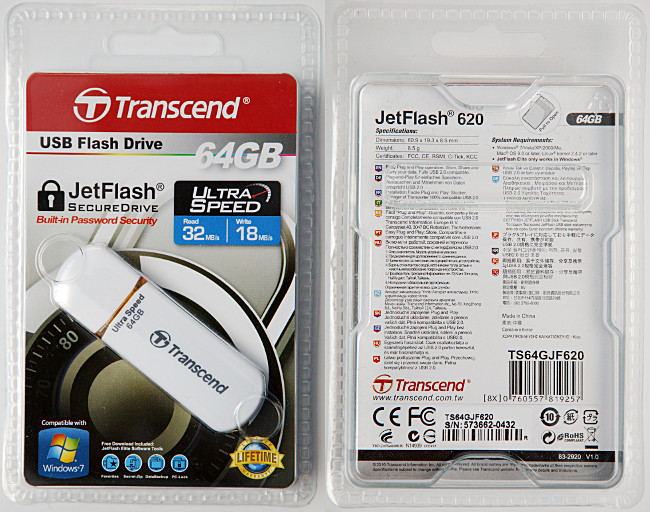
Front / Back
What’s inside the package?
The following shows what the pen drive came
with.
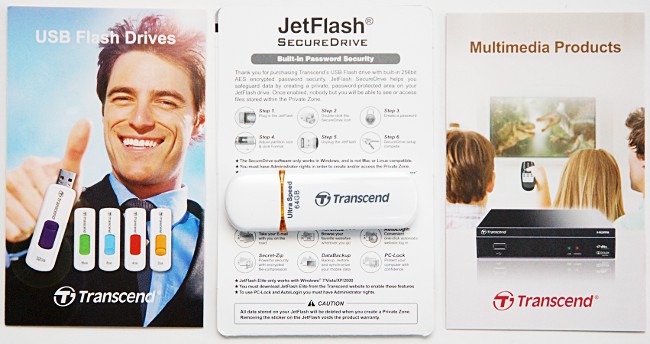
The package consists of the following:
- Transcend JetFlash Ultra Speed 620 64GB
pen drive - Card with warranty & password
security usage info - Flyer showing Transcend's range of pen
drive products - Flyer showing Transcend's media player
products
The pen drive is simply plug & play, so
nothing other than the pen drive is required to get started. The security
software is preloaded on the pen drive itself.
Now, let’s take a look at the drive itself:
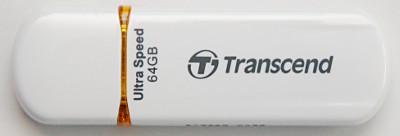
Front
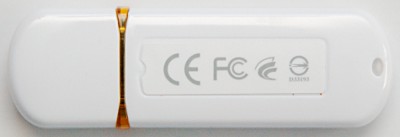
Reverse side
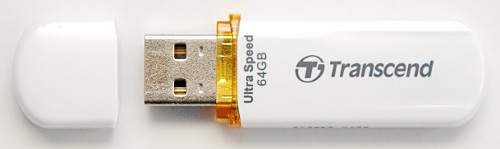
Cap removed
The pen drive itself is very compact and is
slightly wider and about the same thickness as a USB ‘A’ plug, so should easily
fit in USB ports that have limited space.
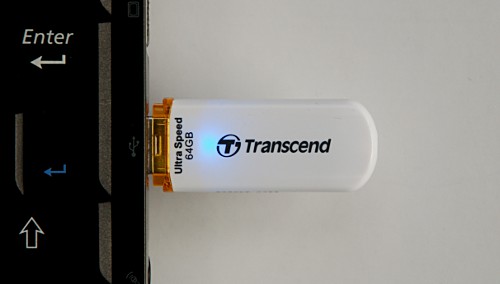
Operation mode indication
Like most pen drives, this one has an LED
that serves to indicate power and activity. When powered up, it flashes blue to
indicate activity and remains solidly lit when idle.
The following image shows it lit while
plugged in my Netbook:
Product Specifications
The following are the specifications, as
provided on the Transcend website:
- Storage Capacity: 64GB (1GB = 1 billion
bytes) - Data Retention: 10 years
- Erase Cycles: >10,000 times
- Connector Durability: 10,000 times
- System Performance: Read: 32MB/sec
(max.), Write: 18MB/sec (max.) - Wear-levelling: Dynamic
- Power Supply: DC 5V±10%, Max current:
200 mA - Temperature Range: Operation: 0-70°C,
Non-Operating: -20°C-75°C - Certificates: CE, FCC, BSMI
Features:
- Compact, streamlined design
- Includes JetFlash SecureDrive data
protection software - Downloadable JetFlash Elite data
management tool - Fully compatible with hi-speed USB 2.0
- Easy plug and play installation
- USB powered. No external power or battery
needed - LED indicates the usage status
- Limited Lifetime Warranty*
* Warranty requires online registration to
activate
Additional specifications on the
packaging:
- Dimensions: 60.9 x 19.3 x 8.5 mm
- Weight: 8.5g
- Certificates: FCC, CE, BSMI, C-Tick, KCC
- System Requirements:
- Windows 7/Vista/XP/2000/ME
- Mac OS 9.0 or later, Linux Kernel 2.4.2
or later - JetFlash Elite only works in Windows
- Built-in 256bit AES encrypted password
security - Requires Windows, not Mac or Linux
compatible - Requires Administrator rights
For a pen drive, Transcend clearly makes
sure every little specification and detail about it is revealed!
Now let’s head to the next page where we
will look at our test PC and testing procedures…
Test Equipment
The following are the specifications of the
computer this product has been tested on.
Computer 1:
- Crucial 2GB x 2 kit 240pin DDR3 PC3-8500
- Gigabyte S1156 Intel P55 motherboard - GA-P55-UD4
- Intel Core i5 Quad 750 2.66GHz 8MB cache
- Antec Three Hundred Black Case
- Sapphire HD4350 512MB PCIe DVI graphics card
- Samsung Black DVD+/-RW SH-S223B SATA
- Lite-On DVD+/-RW SOHW-1693S ATA
- OCZ Vertex 2 120GB SSD FW v1.29
- Samsung F3 1TB 7200RPM HDD
- WD RE4-GP 2TB 5400RPM HDD
- ASUS U3S6 PCIe x4 USB3.0 / SATA 6Gbps
- Corsair 450W ATX PSU
- Windows 7 64-bit Enterprise Edition
Digital Cameras:
- Nikon D60
The
camera was used for taking the product photography.
Test applications
To test the performance of the pen drive,
we will be using the following test applications in this review:
- HD Tune Pro
- ATTO
- CrystalDiskMark x64
- (Various in-house batch file scripts)
Test procedures
Unlike low capacity USB pen drives where
most people leave the drive formatted in the default FAT/FAT32 file system,
when it comes to pen drives with 64GB or larger capacity, some users will
reformat the drive as exFAT or NTFS to be able to store files greater than
4GB. As we have noticed before, switching from FAT32 to NTFS also has a very
noticeable difference in write performance due to the way Windows handles each
file system.
To cover the three popular file systems as
well as the Private Zone, we will rerun each benchmark to cover each scenario:
- FAT32 formatted
- exFAT formatted
- NTFS formatted
- Private Zone (FAT32 formatted)
Due to the variation in performance form
one USB controller to another, we will conduct all tests in this review using
the same front USB port on the review PC.
For the real-world testing, we will test
the following:
- Copy a large 1GB file from the RAM drive
to the HDD. - Read the 1GB file.
- Copy a large 1GB folder consisting of
8,247 JPEG files in a hierarchy of 245 folders. - Read this entire folder’s content.
- Copy a single folder containing 187 MP3
files, totalling 987MB. - Read the all the MP3s in this folder.
- Delete the complete photos folder.
We chose a RAM drive as the file copying
source to minimise the latency as much as possible by the read source. For the
read tests, the files are simply read by our script without being stored
anywhere. All timings are measured by script with accuracy to 1/100th
second. The computer was rebooted prior to the read tests and again prior to
the delete tests.
The purpose of the delete test is to show
how long it takes to delete a large folder, as this task is usually quite tedious
with a FAT32 file system and especially on a USB pen drive.
Original File System
Before we conduct any tests, we will first
take a look at the file system this drive came pre-formatted with:

As with any other modern hard disk or
removable disk, manufacturers rate the capacity in multiplies of 1,000 bytes,
so 64GB means 64,000,000,000 bytes. From the above screenshot, we can see that
the drive is just above this figure, but right next to this mark, we see 59.8GB.
You may wonder, where’s the other 4.2GB? Like Solid State Drives, USB pen
drives reserve a small amount of capacity for wear levelling as well as to
provide spare capacity to replace worn out sectors over the lifespan of the
drive.
So what about the security software that
comes stored with the drive? Unlike most pen drives and external hard disks
that store the software in the user storage area, this pen drive stores the
software in a separate area that appears as a CD-ROM drive when plugged in. The
following image shows the virtual CD-ROM, along with the Private Zone partition
enabled:

The following ‘CHKDSK’ screen gives some
more technical information about the file system, such as the allocation unit
size:

All FAT32 tests are conducted with this
factory formatted file system. Only when we complete these tests do we format
the drive in NTFS or exFAT to carry out all the tests again under the
alternative file systems.
Now let’s head to the next page, where
we carry out some benchmarks…
HD Tune Pro
We start by running the HD Tune Pro benchmark:

Quite an impressive result here for a USB2
pen drive, with a transfer rate just slightly below its rating.
Now for the HD Tune with Private Zone
enabled:

Interestingly, when Private Zone is enabled,
we get two bursts of speed during the test, peaking at just over 35MB/s. On
the other hand, it’s nice to see that its encryption does not slow down the
read performance in this test.
ATTO disk benchmark
ATTO has become a standard tool for measuring
the data throughput of hard drives and flash drives. It measures the
performance of reading and writing, using different file sizes and block sizes.
The following is with the original FAT32 file
system:

Now let’s see how this compares with when
the pen drive is formatted with NTFS and exFAT, as well as when its Private
Zone is enabled:

ATTO – Read performance

ATTO – Write performance
For read performance, all file systems as
well as the Private Zone give roughly the same throughput for a given transfer
size. However, when it comes to write throughput, we can clearly see that this
pen drive is optimised for the FAT32 and exFAT file systems. NTFS struggles
well behind, especially at lower transfer sizes.
CrystalDiskMark 3.0
Crystal Disk Mark is quite a handy
benchmarking application, as it focuses on the file sizes that can cause a
problem on a system drive and external drives.
The following are the test results:

These are by far the fastest read rates we
have seen from any USB2.0 pen drive, with the read throughput running 5MB/s
faster than its rating. Sequential write performance is also excellent for a
pen drive, again running just over 4MB/s faster than its rating. However, when
it comes to small write operations, this pen drive is only capable of 2 to 3
Random 4KB write operations per second, which may make it run slow in the real
world when writing a large number of small files.
As far as file systems and encryption goes,
the results are pretty similar with the encrypted Private Zone making a slight
lead.
Summary
The read and write transfer rates are
excellent, with the fastest sequential transfer rates we have seen from any pen
drive. In fact, reading performance of small files is excellent, making this
also an ideal drive for Windows “ReadyBoost”.
Based on file system performance with this
pen drive, those interested in storing files larger than 4GB would be better
off using the exFAT file system.
Real world tests
As with benchmarking SSDs it is pointless
conducting an endless amount of benchmarks on a pen drive. Real users may
conduct a few benchmarks when they first get their pen drive, but most users
simply want a drive that performs well in the real world.
The benchmarks have so far shown us that
this pen drive provides very good sequential throughput and small random read
threads, but rather limited performance with small random write transfers. Now
let’s see how this drive performs in the real world.
Real world single file copy test
The most common task people use a high
capacity pen drive for is transferring bulky files from one place to another.
So in this test, we will measure how long it takes to transfer a 1GB file to
and from the pen drive.
We used a script to measure the timing,
with the source file stored on a RAM disk to prevent the read source becoming a
bottleneck and the computer being rebooted after the write test to clear the
cache. These tests were repeated to cover the FAT32, exFAT and NTFS file
systems, as well as the Private Zone.
The following are the results:

Reading and writing performance is pretty
much the same whether we use the FAT32 or exFAT file system. NTFS performs a
lot lower when it comes to writing, taking over twice the length to store this
file. Unlike the synthetic benchmarks earlier, we can see that the Private
Zone has a noticeable effect on read performance.
Real world small files copy test
Not everyone uses a USB pen drive for bulky
files. In fact, some simply use it to back up their documents and photos, many
of could range from a few Kilobytes to a few Megabytes per file. So in this
test, we time how long it takes to copy 8,247 photos in a hierarchy of 245
folders totalling 1GB to and from the pen drive.
Like the previous test, these files are
stored on a RAM disk as the source and we used a script to measure the timing.
The computer was rebooted after each write test to clear the cache.
The following are the results:

Total time taken to write the file set

Total time taken to read the file set
When it comes to small files, the file
system itself can have a significant on transfer performance, especially when
it comes to writing the files. exFAT clearly leads when it comes to writing,
taking 5 minutes less time than with the pen drive formatted in FAT32, while
NTFS is slightly faster for reading. The impact of encryption is also
noticeable, again taking the longest to read the file set.
Despite how well exFAT performed, this
write time is still quite poor. In fact, if we were to fill the pen drive with
files similar to this file set, it would take nearly 9 hours to complete! So
for copying a large number of small files from one computer to another, we
would recommend first storing them in a Zip archive and then place this Zip
archive on the pen drive.
Real world MP3 files copy test
As most set top media players and many car
stereos can play MP3 files from USB, a very common use for a USB pen drive is
to carry MP3 files around. In fact, this drive should be large enough to store
a very large collection of music.
Like the previous tests, these MP3 files
are stored on a RAM disk as the source and we used a script to measure the
timing. All MP3s were stored in the same folder. The computer was rebooted
after each write test to clear the cache.
The following are the results:

Total time taken to write the MP3 file set

Total time taken to read the MP3 file set
As we can see here, the pen drive performed
reasonably well writing the file set, with a throughput of roughly 1GB of MP3s
per minute. We can also clearly see that NTFS seriously degrades write
performance when it comes to writing MP3s, taking over 4 times the length to
write the file set.
Real world file deletion test
One issue we noticed in the past when it comes
to pen drives and even external hard drives is the amount of time it takes to
delete a large folder from the drive, in some cases taking several minutes.
So for this test, we simply timed the
duration it took to delete the hierarchy of 8,247 files and 245 folders from
the pen drive. The computer was rebooted before we ran this test to clear the
cache. The timing was measured by a script.

Regardless of the file system, deleting a
large set of files is going to be a tedious process, in this case taking over 3
times longer than simply reading the file set. Interestingly, the NTFS file
system came in the lead this time, with the exFAT file system just a little
slower.
Summary
Like with Solid State Drives, synthetic
testing alone tells little about how a pen drive will perform in the real
world. For example, if we look at the synthetic results, it would appear that
the Private Zone performs as well as no encryption and that NTFS performs
almost as well as the exFAT file system. These Real World results tell a very
different story: The Private Zone performed noticeably slower than without
encryption regardless of the file system and exFAT was 2 to 4 times quicker
writing than NTFS.
Overall, exFAT performed the best for this
pen drive, giving read performance as good as FAT32 and the best write
performance in all three write tests, so unless one needs to use FAT32 or NTFS
for compatibility reasons, we recommend formatting this pen drive with the
exFAT file system.
Software Bundle
With how easy it is to leave a pen drive
behind, especially when using a public PC such as at an Internet café, pen
drive encryption is becoming just as important as laptop encryption, especially
for pen drives used to carry sensitive information. This pen drive comes with
security software preloaded in a separate partition that appears as a CD-ROM
drive. The software does not require installation or even present a UAC
request. Upon launch, it displays the following:

Here, we can set a password and a hint as
we have already done as an example in the above screenshot.
Once we click ‘OK’, it presents us with a
screen where we can specify how much capacity to reserve for the Private Zone:

Setting up the Private Zone or even just
resizing it requires the pen drive to be reformatted. For this review, we set
it to half the drive’s capacity; however, it is possible to use the drive’s
full capacity for the Private Zone. As the ‘Format’ word implies, this process
erases all data on the pen drive:

By default, both the public and Private
Zones are formatted in FAT32. Once formatted, the pen drive must be removed
and plugged back in to access the Private Zone:

Once plugged back in, the Private Zone
appears as a separate drive letter. The ‘I:’ drive here is the virtual CD-ROM
containing the security software, which appears when the pen drive is plugged
in:
The Private Zone appears as an empty drive
that cannot be accessed, formatted or written to. To access it, we must first
launch the security software:

The “Forget your password?” option displays
the password hint that was supplied when first setting up the Private Zone.
There is no other option or even the ability to wipe the drive to remove the
password. For example, if we attempt to format the pen drive without logging
in or even without running the security software, we get the following:

Once the correct password is supplied, it
shows the following screen:

At this point, we can add or remove data in
exactly the same way as with the public zone. The Private Zone remains
accessible until the pen drive is removed or the computer is shutdown or
rebooted. From here, we can change the password, resize the Private Zone or
simply eliminate it. If the Private Zone is removed, the password is removed.
To our surprise, the Private Zone is set up
completely independent to the public zone, with both showing up as separate removable
drives in disk management:

Finally, despite the product stating that
administrator privileges are required to use the Private Zone, we had no issue
setting up the Private Zone, as well as writing and reading files with it while
logged on with the Windows 7 Guest account. At no stage did it prompt for UAC
permission throughout our review.
Let’s head on to the next page to
conclude our review …
Positive
- Excellent sequential read and write
speeds for a USB 2.0 pen drive, exceeding its ratings. - Excellent read performance of small files
and Random 4KB read performance. - Very compact, considering its large 64GB
capacity. - Encryption software runs entirely from
the pen drive, no installation or UAC required. - Encryption software and manual stored as
a separate virtual CD-ROM drive. - Encryption software uses 256-bit AES and
also runs on Windows Vista/7 64-bit. - Fast handling of large files, such as
MP3s and high resolution photographs.
Negative
- Very slow small file writing
performance. - No ability to recover from lost password,
e.g. not possible to format. - Resizing the Private Zone requires
erasing all data from the pen drive. - Not USB3.0 capable, considering its high
capacity. - Easy to lose cap
Conclusion
For sequential reading and writing, this is
by far the fastest USB 2.0 pen drive we have come across, peaking at 37MB/s
reading and just over 22MB/s writing, giving sequential performance much like
what we would expect from an external hard disk. Read performance is also
excellent with smaller file sizes, giving random 4KB read performance of what
we would expect from an SSD than a pen drive. Based on our real world testing,
it took about 49 seconds to write a 1GB file and just under 30 seconds to read
it back. We would have liked to have seen USB3.0 support, considering its
enormous capacity.
Write performance on the other hand drops
off sharply once we move to smaller file sizes. For large multi-megabyte MP3
and JPEG images, the write performance is still pretty fast, but once we start
dealing with documents and other files a few hundred kilobytes in size, the
transfer rate is just a couple of files per second. So those who plan storing
a multi-gigabyte documents library with several thousand files would need to
set aside an hour or two for this process to complete.
Its encryption software is very simple to
use and does not require any installation or even request UAC permission to
launch. As it’s stored in a separate virtual CD-ROM, this also means that
there is no risk of the user accidentally deleting the software when formatting
or deleting files from the pen drive. Despite the manual stating that
administrative access is required, we had no issue reading and writing files
with the Private Zone while logged on with the Windows 7 Guest account. At no
stage did it request UAC permission, even when using the encryption software
for the first time.
The only other drawback we encountered is
that if the Private Zone password is completely forgotten, there does not
appear to be any way to recover the space that was used by the Private Zone,
which could be the entire capacity if it was originally set up this way.
Unlike many other pen drives which store the encrypted data in a separate
partition, this pen drive’s Private Zone appears as a totally separate removable
drive even in disk management. It is not possible to delete or format the
drive’s partition either without first successfully logging on.
To sum it up, this is what we would say for the Transcend
JetFlash 620 64GB pen drive:
“The Transcend JetFlash 620 64GB is ideal
for anyone looking for a high performance pen drive capable of storing a vast
amount of information without carrying a bulky hard disk, which is quick to
read back and with easy to use encryption software.”

Thanks to:
|
|
EFD |
|
|
Alex Schepeljanski for |