Adobe Flash Player (labeled Shockwave Flash in Internet Explorer and Firefox) is a computer software for the use of content generated on the Adobe Flash website, including displaying multimedia content, running rich web applications, and streaming audio and video.
Flash Player may run as a browser plugin or on mobile devices supported by a web browser. Therefore, you can access this software on any device.
When Adobe purchased Macromedia in 2005, Flash Player was produced by Macromedia and developed and distributed by Adobe Systems. Today, Adobe Flash is a household staple in the world of technology. This program enhances you viewing experience in regards to a variety of media.
Adobe Flash Player Overview
Adobe Flash Player is a runtime that executes and displays content from a supplied SWF file, but it does not have built-in functionality to alter the runtime SWF file. It can implement software written in the programming language of ActionScript that allows text, data, vector graphics, raster graphics, sound, and video to be manipulated during the runtime.
The player can also access specific connected hardware devices, including webcams and microphones, after the user has granted the same permission.
Adobe Integrated Runtime (AIR) uses Flash Player internally to provide a cross-platform runtime environment for desktop and mobile applications.
AIR supports Windows, Linux, macOS, and some smartphone operating systems such as iOS and Android. Additional features, such as integration of filesystems, native client extensions, native window/screen integration, taskbar/dock integration, and hardware integration with linked Accelerometer and GPS devices must be explicitly designed for AIR runtime.
Flash Player Installed in 5 Easy Steps
1. Check to see if your computer has Flash Player installed
2. Download the newest version of Flash Player via the Adobe website.
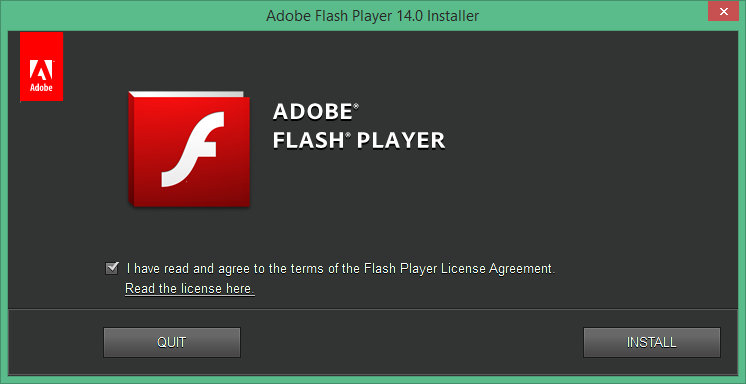
3. Install Flash Player. Follow the installation instructions which appear on the download page after you download Flash Player.
4. Enable Flash Player in your browser.
5. Verify that the Flash Player has been mounted.
You have successfully installed Flash Player if you see clouds moving in the animation. If you do not see the animation after completing all of the steps, refresh your browser's page.
Adobe Flash Player is one of the oldest web-based content formats, responsible for assisting millions of users with countless streams, games, and animations. Adobe will end Flash support by the end of 2020, due to security problems with the program.
Until then, Flash content will still be played by most web browsers, though almost all have limited their ability to play content automatically.
Download Adobe Flash Player for Students
Flash Player is distributed free of charge and its plug-in versions are available for every major web browser and operating system. Google Chrome, Internet Explorer 11 in Windows 8 and later, and Microsoft Edge come bundled with a sandboxed Adobe Flash plug-in.
- Go to this link. It is the official download link for Adobe Flash Player. Adobe Flash Player is expected to be discontinued by Adobe in late 2020. Meanwhile, most web browsers still support Flash, although the default functionality may not be enabled.
- Review the options to download and click Download Now or Install Now. As part of the download package, Adobe often offers other apps – if you see other apps listed and don't want to download them, remove the checkmarks from their respective boxes before clicking the button.
- Double-click the Downloads folder to launch Flash. After you have saved the installer to your device, you can find it in the default Downloads folder on your device. It will usually be called something like Adobe Flash Player.
- Send the authorization to run the installer. If you are using a Mac and see a warning from the Internet about the application being downloaded, click Open and confirm your admin password to start the installation. If you are using Windows, you can click Yes or Allow for the installer to run.
- To complete the installation, obey on-screen instructions. You'll be able to enable Flash in your favorite web browser once the installation is complete.
Detecting Your Flash Player Version
If the Adobe Flash Player needs to be updated, you can download it from their site or direct a user to the site and guide them through the installation.
There are different ways to detect the installed Flash Player version
- Use a Flash Player detector to determine the Flash-version of the plugin.
- Using your web browser to go to this link.
- It lists the version number. Check your version here.

Conclusion
The required version of Adobe Flash Player may vary according to the event. To ensure the appropriate release is enabled, use the login connection with the device search. Follow these tips to download the most appropriate version for you!