HWMonitor is C.P.U.I.D.'s freeware hardware monitoring program for the P.C., capable of reading voltage, temperature, and fan speed (shown as R.P.M.). The program can handle most common sensor chips and can read the on-die core thermal sensors of the modern CPU, the S.M.A.R.T. hard drive, and even the GPU video card's temperature.
This guide will look at how to set up the HWMonitor for your PC or Mac Computer.
The picture below is an example of a screen and display for the C.P.U.I.D. HWMonitor. The current value, as well as the minimum and maximum values reported, are described in the diagram.
Overview
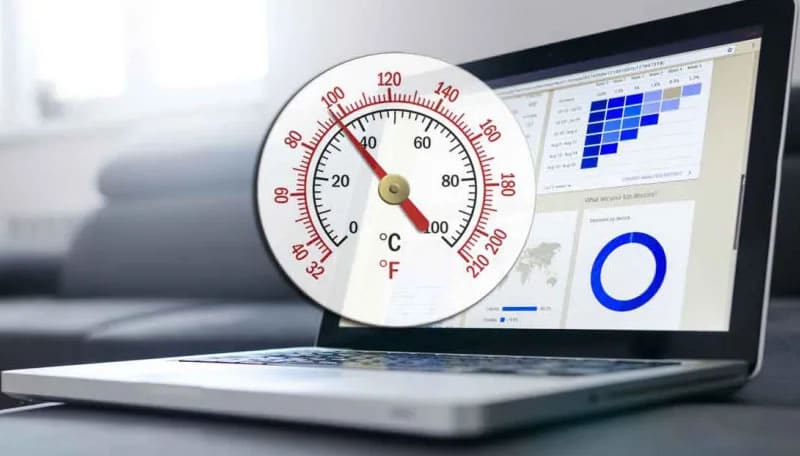
New motherboards provide helpful feedback when things go wrong but often require a reboot into BIOS or some other disk to gain access to the diagnostics. Stability problems that arise in demanding situations are not likely to reveal themselves during idle diagnostic conditions.
This is where the HWMonitor steps in, providing real-time, continuous feedback on the temperature, voltage, and operating status of the mainboard and subsystems of the device including video cards, fans, and batteries.
With a stress test benchmark (such as Cinebench) or suspect game, you can run HWMonitor side by side, watching the temperatures rise before a crash predictably repeats.
HWMonitor helps to inform you whether a critical fan has gone offline or runs abnormally here. Remedying the situation can be as easy as unblocking ventilation, reseeding a wire, or clearing a dust-shocked grill. The cost of cooked CPUs and motherboard replacements add up quickly, which is why the HWMonitor will save you time and money.
Setting Up Your HWMonitor
For years, HWMonitor has been used by network administrators to manage their physical infrastructure, look for performance issues, and troubleshoot. In this article, look at what HWMonitor is, its limitations, and some of the market's best alternatives.
C.P.U.I.D. HWMonitor Pro is available as a setup version (installing 32-bit or 64-bit binaries automatically depending on your Windows edition, creating program entries in the start and screen menus) and as a.zip file containing both binaries.
Installment
- Run the executable setup script, and let it lead you through the installation process
- The installation of a device starts when you run HWMonitor Pro for the first time
- If you already have a registration key, you can either copy the pvk file into the installation directory (usually c:Program FilesCPUID), or execute the registration process from the program with the key sent in the registration e-mail.
Editable Etiquettes
Sensor labels may be edited manually. To do that, select the line of sensors, then press F2 to activate the edition. In the main menu, you can choose View, then Edit Selection Label.
Tray System
To add a sensor to the system tray, select it and right-click to reveal the floating menu. In the main menu, you can also choose View and Add Selection to Tray.
Conclusion
HWMonitor stands out as a powerful tool for monitoring system hardware in real-time. Its user-friendly interface provides valuable insights.
Whether you are a gamer, an overclocker, or just someone who wants to keep their PC in top shape, HWMonitor is a reliable solution to help you stay informed about your hardware's health.
The free basic version has all the details and features you will need. HWMonitor is a tool that belongs in the toolbox of every computer user.